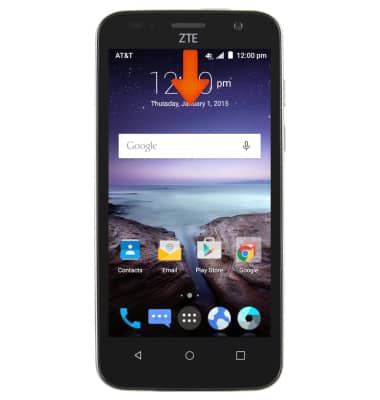
- To access the Notification bar, swipe down from the top of the screen.
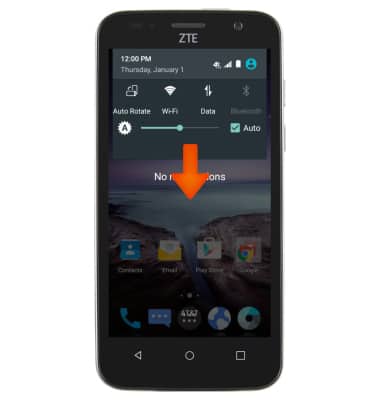
- Swipe down further to access Quick settings.
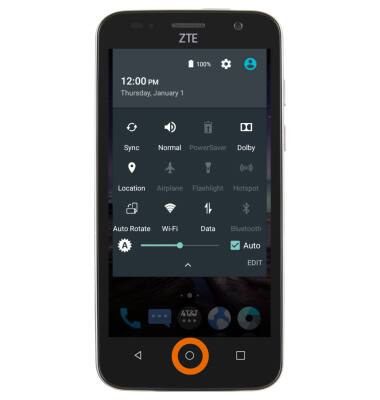
- Tap the Home key to return to the home screen.
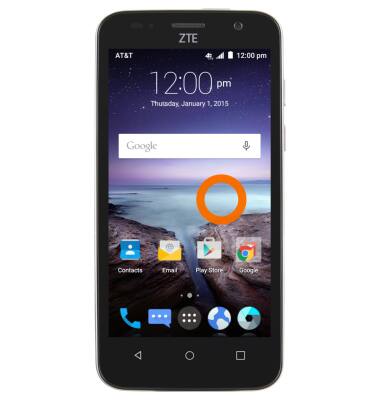
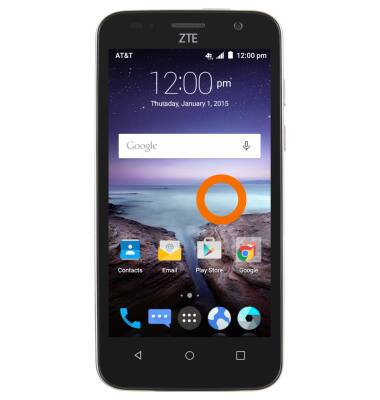
- To Add a widget, a mini app that runs on your home screen, touch and hold a blank area of a home screen.
- From the Widgets tab, swipe to, then touch and hold the Desired widget.
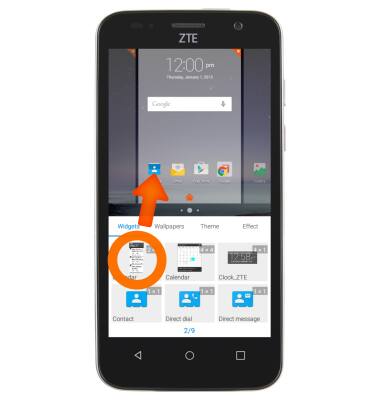
- Drag the widget to the Desired screen shown at the bottom of the display, then release.
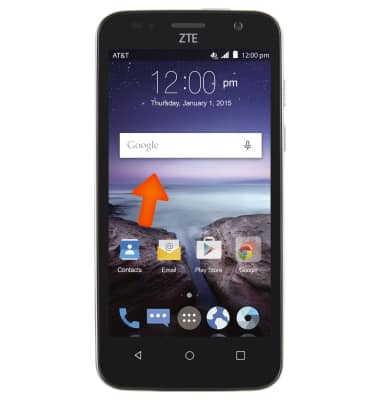
- Tap the Home key.
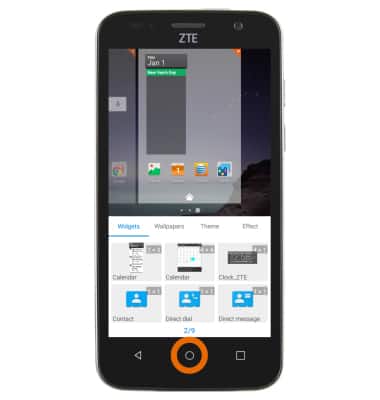
- To resize a widget, touch the Desired widget.
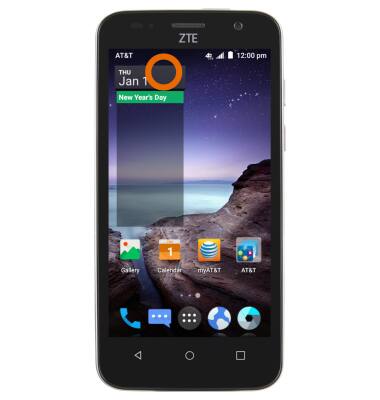
- Drag the Circles to resize as desired.
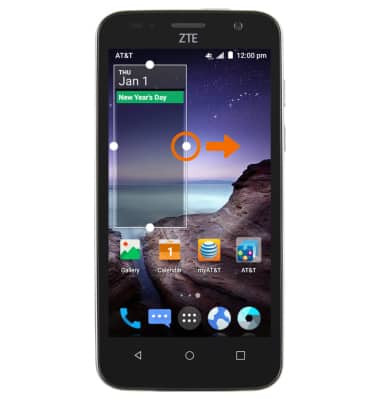
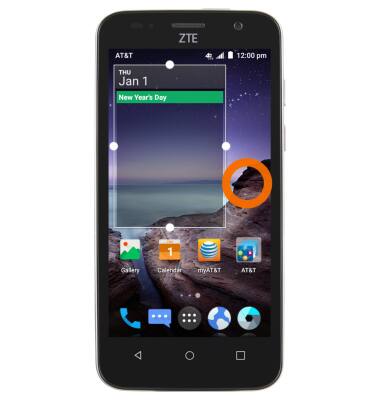
- Tap anywhere to stop resizing.
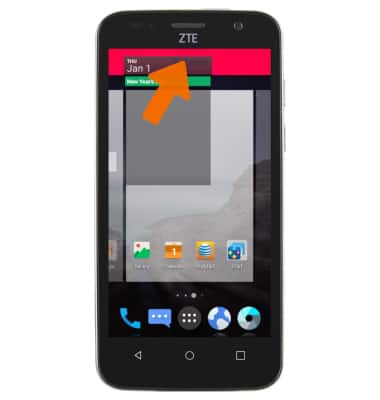
- To remove a Widget, touch and hold the desired widget.
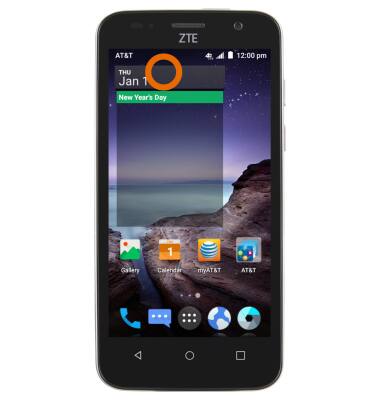
- Drag the Widget to "Delete" at the top of the screen, then release.
- To change the Home screen wallpaper, touch and hold an empty space on a home screen.
- From the Wallpapers tab, tap the desired wallpaper.
Note: Live wallpapers can increase battery consumption.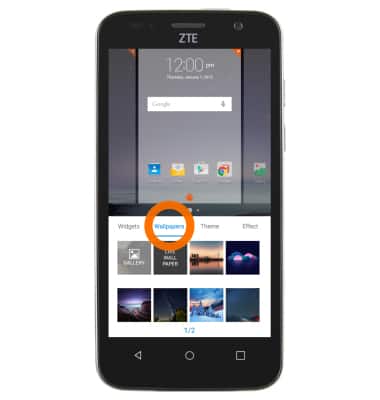
- To add an Additional home screen, tap and hold on an App or widget and drag it over to the edge of the last home screen to create a new one.
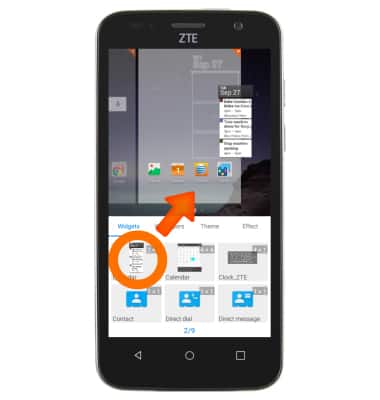
- Place the Desired app or widget anywhere on the new home screen.
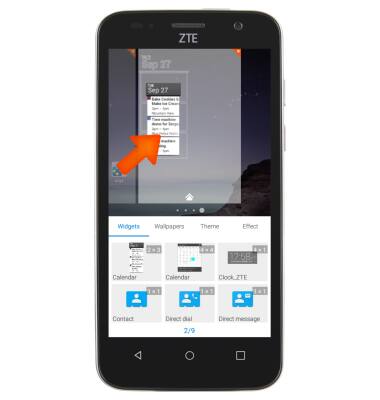
- Tap the Home icon on the desired home screen to set it as the default home screen.
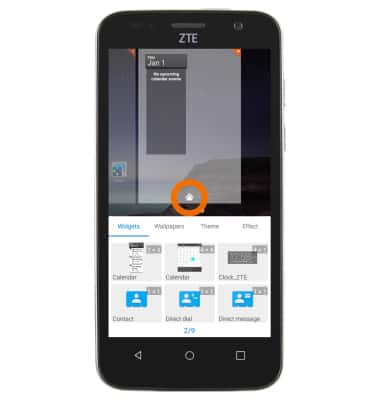
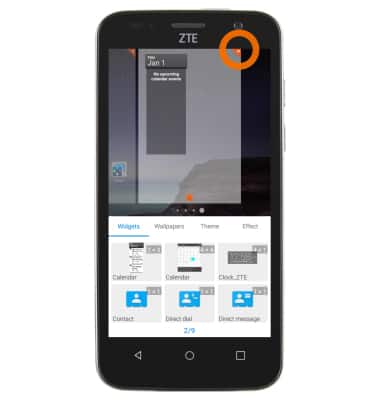
- To delete a home screen, tap the Red "X tab on the screen?s top right corner.
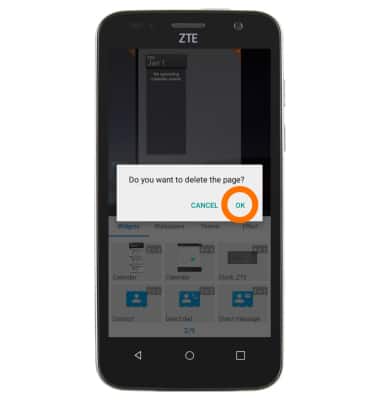
- Tap "OK".
Learn and customize the home screen
ZTE Maven (Z812)
Learn and customize the home screen
Add shortcuts and widgets, access the notification panel, changing wallpaper, and more.
Learn and Customize the Home Screen
Add shortcuts and widgets, access the notification panel, changing wallpaper, and more.
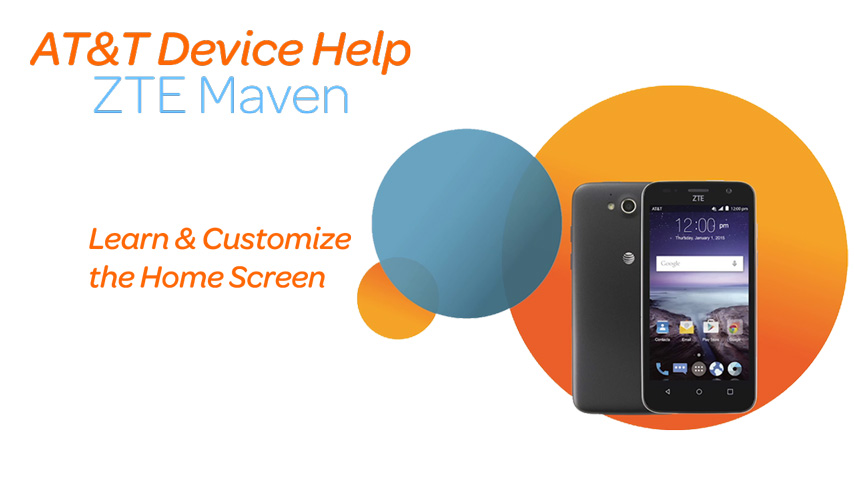
Learn and Customize the Home Screen
1:56
INSTRUCTIONS & INFO