- From the home screen, swipe down the Notifications bar with two fingers.
Note: The device will automatically attempt to set the date and time from the network. This tutorial demonstrates how to manually set the date and time on your device.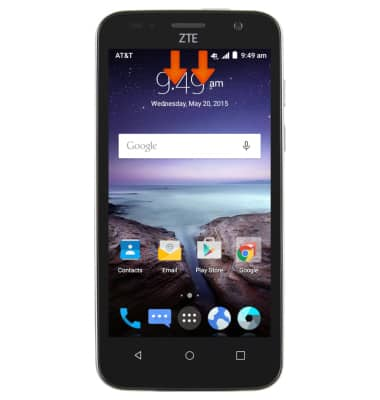
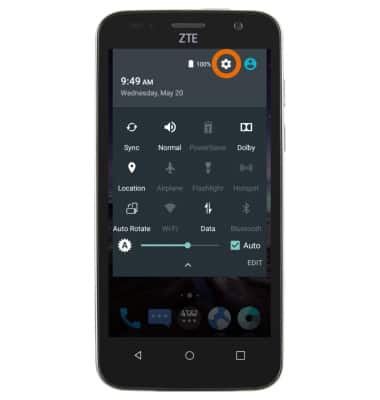
- Tap the Settings icon.
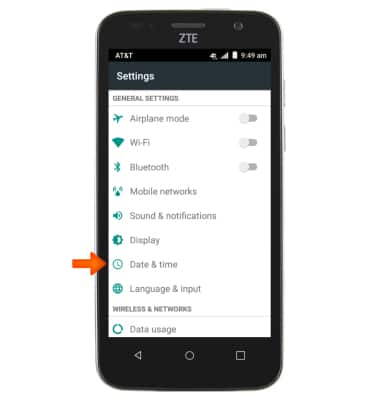
- Tap Date & time.
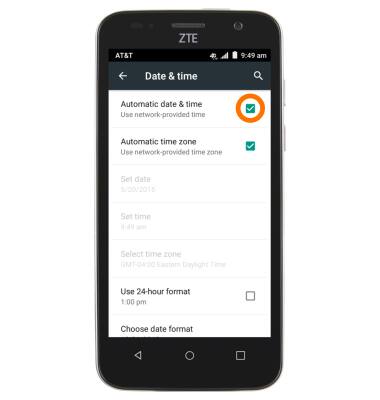
- To manually change the time and date, tap Automatic date & time to turn it off.
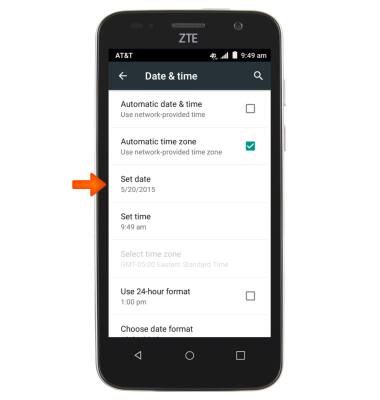
- Tap Set date.
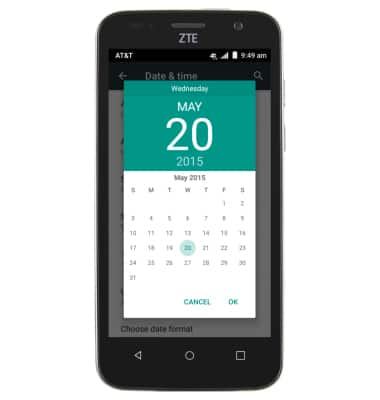
- Scroll to the Desired date.
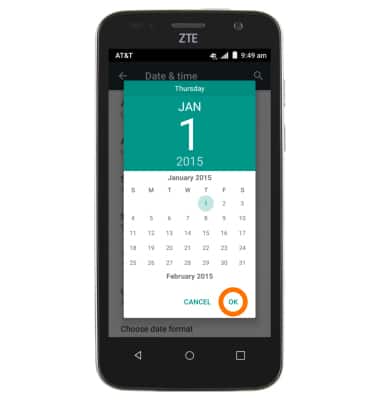
- Tap OK.
- Tap Set time.
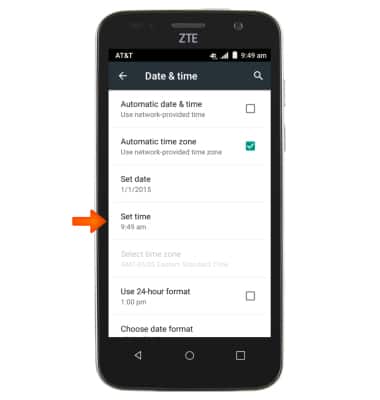
- Scroll to the Desired time.
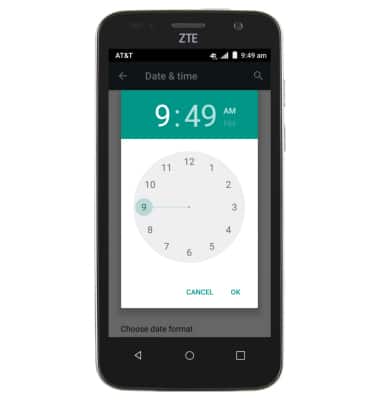
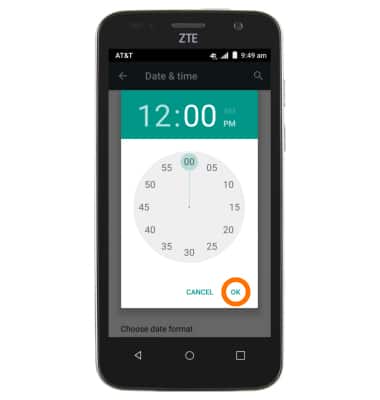
- Tap OK.
- To create a new alarm, swipe down on Notification panel with two fingers.
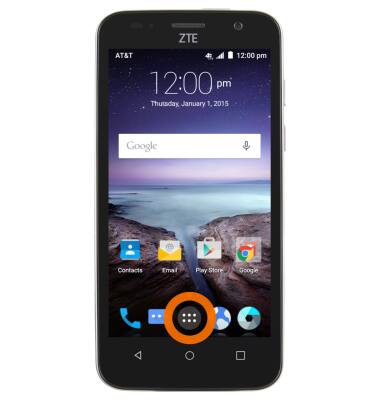
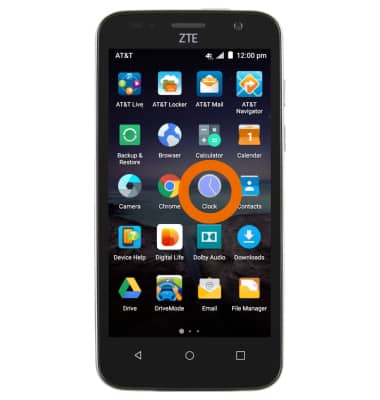
- Tap the Clock app.
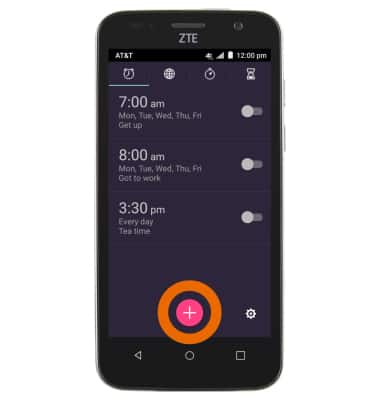
- Tap + icon.
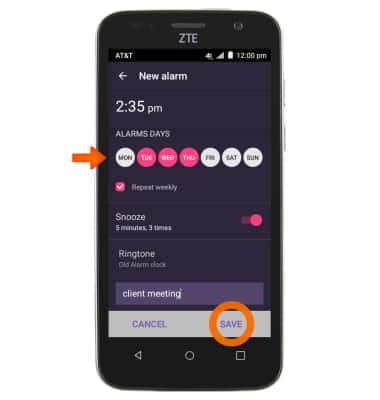
- Adjust the alarm settings as desired, and then tap SAVE.
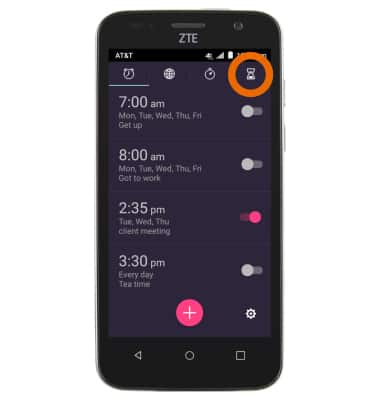
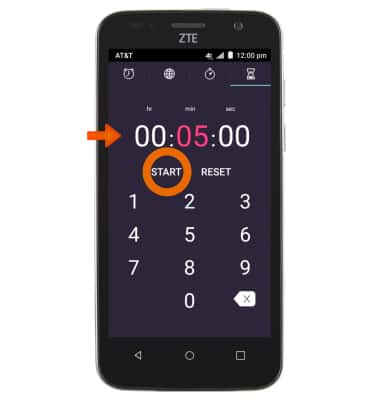
- To set timer, tap the Timer icon.
- Enter Desired amount of time, and then tap START.
Date & Time
ZTE Maven (Z812)
Date & Time
Set the date and time.
INSTRUCTIONS & INFO