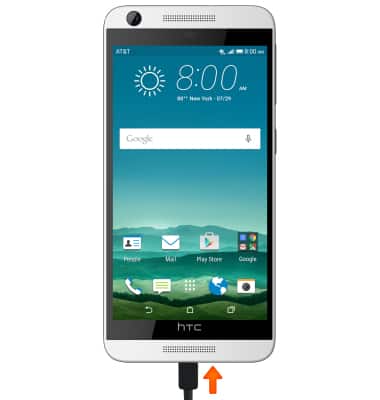
- With the device powered on, insert the MicroUSB end of the MicroUSB cable into the port on the device.
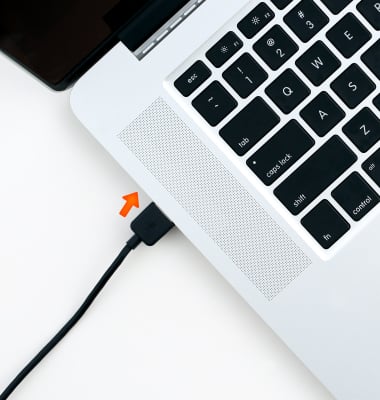
- To transfer files or images to a PC, insert the USB end of the MicroUSB cable into an open USB port on the PC.
- Once the phone is connected to the PC, from the PC open my Computer and select the HTC Device.
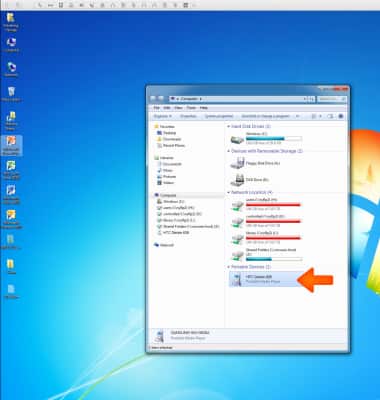
- Then select and open Phone.
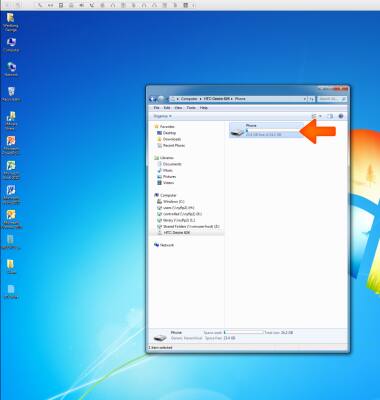
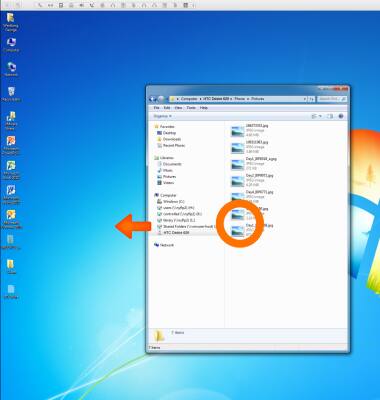
- Drag and drop the Desired files to/from the device to transfer.
- To transfer media to and from a Mac computer, you need the Android File Transfer App to facilitate the communication between the camera and computer. Download and install the Android File Transfer app: https://www.android.com/filetransfer/
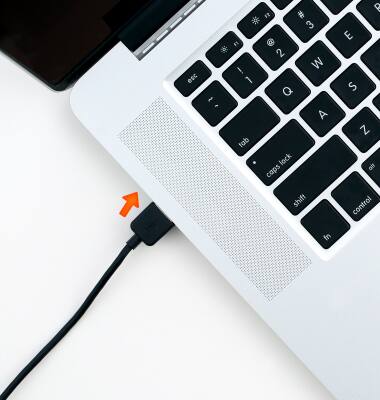
- Insert the USB end of the MicroUSB cable into an open USB port on the Mac computer.
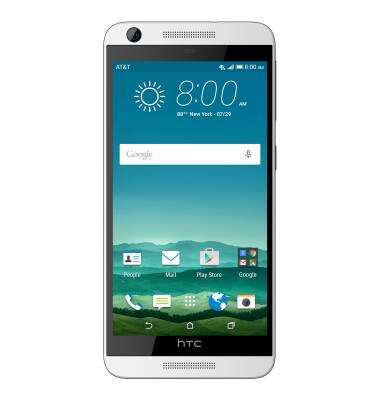
- Once the phone is connected to the Mac computer, Android File Transfer App will open automatically.
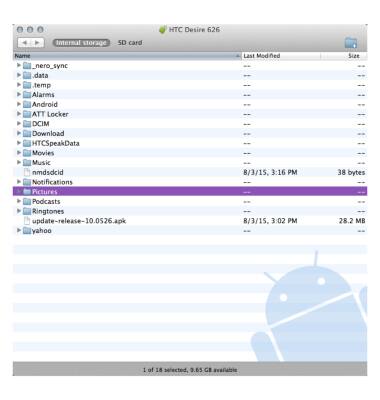
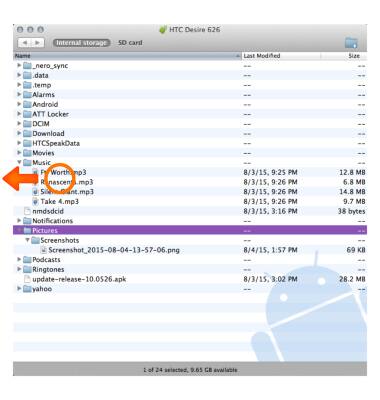
- Drag and drop the Desired files to/from the device to transfer.
- HTC Sync Manager allows you to back up your HTC phone to your computer so you can easily restore your backup to the same phone or to another phone.
Note: To learn more, visit the HTC Sync Manager website.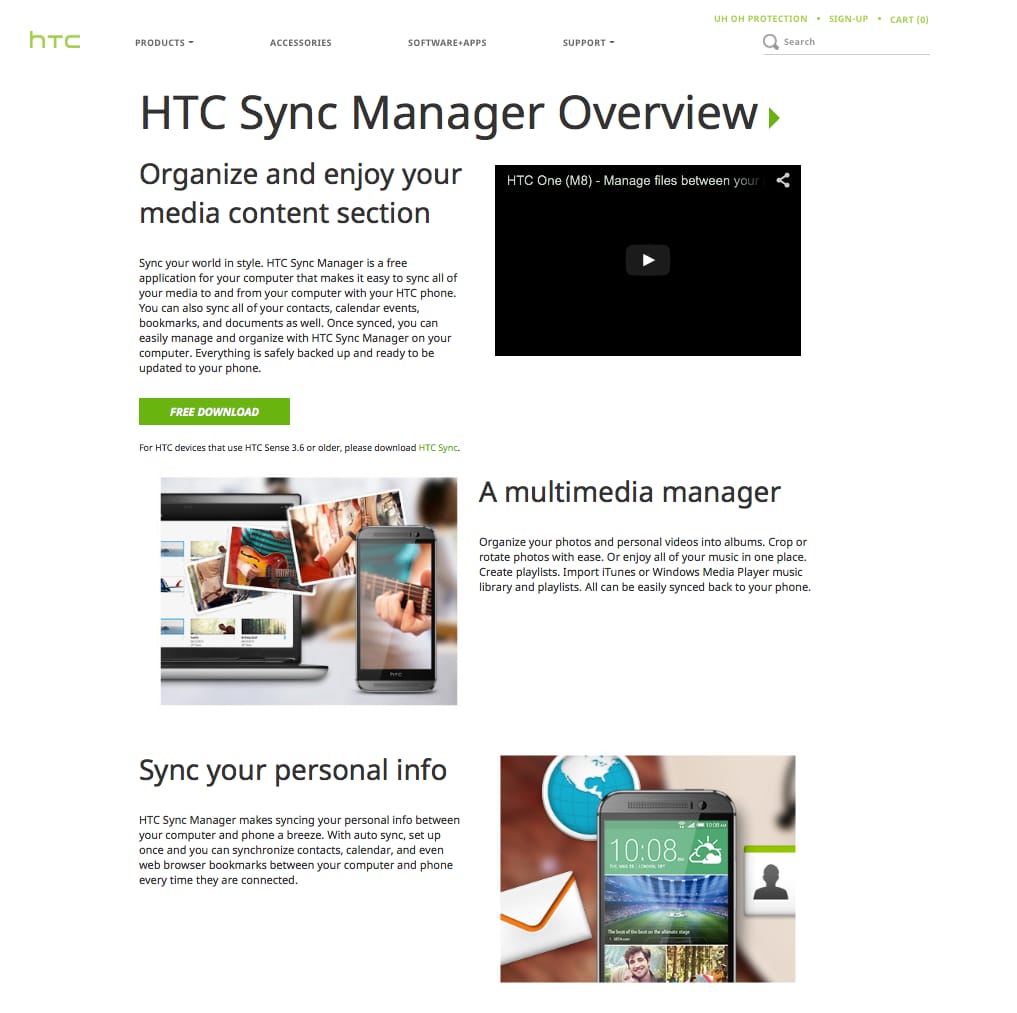
Transfer media to & from a computer
HTC Desire 626 (0PM912000)
Transfer media to & from a computer
Transfer files to or from your device and a computer.
INSTRUCTIONS & INFO