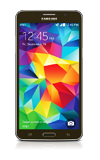
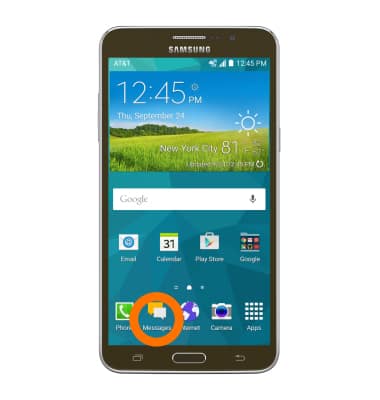
- To send or receive messages, from the home screen, tap Messages.
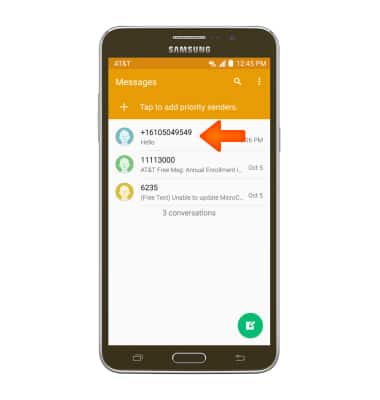
- Tap the Desired message to view.
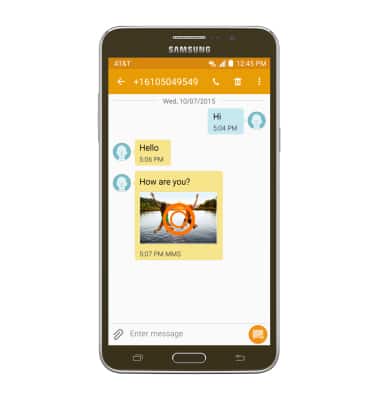
- Tap an Attachment to view it.
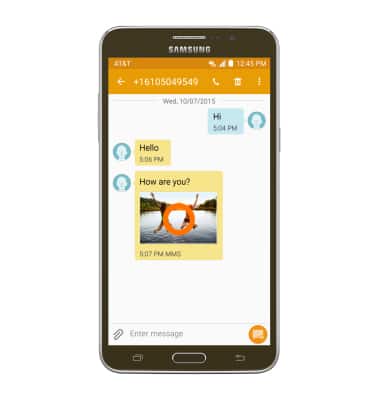
- To save, touch and hold the Desired attachment.
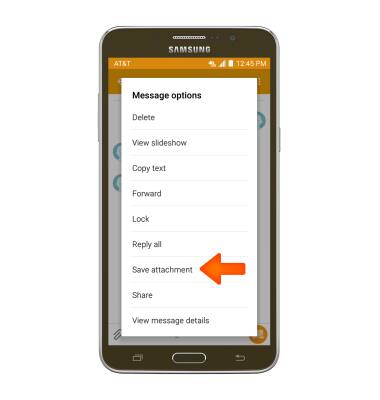
- Tap Save attachment.
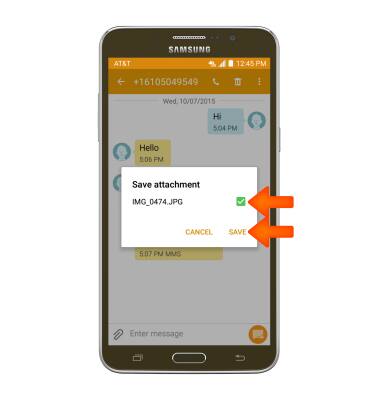
- Select the Desired attachment, then tap SAVE.
- The attachment will be saved to indicated place.
Note: By default attachments will be saved to device storage. To view saved attachments, go to apps > Samsung > my files.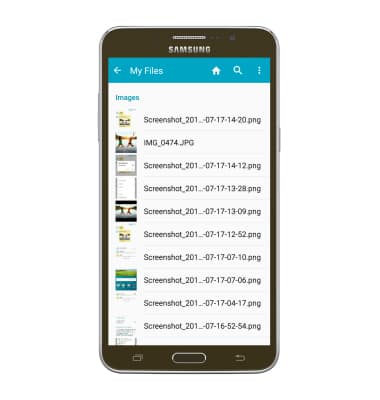
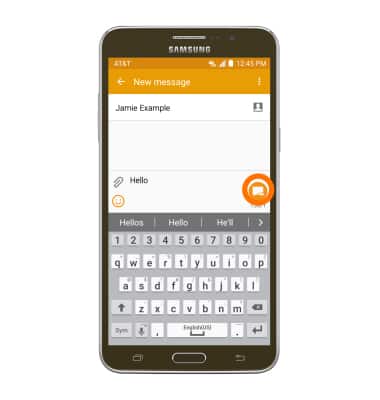
- To reply to a message, tap the Message field, then enter the Desired message.
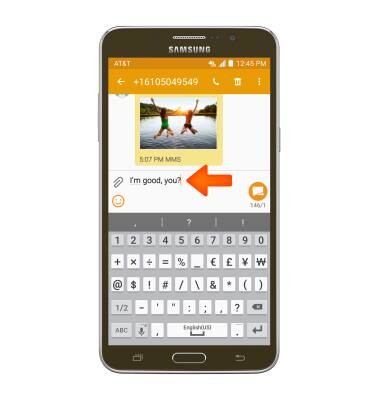
- Tap SEND to send.
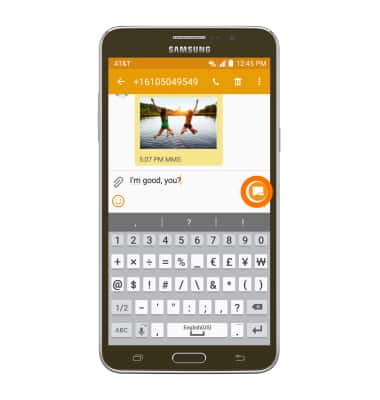
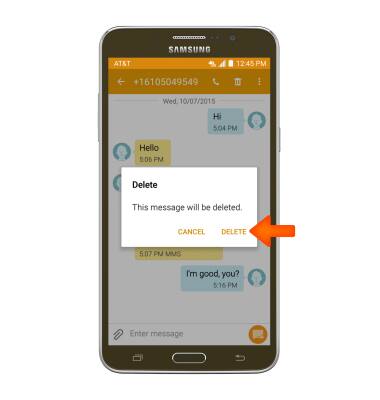
- To delete a single message from a conversation, touch and hold the desired message.
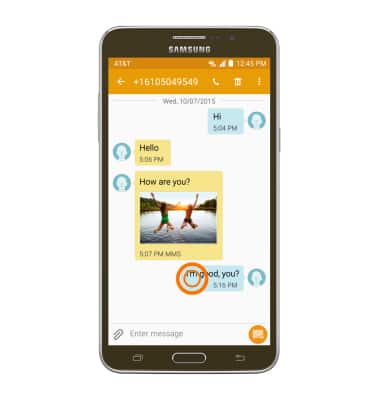
- Tap Delete.
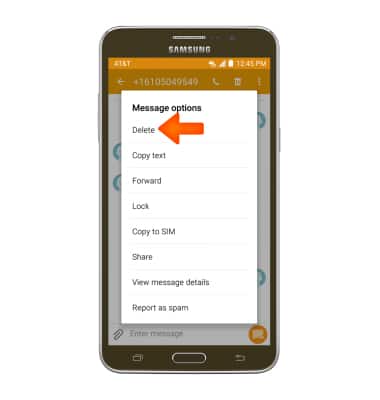
- Tap DELETE.
- To delete an entire conversation, from the Messages inbox, touch and hold the Desired message thread.
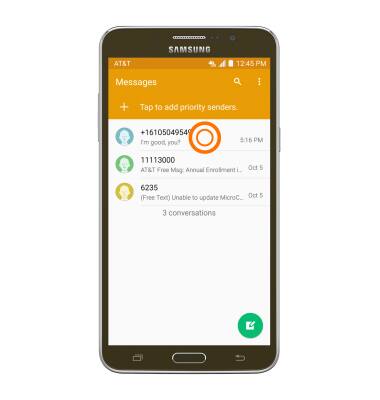
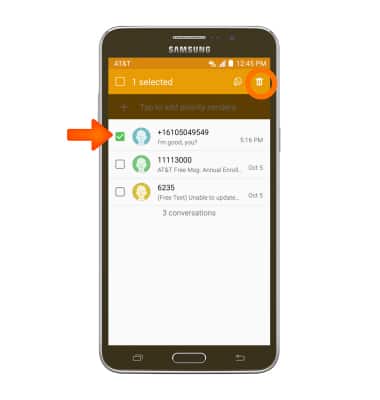
- Select the Desired message thread, then tap the Delete icon.
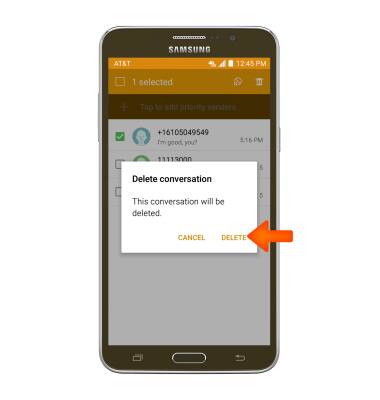
- Tap DELETE.
- To compose a new message, tap the Compose icon.
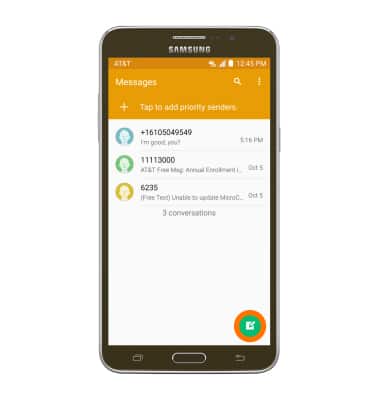
- Enter the desired recipients in the Recipient field.
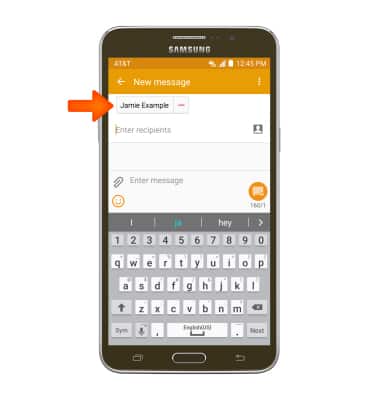
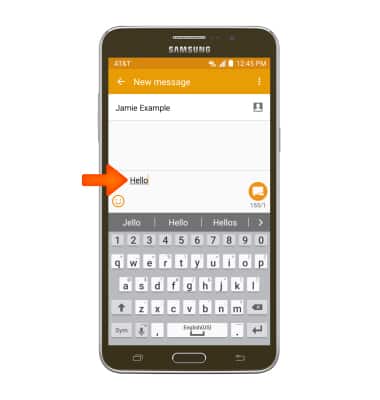
- Tap the Message field then enter the desired message.
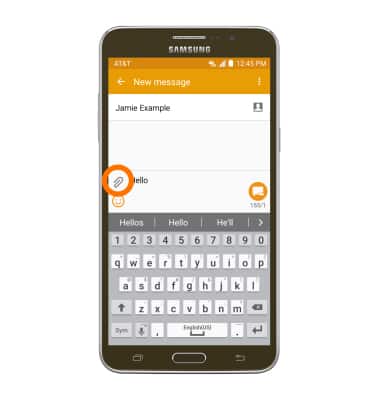
- To attach a file, tap the Attachment icon then follow the on-screen prompts.
- Tap SEND to send.
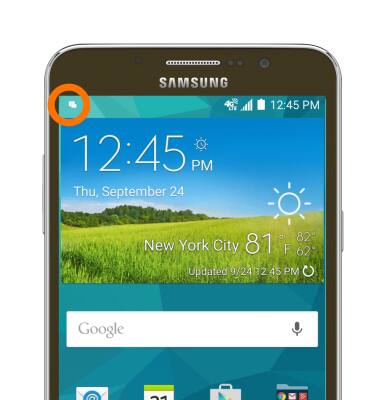
- When a new message is received, the Message icon will display in the notification bar.
Send & receive messages
Samsung Galaxy Mega 2 (G750A)
Send & receive messages
Create and respond to text (SMS) or picture (MMS) messages, add, save, and view received attachments and more.
Resolve Call and Text Issues with Device Settings
Learn how to resolve issues with making and receiving calls and texts by checking device settings, such as airplane mode, call forwarding, blocked calls, functions such as Emergency Calls Only, and operating software versions.
Resolve Call and Text Issues with Device Settings
2:37
INSTRUCTIONS & INFO