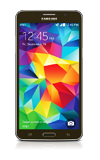
- From the home screen, swipe down from the top of the screen and tap the Settings icon.
Note: The device will automatically attempt to set the date and time from the network. This tutorial demonstrates how to manually set the date and time on your device.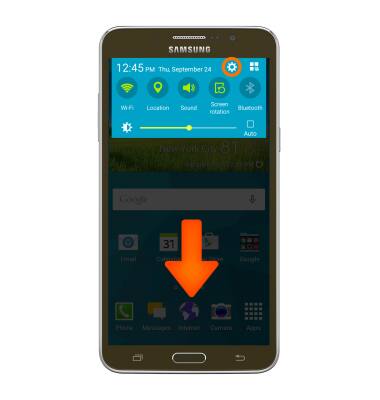
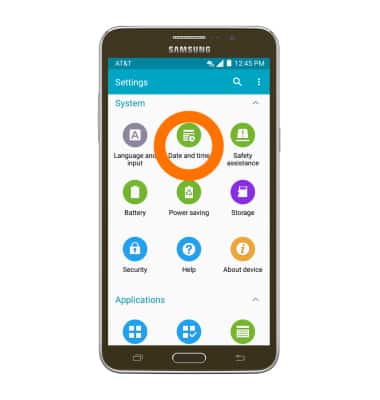
- Swipe to and tap Date and time.
- Tap the Automatic date and time switch to disable.
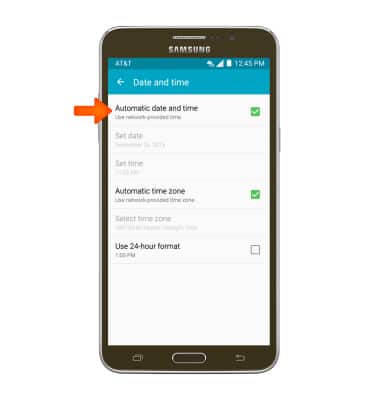
- To change the date, tap Set date.
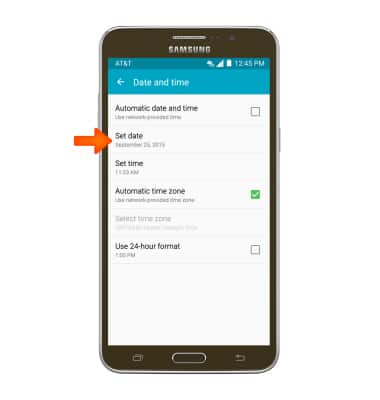
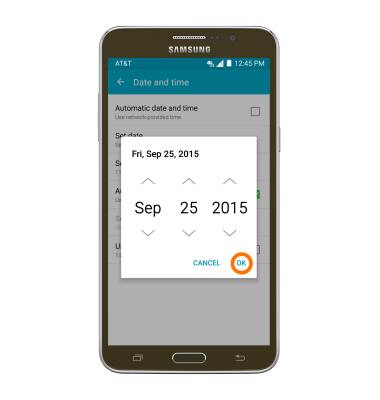
- Swipe to, and then tap the Desired date. Tap OK.
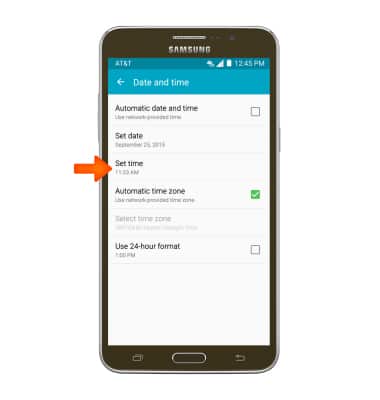
- To change the time, tap Set time.
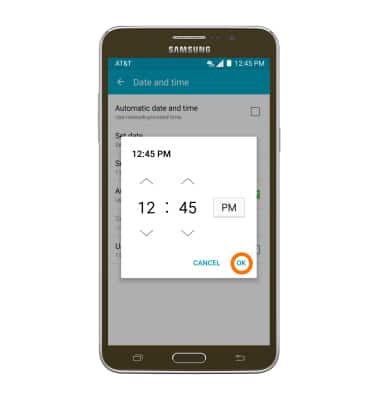
- Set the Desired time. Tap OK.
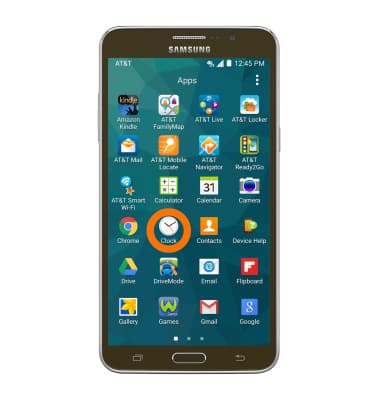
- To set an alarm, tap the Apps menu, then tap the Clock icon.
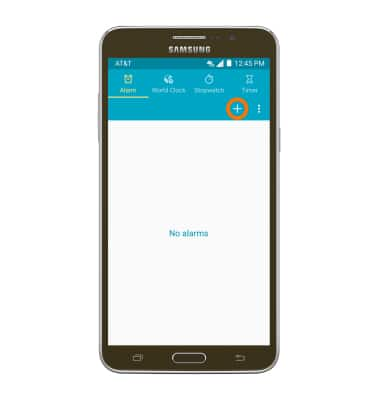
- Tap the Add alarm icon.
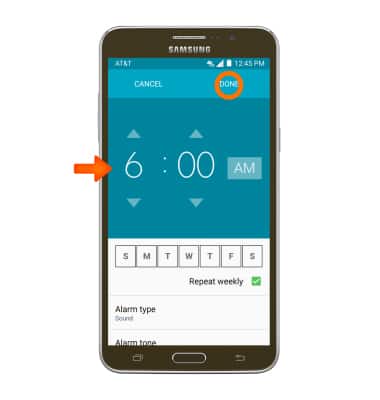
- Set Desired alarm time and options. Tap DONE when finished.
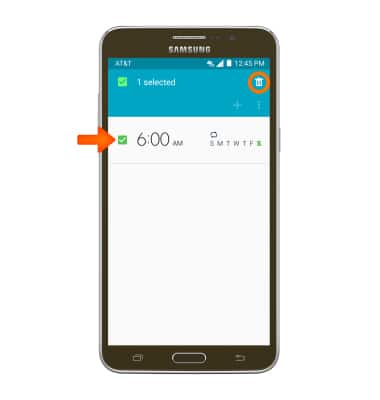
- To delete an alarm, tap and hold the desired alarm, then tap the Delete icon.
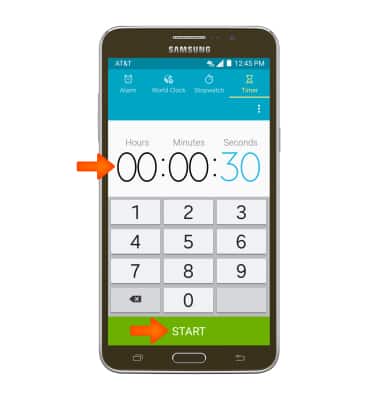
- To set a timer tap the Timer tab, set the time to the Desired length. Tap START to begin the timer.
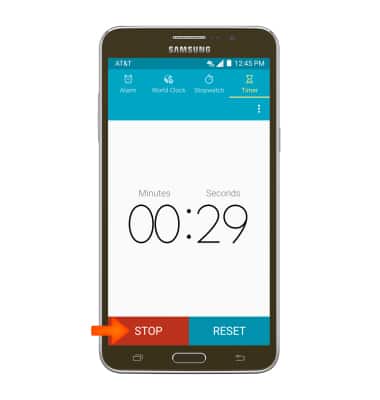
- Tap STOP to pause the timer.
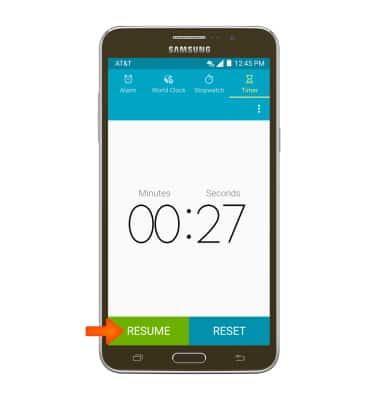
- Tap RESUME to resume the timer.
- Tap RESET to end the timer.
Date & time
Samsung Galaxy Mega 2 (G750A)
Date & time
Set the date and time.
INSTRUCTIONS & INFO