- Inserting a memory card into your device allows you to transfer and store contacts, music, pictures, and videos.
Note: MicroSD cards are sold separately.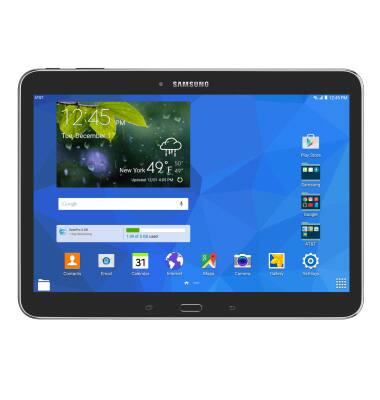
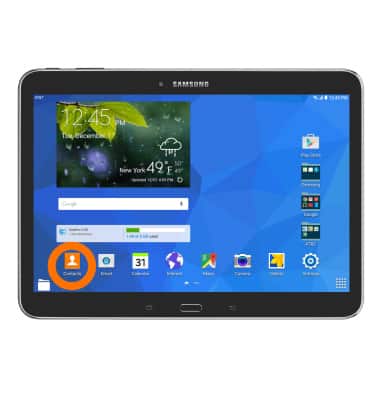
- To copy contacts to the SD card, from the home screen, tap the Contacts icon.
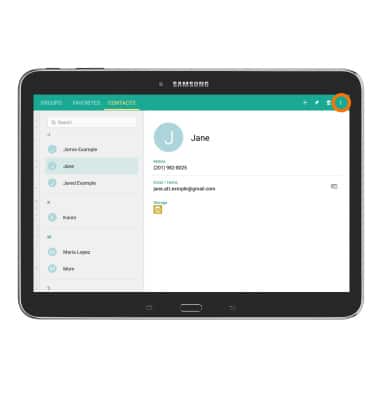
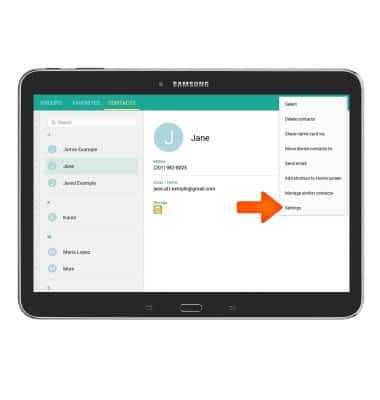
- Tap the Menu icon.
- Tap Settings.
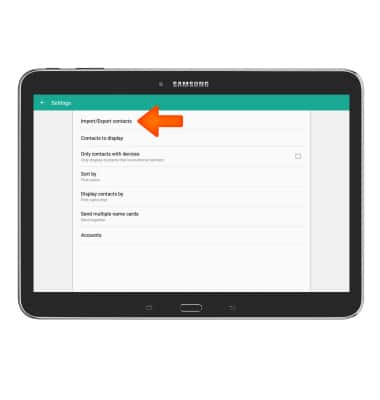
- Tap Import/Export contacts.
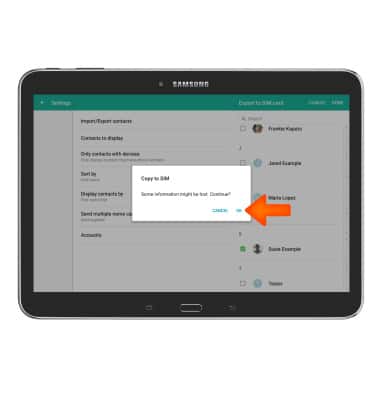
- To export contacts to an SD Card, tap Export to SD card. To export contacts to a SIM Card, tap Export to SIM card.
Note: When no SD Card is inserted, only "Export to SIM card" option will be shown.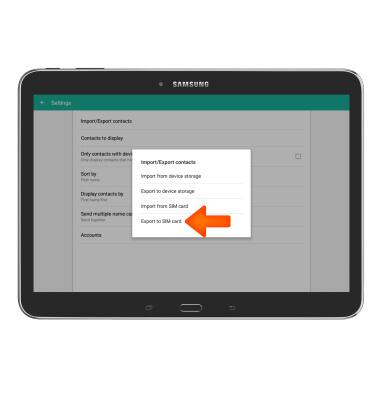
- To select desired contacts, tap on the check box near contact(s), then tap DONE.
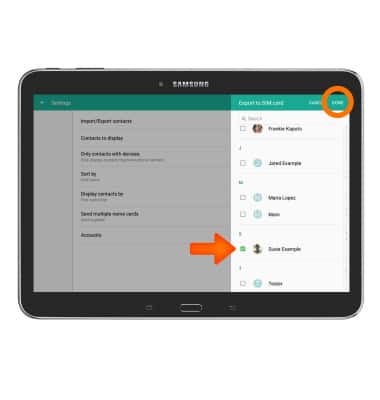
- Tap OK.
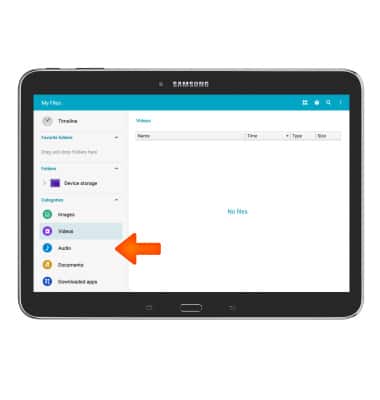
- To copy files to the SD card, from home screen, tap the Folder icon.

- Tap the Desired category to view files.
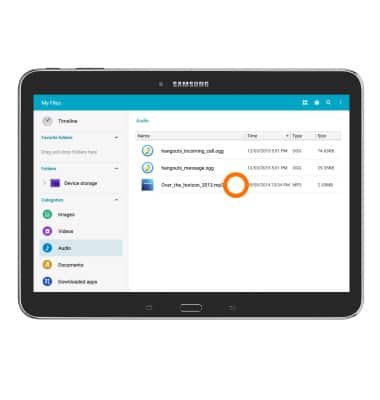
- Touch and hold the Desired file.
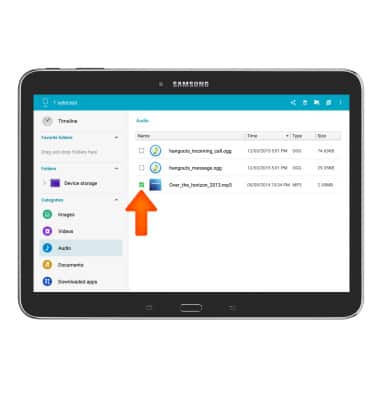
- Select Desired file(s) by tapping the checkboxes, then tap the Copy icon.
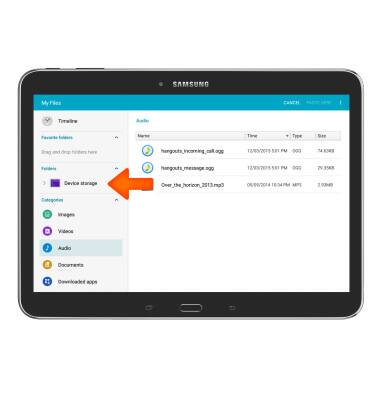
- Scroll to and tap Device storage.
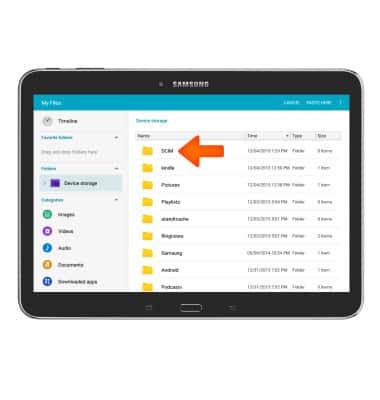
- Select Desired folder.
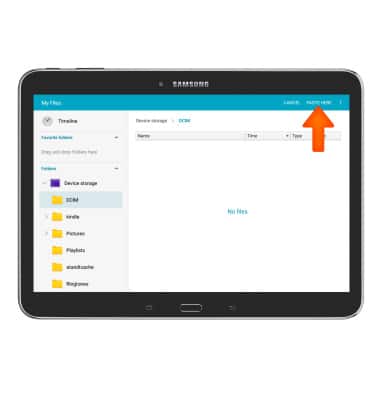
- Tap PASTE HERE.
Backup and restore with memory card
Samsung Galaxy Tab 4 (T537A)
Backup and restore with memory card
Backup contacts, photos, and files to increase device memory or transfer to another device.
INSTRUCTIONS & INFO