- Android Factor reset protection allows you to prevent non-authorized users from accessing your device if it's been lost, stolent, or reset to factory settings without your permission. Only someone with the associated Google account or screen lock information can use the device.
Note: Android Factory Reset Protection is now available on devices with software version 5.1. To view your software version, see the 'Software version' tutorial under System & Storage.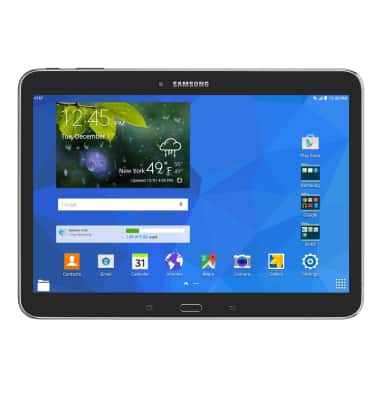
- Ensure that a PIN, Password, or Pattern screen lock is enabled on the device.
Note: From the home screen, tap the Settings icon > Device > Lock Screen > Screen lock.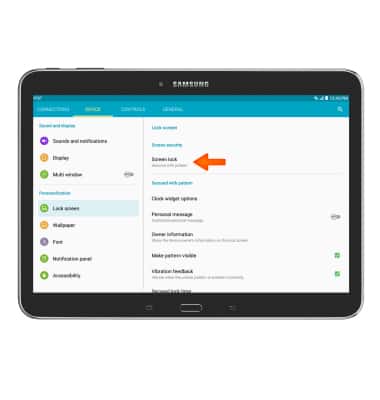
- Ensure that a Google account has been added.
Note: From the home screen, tap Settings > General > Add account > Google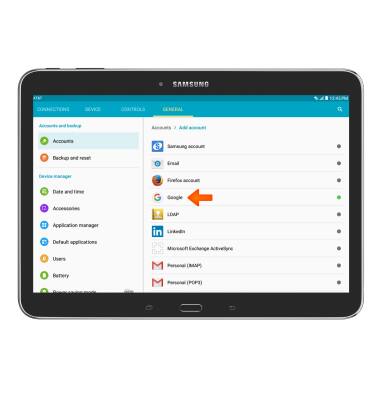
- To remotely ring, lock, or erase a device using another mobile device, that device must have the Android Device Manager app installed.
Note: Tap Play Store then search for "Android Device Manager." Follow the prompts to install the app.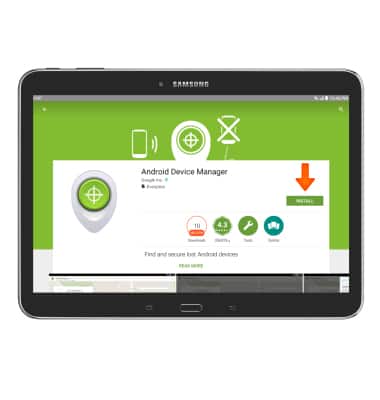
- Tap Android Device Manager app.
Note: New users will need to tap Accept to continue.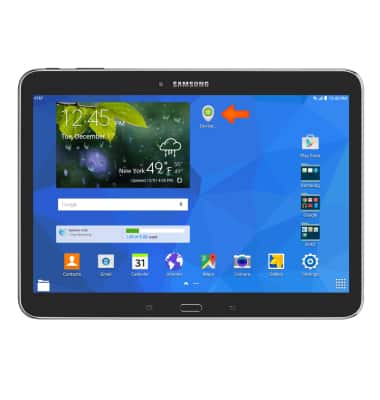
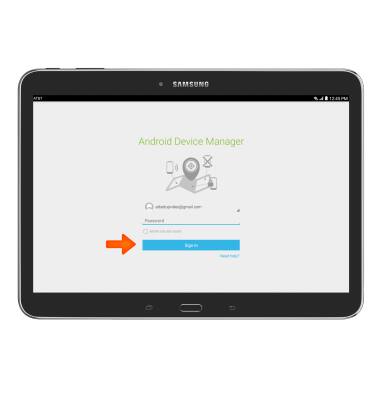
- Enter your Google account information and tap Sign in.
- Tap the Arrow next to the device name and select the Lost device. Android Device Manager will show the location of that device. You may need to enable 'Lock & Erase' first.
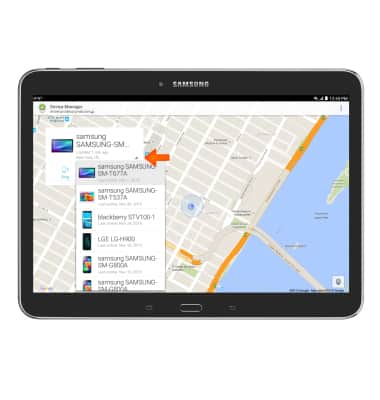
- Select from the following options. Ring: The device rings at full volume for 5 minutes, even if it is set to silent or vibrate.
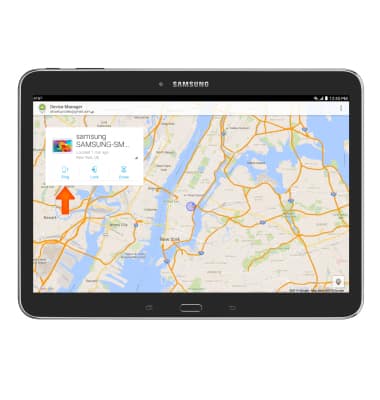
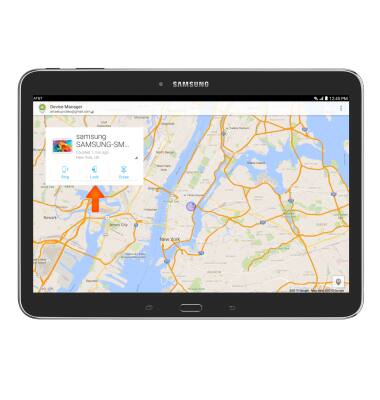
- Lock: Locks the device with a new password.
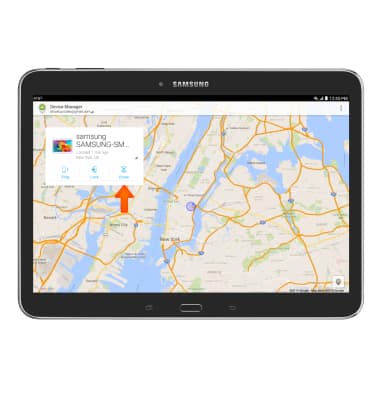
- Erase: Permanently deletes all of the data on the device.
- To remoted ring, lock, or erase a device using a computer, go to the Samsung Find My Mobile website. Enter your email and password and click Sign In.
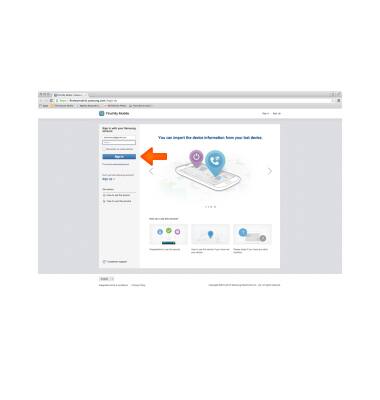
- To find your device, click Locate my device and view the loaded map for device location.
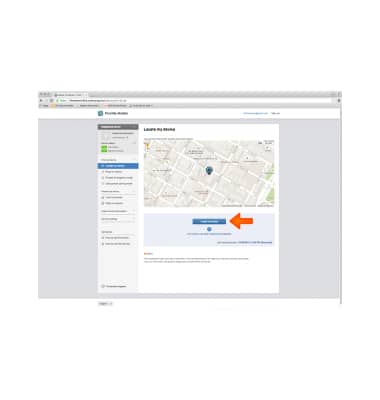
- To lock your device, click Lock my screen under Protect my device.
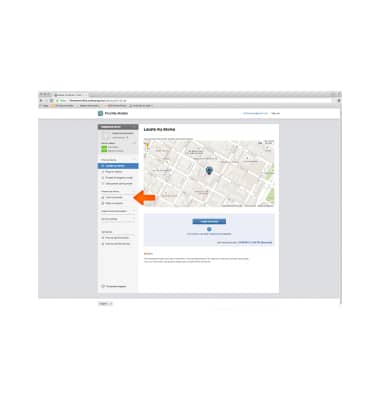
- Enter a 4 digit PIN, select desired options for adding a message or number to device, then tap Lock.
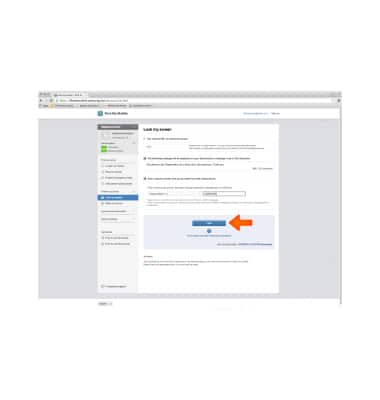
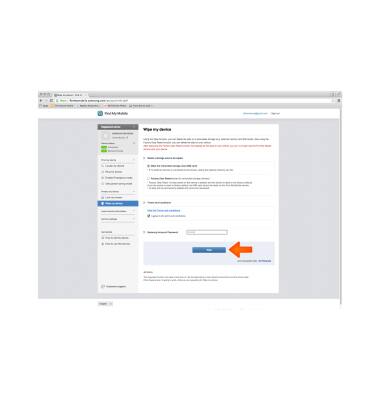
- To wipe your device, click Wipe my device under Protect my device.
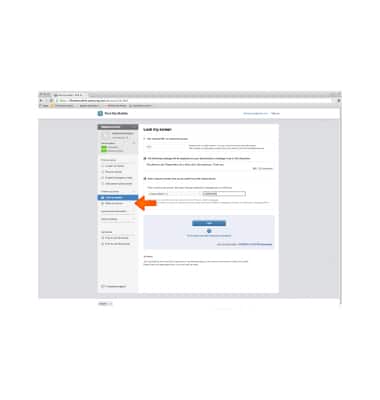
- Select Desired storage area to be wiped, view full terms and conditions and check I agree to terms and conditions. Enter your Samsung Account Password and tap Wipe.
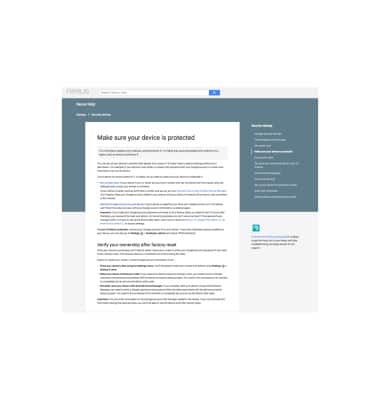
- For more information on device protection from Google, please go to Google's support site.
Anti-theft
Samsung Galaxy Tab 4 (T537A)
Anti-theft
Set up your device so you can remotely locate and control.
INSTRUCTIONS & INFO