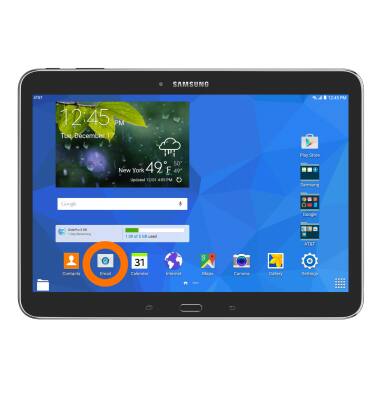
- To send or receive email, from the home screen, tap the Email icon.
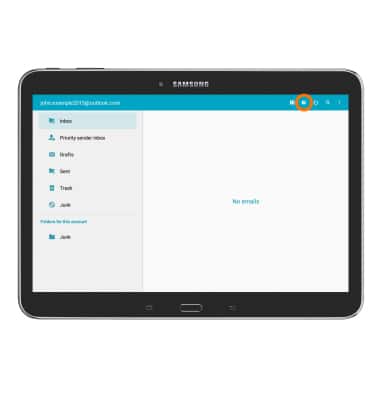
- To compose an email, tap the Compose icon.
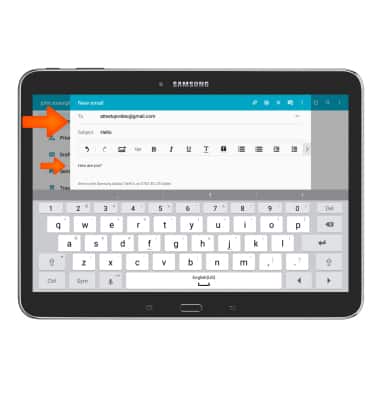
- Fill the Recipient, Subject, and Message fields as desired.
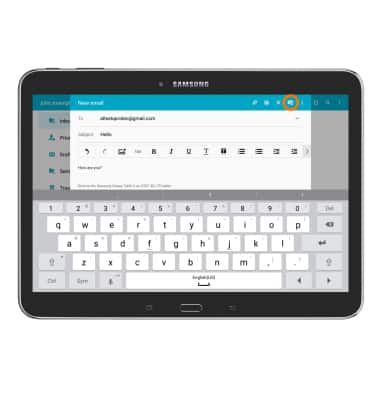
- To add an attachment, tap the Attach icon and then follow the on-screen prompts.
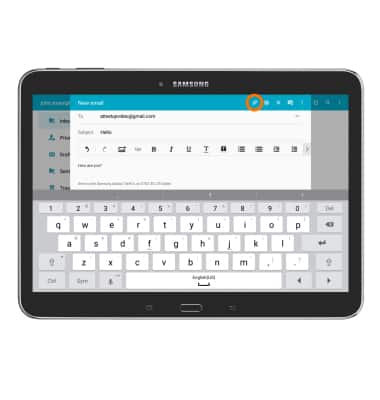
- Tap the Send icon.
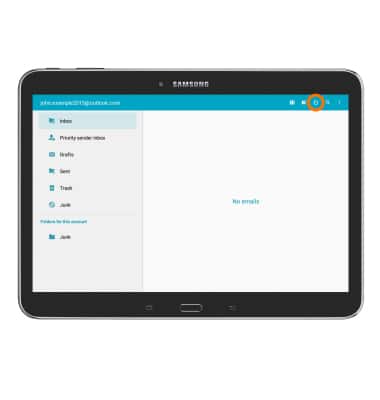
- Tap the Refresh icon to refresh the inbox and check for new mail.
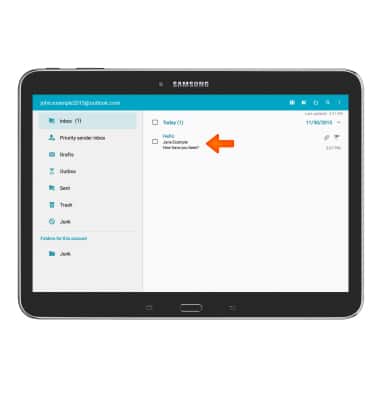
- Tap an Email to view it.
- To view and save an attachment, tap the Attachment tab.
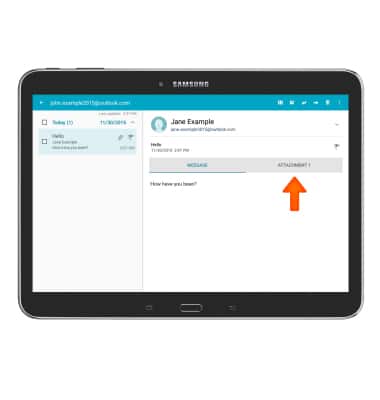
- Tap SAVE.
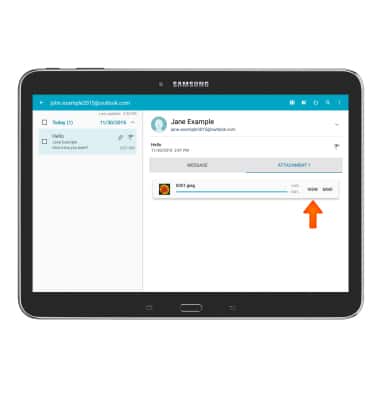
Note: To view saved attachments, from the home screen tap Gallery > Download album.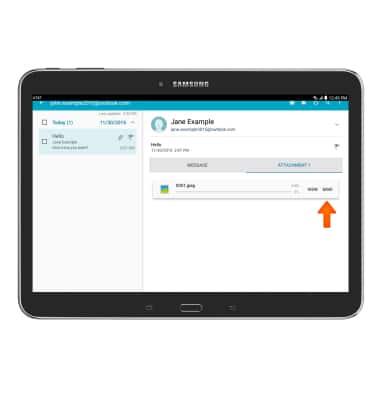
- Tap VIEW to view the attachment.
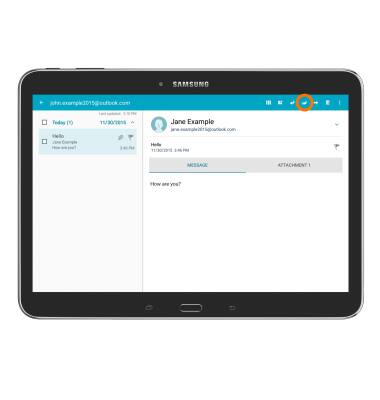
- To reply to the email, tap the Reply icon.
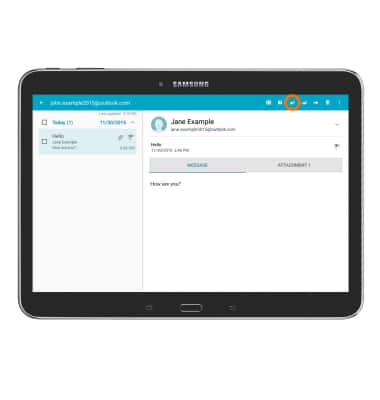
- To reply all to the email, tap the Reply all icon.
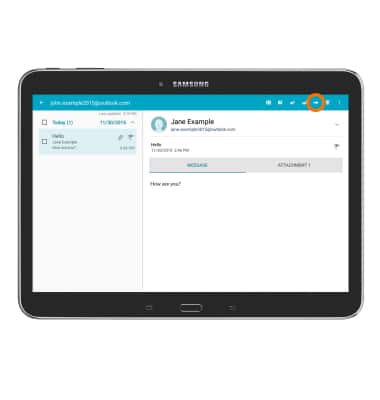
- To forward the email, tap the Forward icon.
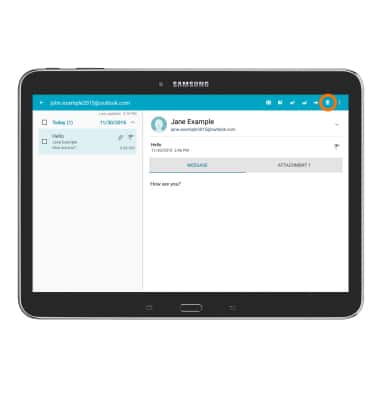
- To delete to the email, tap the Delete icon.
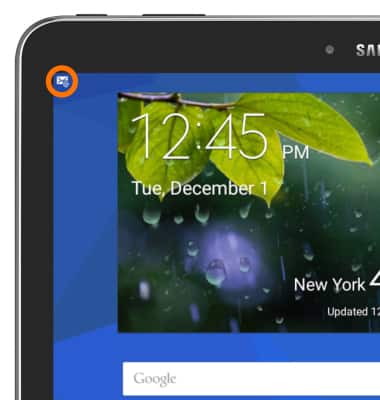
- When a new email is received, the New mail icon will display in the Notification bar.
Send & receive email
Samsung Galaxy Tab 4 (T537A)
Send & receive email
Add and download email attachments, respond to an email and more.
INSTRUCTIONS & INFO