
- If the keyboard does not appear automatically, tap the Keyboard icon in the task bar to display the keyboard.
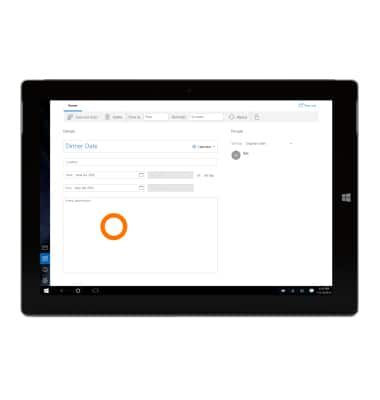
- To enter text, tap the Desired characters to enter them in the text field.
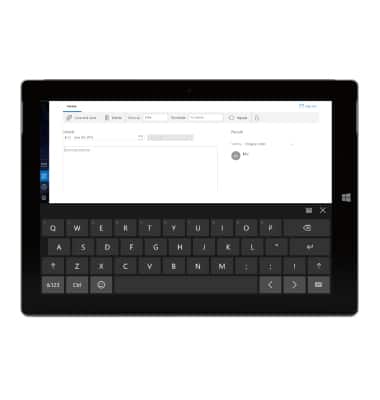
- To capitalize the next letter entered, tap the Shift icon.
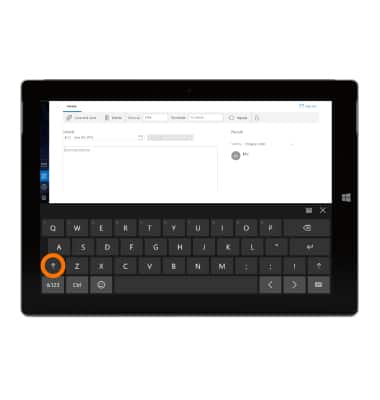
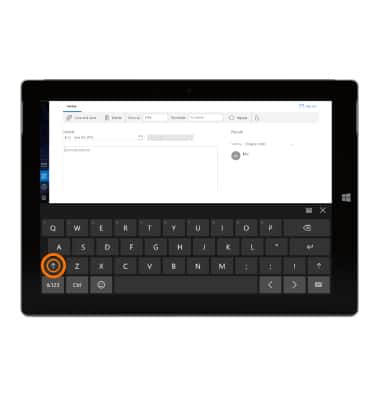
- To enable Caps Lock, double-tap the Shift icon.
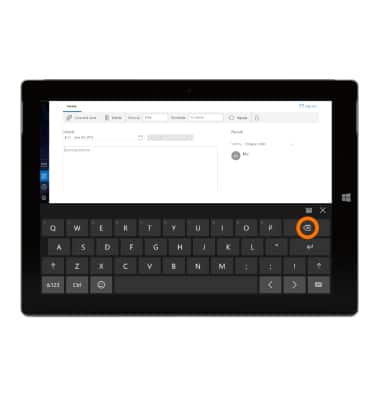
- Tap the Delete key to remove a character. Touch and hold the Delete key to clear the text field.
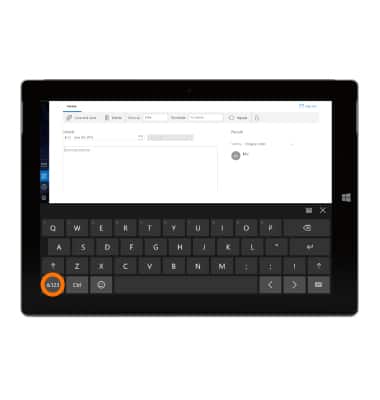
- Tap the '&123' key to access symbols and numbers.
- Tap the '&123' key to return to the alphabet.
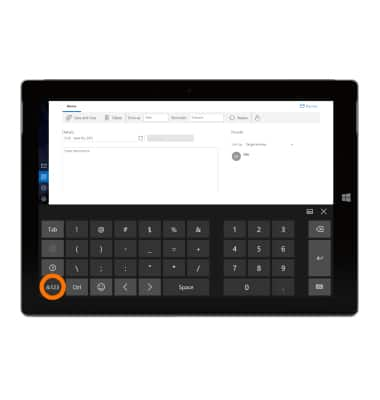
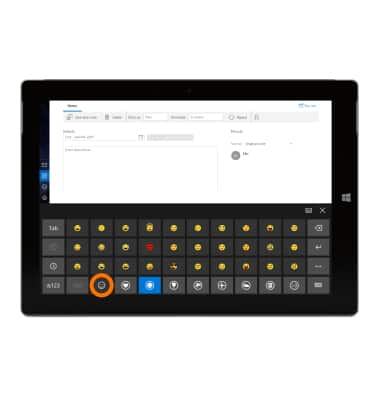
- Tap the Emoticon key to access smiley face icons and other symbols.
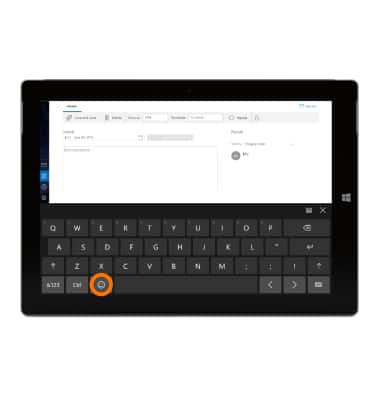
- Tap the Emoticon key again to return to the keyboard.
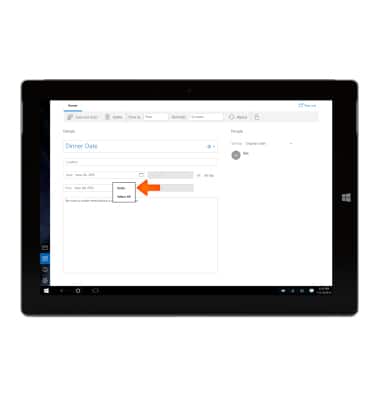
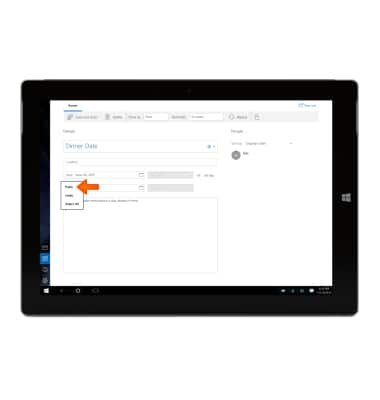
- To select text, tap and hold on the Desired text, then tap Select All.
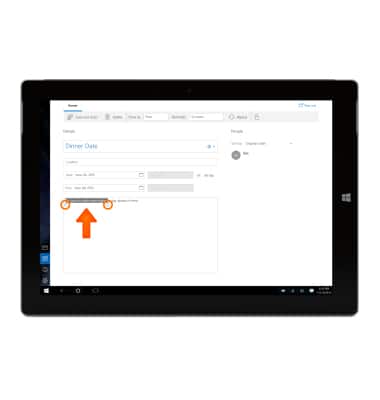
- Drag the Text Selection handles to highlight all the Desired text.
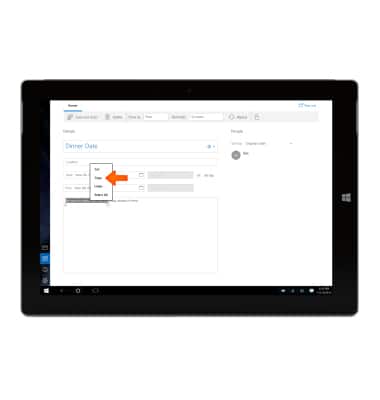
- Tap and hold on the Desired text and then tap Copy.
- To Paste, press and hold until you see the dropdown menu, then tap Paste.
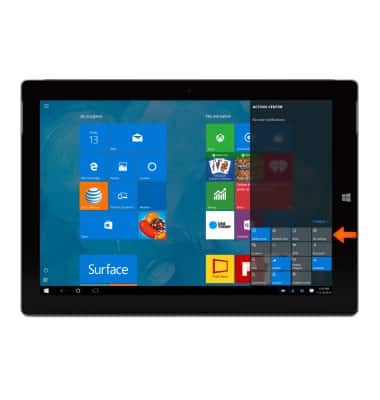
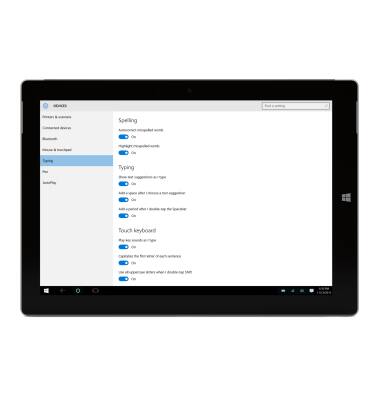
- To access keyboard settings, from the Quick Settings menu, tap All Settings.
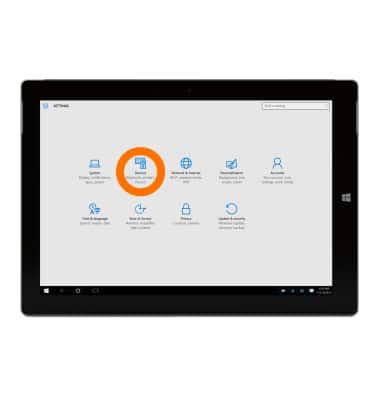
- Tap Devices.
- Tap Typing.
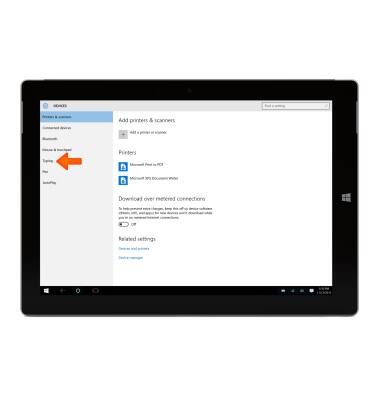
- Choose the Desired settings.
- A detachable keyboard is available for purchase, which features magnetic connectors to attach the bottom of the Surface, multiple positions including flat and elevated, and also includes backlit keys.
Note: For more info, see How to use the on-screen keyboard on Surface.com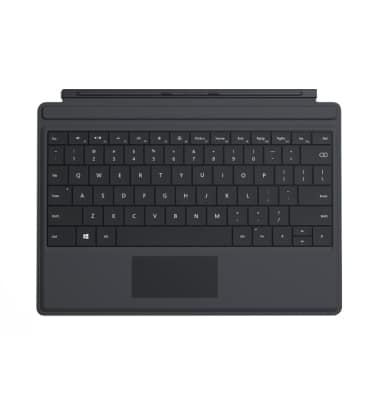
Keyboard & typing
Microsoft Surface 3 (1657) Windows 10
Keyboard & typing
Cut and paste, use speech-to-text, and access keyboard settings.
INSTRUCTIONS & INFO