- Use your AT&T device as a mobile Wi-Fi hotspot to share your data connection with Wi-Fi-capable devices such as: other smartphones, tablets, netbooks, MP3 players, and more
Note: Eligible data plan required, learn more.
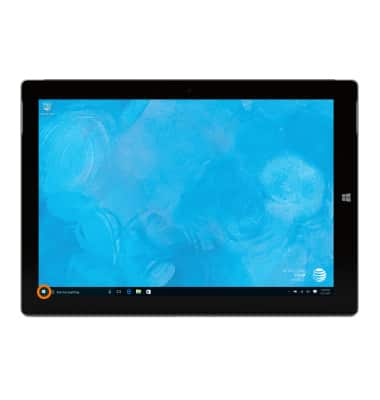
- Tap the Start icon or Windows button.
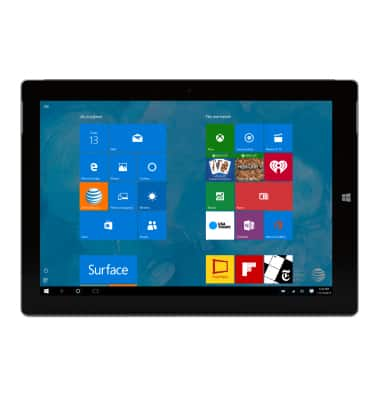
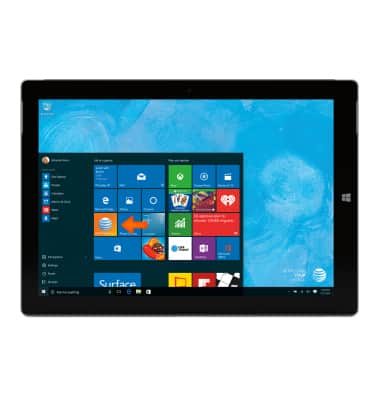
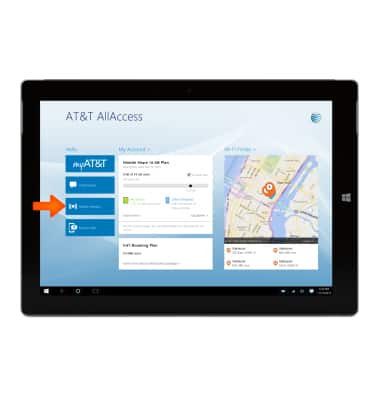
- From the Start screen, tap the AT&T AllAccess tile.
- From the AT&T portal, tap Mobile Hotspot.
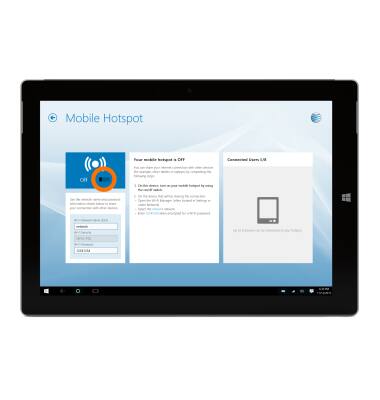
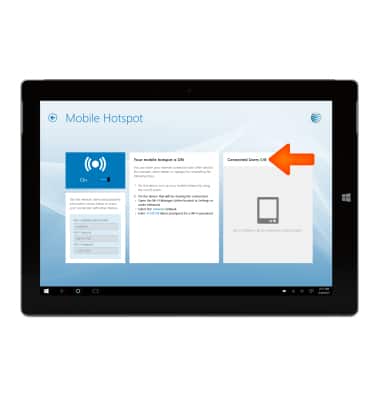
- To enable the WiFi Hotpost, tap the Sharing toggle.
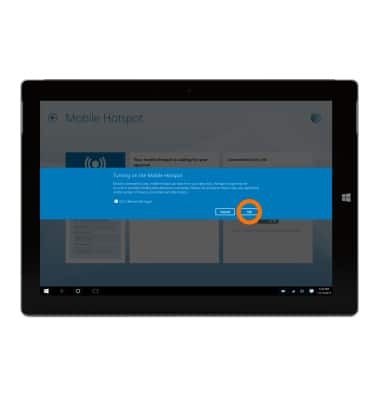
- Tap OK.
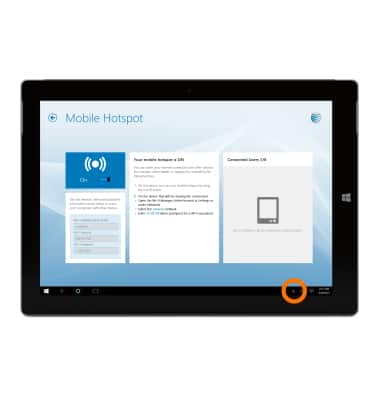
- A notification will appear once a device is connected.
- To change the name of the hotspot, tap the Broadcast name field, and enter the Desired name.
Note: The toggle needs to be in the OFF position, you will not be able to make these changes while the mobile hotspot is active.
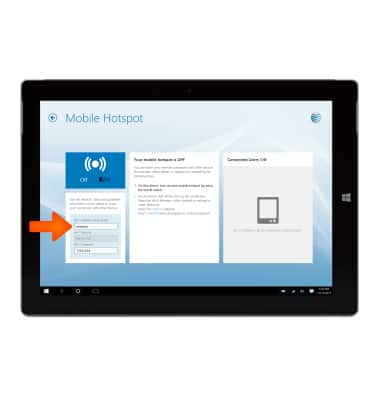
- To change the name of the hotspot, tap the Password field, and enter the Desired password.
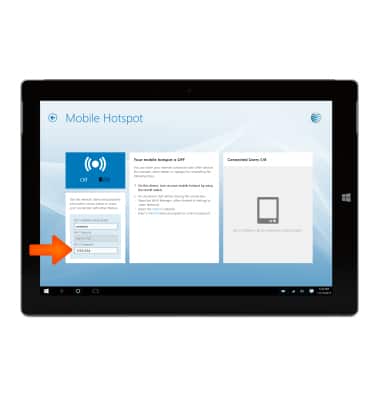
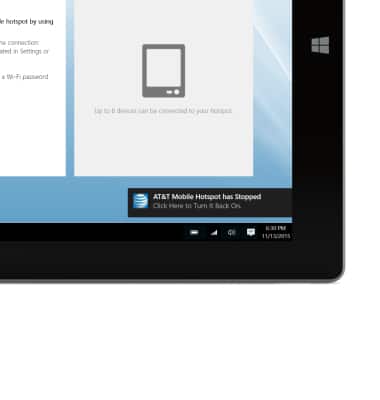
- From the mobile hotspot portal, you will be able to view how many devices are connected.
- To disable the Wi-Fi hotspot, tap the Sharing toggle.
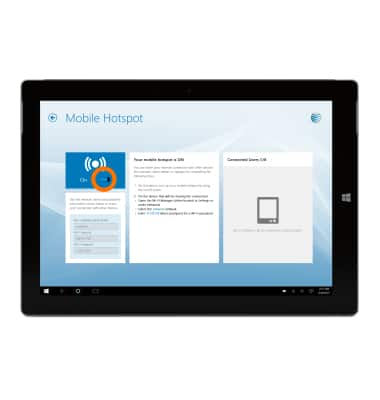
- A notification on the upper right side will indicate the hotspot is disabled.
Mobile hotspot
Microsoft Surface 3 (1657) Windows 10
Mobile hotspot
Set up your device as a personal hotspot and share your data connection with Wi-Fi-capable devices.
INSTRUCTIONS & INFO

Starting December 31, 2022, the AT&T AllAccess app is going away. As a result, some features on your device may no longer be supported. You'll be able to view data usage and notifications on your myAT&T account page, and you can explore other options to stay connected with your device on the go. Learn more about mobile hotspot options.