
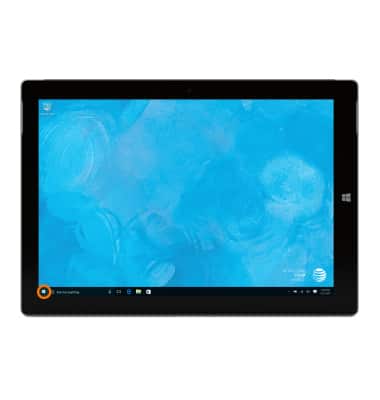
- Tap the Start icon or Windows button.
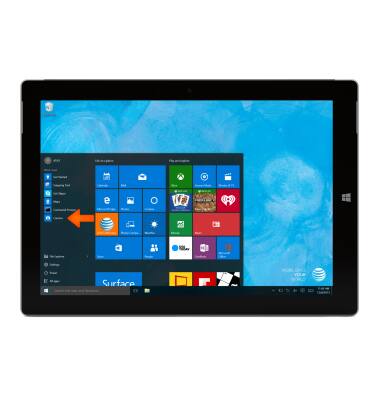
- To change the camera & video settings, from the Apps tray, tap Camera to open the camera.
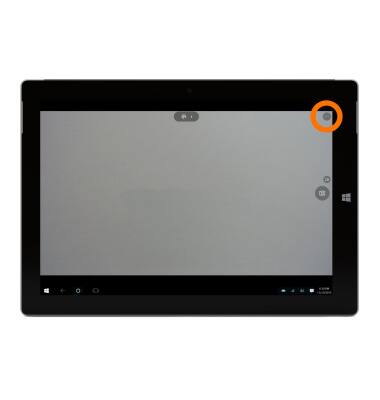
- Tap the Menu icon to access Settings and other options.
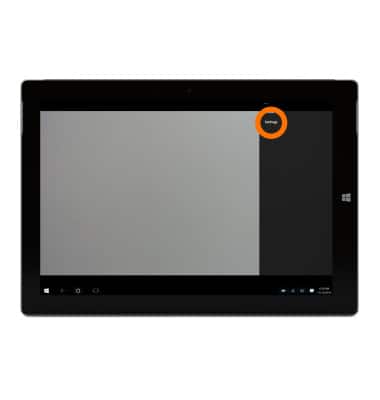
- Tap Settings.
- To change photo sizes, under Photos tap the Aspect ratio drop down menu.
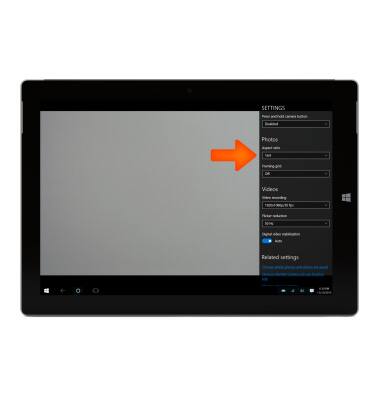
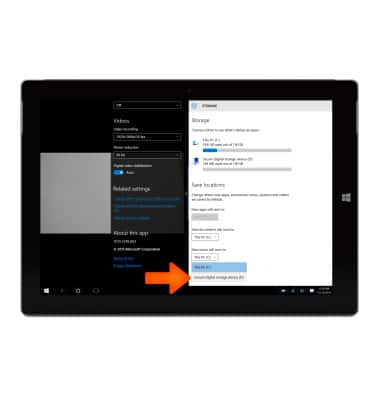
- To change the default storage location for photos, tap Change where photos and videos are saved.
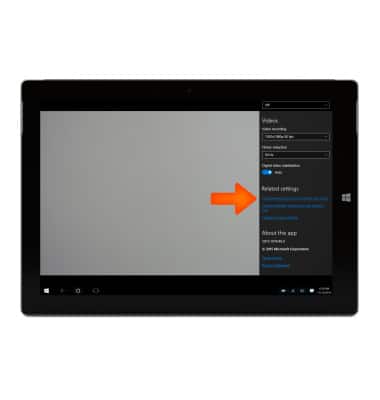
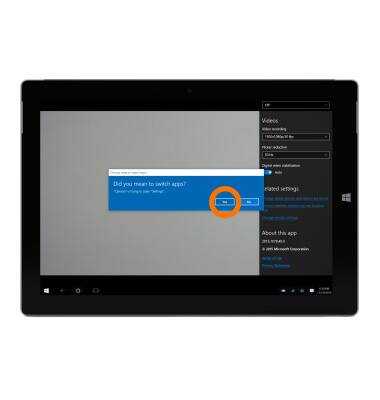
- Tap Yes to switch to the Settings app.
- In the Settings app, tap the New pictures will save to: drop down menu.
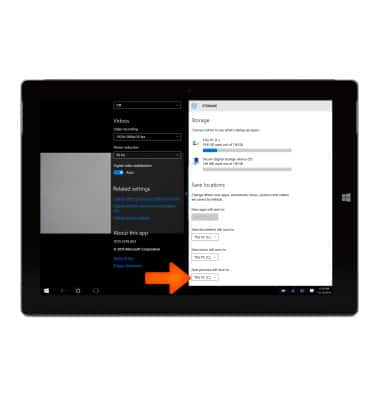
- Tap the desired storage location.
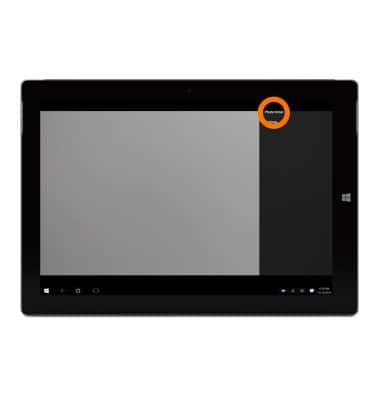
- To set a timer, tap the Menu icon and tap Photo Timer.
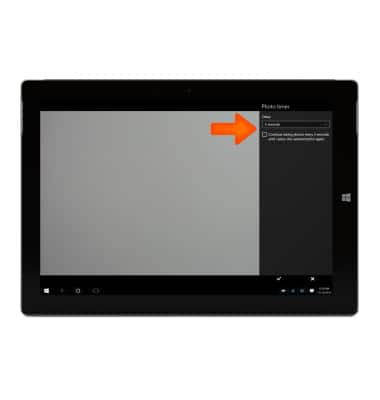
- Under Delay tap the drop menu to toggle the timer between 2 seconds, 5 seconds 10 seconds. Tap the Check mark icon to turn on, or tap the X icon to turn off.
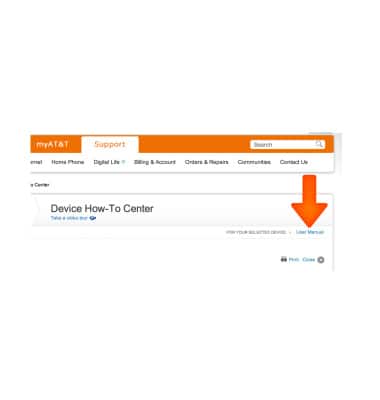
- To learn more about your camera settings and features download the user manual.
Camera & video settings
Microsoft Surface 3 (1657) Windows 10
Camera & video settings
Manage camera and video settings including flash, timer, voice control, recording mode, storage location, and more.
INSTRUCTIONS & INFO