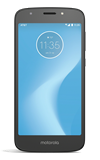
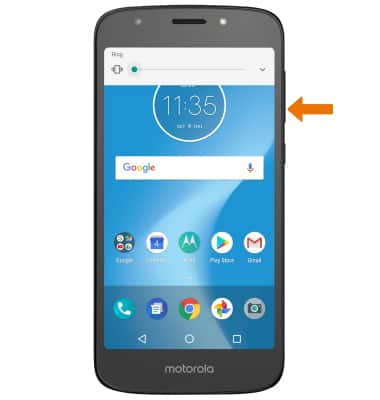
- ADJUST RING VOLUME: Press the Volume buttons located on the right side of the device to adjust the volume.
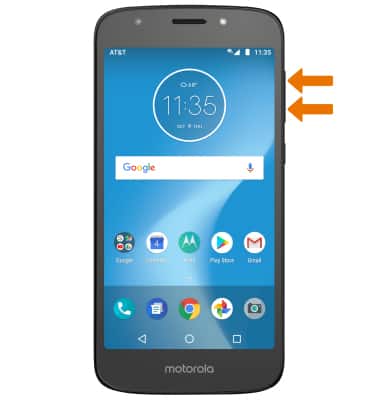
- ACTIVATE VIBRATE MODE: Press the Volume down button until the Vibrate mode icon appears.
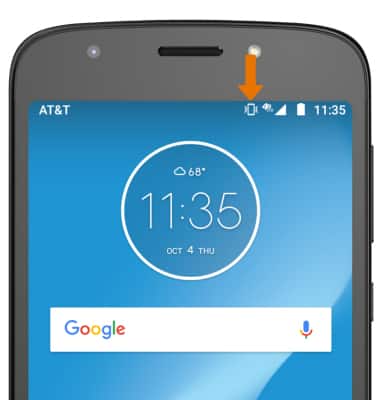
- When Vibrate mode is active, the Vibrate mode icon will display in the Notification bar.
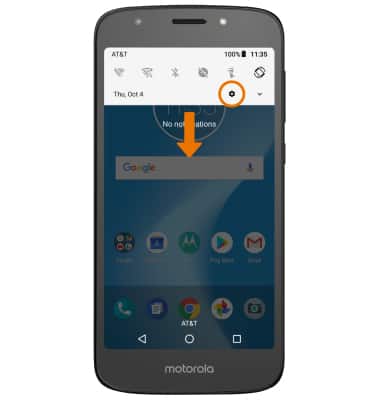
- ACCESS ADDITIONAL VOLUME SETTINGS: Swipe down from the Notification bar, then select the Settings icon.
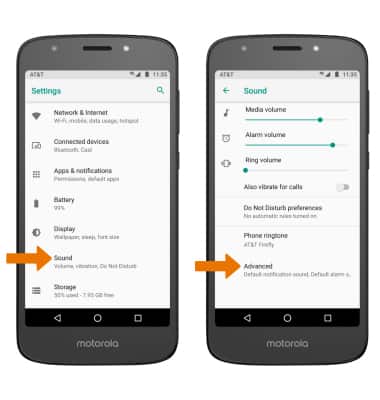
- Scroll to and select Sound, then select Advanced.
- CHANGE RINGTONE: Select Phone ringtone. Select the desired ringtone, then select OK.
Note: For steps to assign a ringtone to a contact, please see the Contacts tutorial.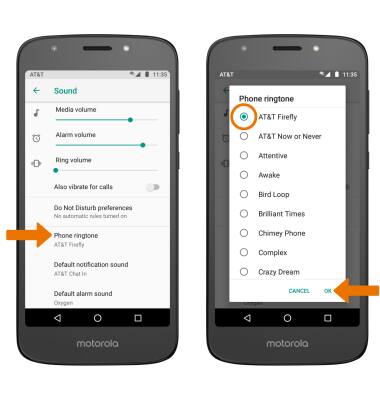
- CHANGE NOTIFICATION ALERTS: From the Sound screen, select Advanced > Default notification sound > desired option > OK.
Note: To block or unblock notifications from appearing when the device is locked, swipe down from the Notification bar > select the Settings icon > select Apps & notifications > Notifications > On the lock screen > desired option.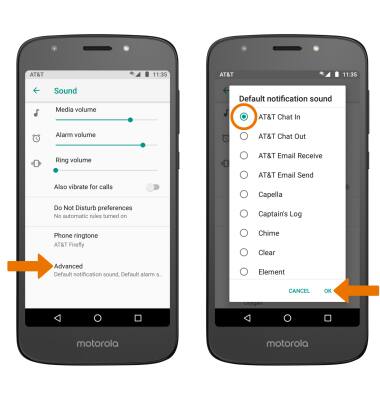
- TURN ON/OFF DO NOT DISTURB MODE: Swipe down from the Notification bar, then select the Do not disturb icon.
Note: Do not disturb mode mutes sounds and the screen will remain off for incoming calls and alerts, but not alarms.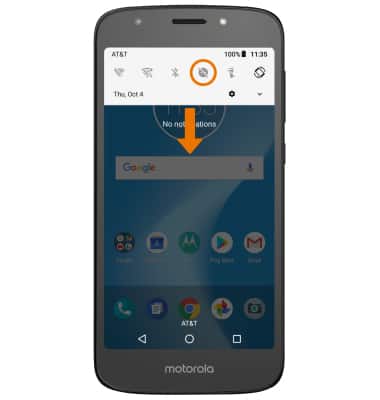
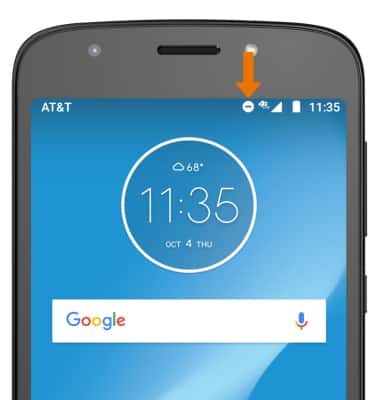
- When Do not disturb mode is active, the Do not disturb icon will be displayed in the Notification bar.
Sounds
Motorola Moto e5 play (XT1921-2)
Sounds
Change volume settings, ringtones, notification alerts, and enable or disable Do not disturb mode.
INSTRUCTIONS & INFO