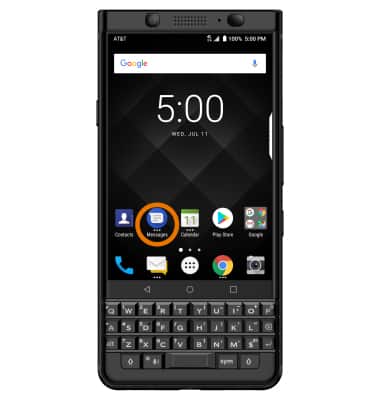
- ACCESS MESSAGES: From the home screen, select the Messages app.
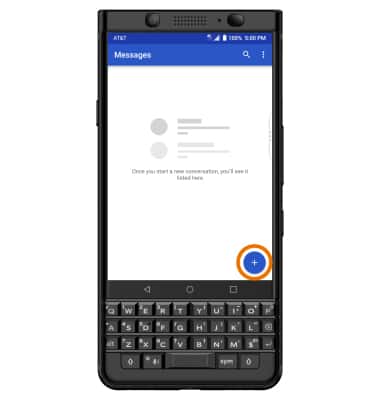
- COMPOSE A MESSAGE: From the Messages inbox, select the Compose icon.
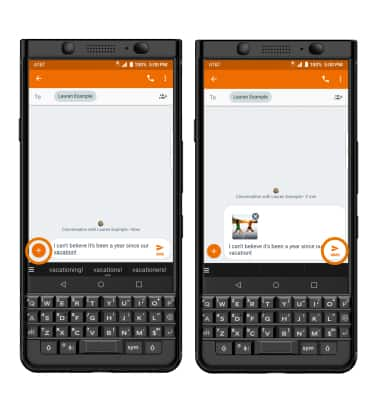
- Enter the desired contact, then select the Enter message field and enter the desired message.
Note: To add additional recipients and create a Group Message, enter or select the Additional contacts, then select the Enter message field. To remove recipients, press the Backspace key to delete desired contacts.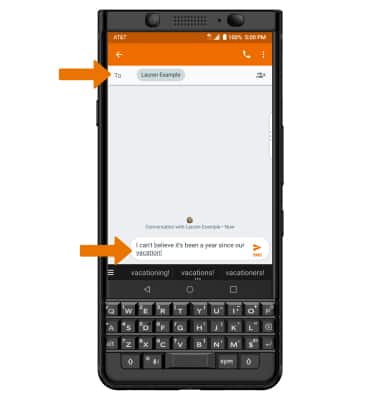
- ADD AN ATTACHMENT: Select the Attach icon > desired file type > navigate to the desired file > Check icon > Send icon.
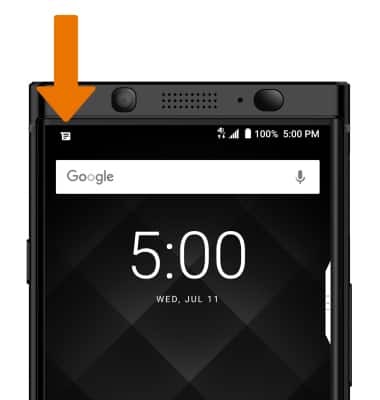
- When a new message is received, the New Message icon will display in the Notification bar.
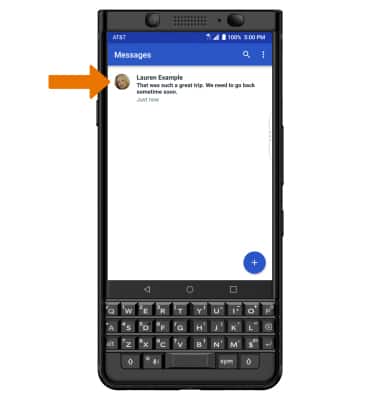
- READ A MESSAGE: From the Messages inbox, select the desired message thread.
- SAVE AN ATTACHMENT: Select and hold the desired attachment, then select the Save icon.
Note: To view the saved attachment, from the Apps tray select the Photos app > Albums > Downloads.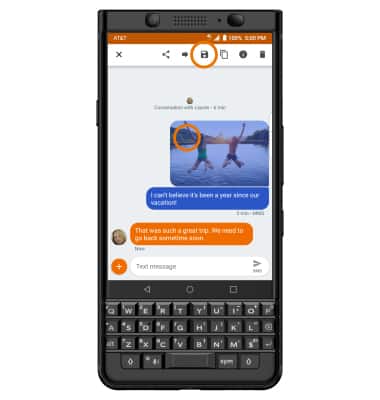
- FORWARD A MESSAGE: Select and hold the desired message, then select the Forward icon.
Note: To complete this action, enter the desired contact then select Send.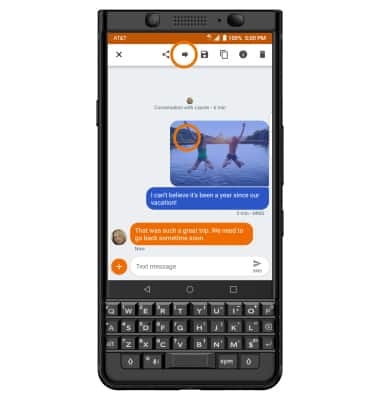
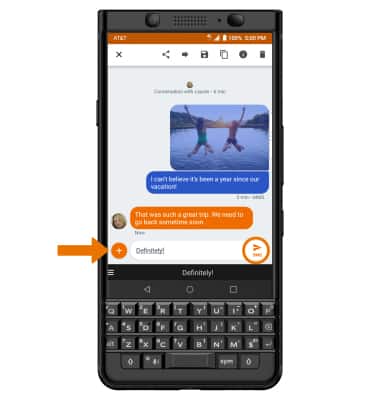
- REPLY TO A MESSAGE: From the desired message thread, enter the desired response, then select the Send icon.
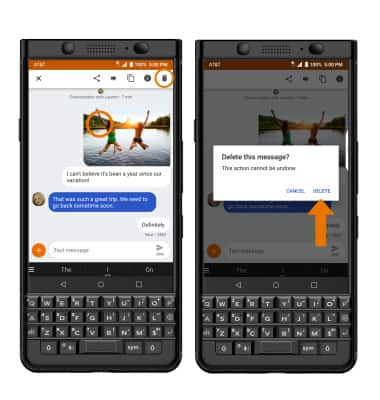
- DELETE A MESSAGE: Select and hold the desired message, then select the Delete icon. Select DELETE to confirm.
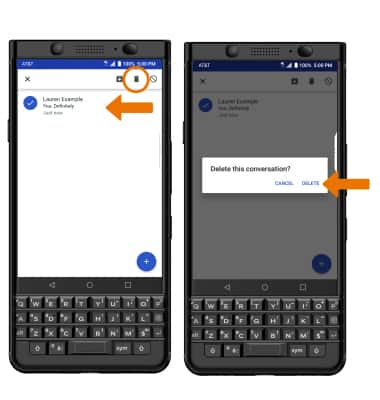
- DELETE A MESSAGE THREAD: Select and hold the desired message thread, then select the Delete icon. Select DELETE again to confirm.
Send & Receive Messages
BlackBerry KEYone (BBB100-1)
Send & Receive Messages
Create and respond to text (SMS) or picture (MMS) messages, add, save, and view received attachments and more.
INSTRUCTIONS & INFO