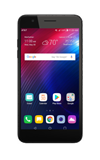
- ACCESS CAMERA MODES: From the home screen, select the Camera app then select the MODE icon to access modes such as Auto and Flash Jump-Cut.
Note: Alternately, you can access the camera from the lock screen by selecting and dragging the Camera icon up. Auto mode allows you to apply commonly-used settings for your photos and videos. Flash Jump-Cut mode will take photos in 3 second increments, then save them as a GIF file. For more information, please see the Camera Modes tutorial.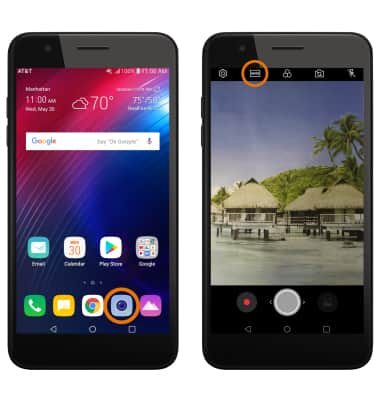
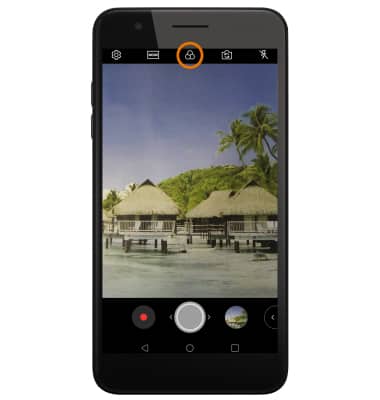
- ACCESS CAMERA FILTERS: From the Camera app, select the Filters icon.
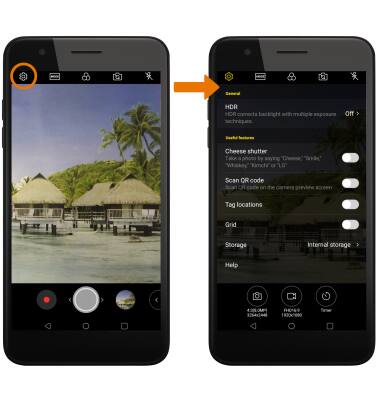
- CUSTOMIZE PHOTO/VIDEO SETTINGS: From the Camera app, select the Settings icon. Edit settings as desired.
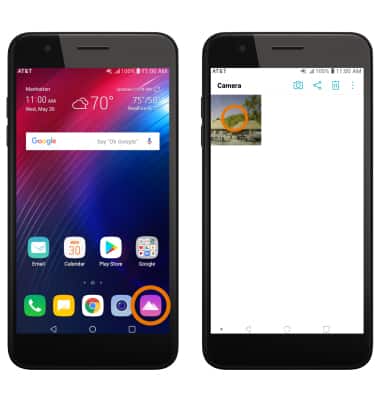
- CROP A PHOTO: From the home screen, select the Gallery app then select the desired photo.
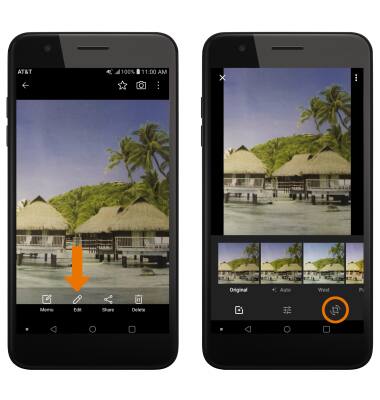
- Select Edit, then select the Crop icon.
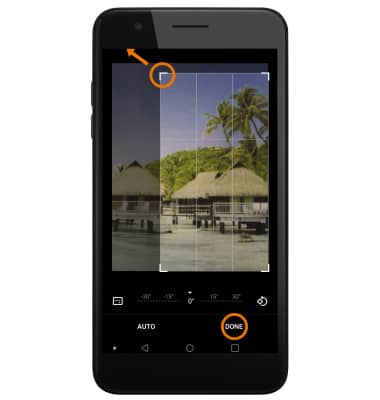
- Select and drag the crop corners to crop as desired, then select DONE.
Advanced Photo & Video Features
LG Phoenix Plus / K30 (LM-X410AS)
Advanced Photo & Video Features
Learn how to access and use Camera modes, effects, customization, and crop a photo.
INSTRUCTIONS & INFO