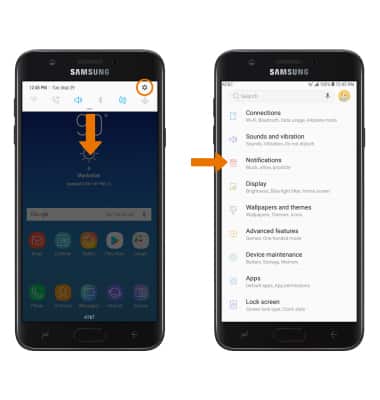
- ACCESS NOTIFICATION SETTINGS: Swipe down from the Notification bar, then select the Settings icon. Select Notifications.
- TURN ON/OFF ALL NOTIFICATIONS: Select the All apps switch to turn all notifications on or off. Select the switch next to the desired app to turn a specific app on or off.
Note: To enable or disable app icon badges, select the App icon badges switch. To edit App icon badge settings, select App icon badges.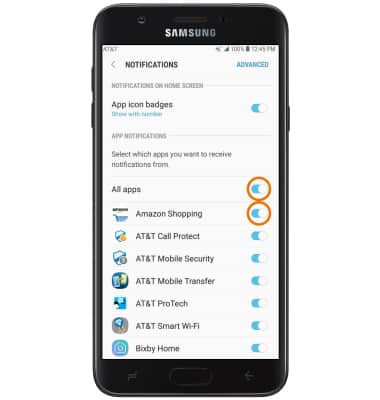
- ACCESS ADVANCED NOTIFICATION SETTINGS: To adjust additional notification settings for a specific app, select ADVANCED then select the desired app. Available settings vary by app.

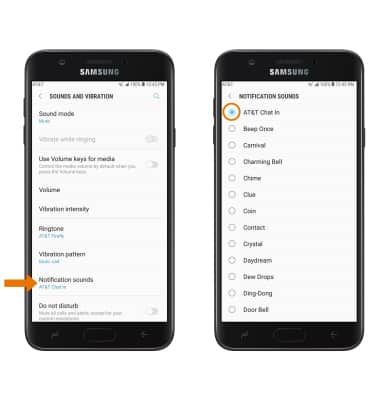
- ADJUST NOTIFICATION SOUNDS: From the Settings screen, select Sounds and vibration.
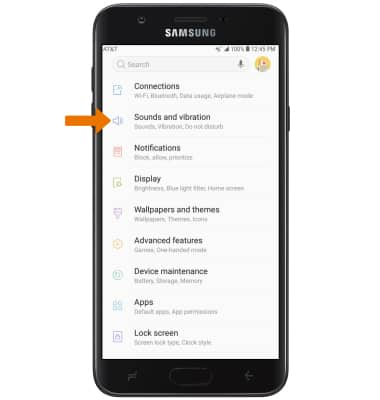
- Select Notification sounds, then select the desired notification sound.
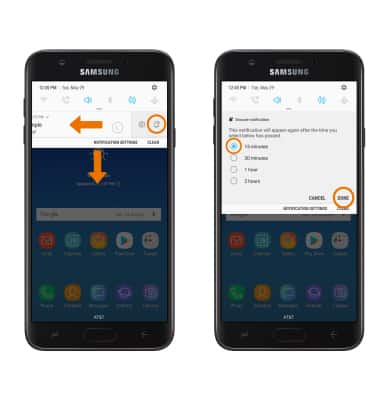
- SNOOZE A NOTIFICATION: Swipe down from the Notification bar > select and hold the desired notification > drag left or right > select the Snooze icon > desired option > DONE.
Notifications
Samsung Galaxy J7 (2018) (J737A)
Notifications
Learn how to access and adjust notification settings and turn notifications on or off.
INSTRUCTIONS & INFO