- Use your AT&T device as a mobile Wi-Fi hotspot to share your data connection with Wi-Fi-capable devices such as: smartphones, tablets, netbooks, MP3 players, and more.
Note: Eligible data plan required, learn more.
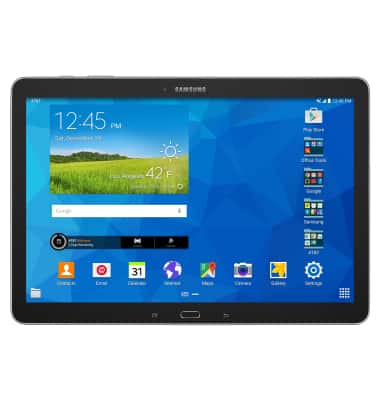
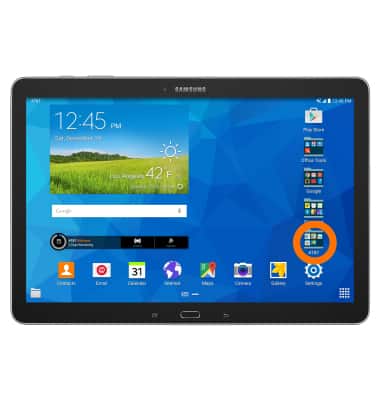
- To create a mobile Wi-Fi hotspot, from the home screen tap the AT&T App folder.
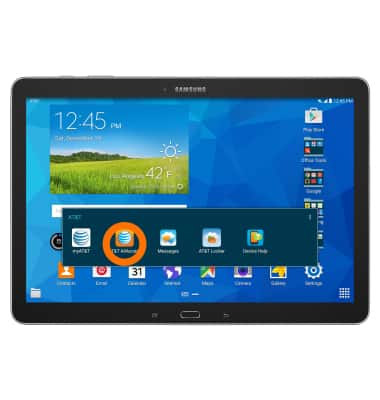
- Tap the AT&T AllAccess widget.
- Tap the Hotspot icon.
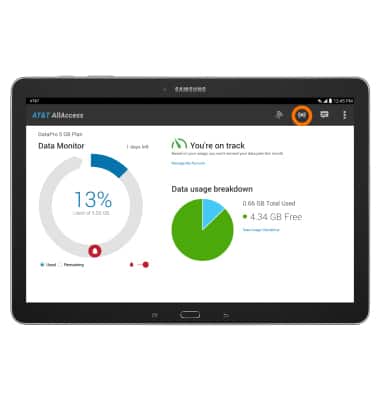
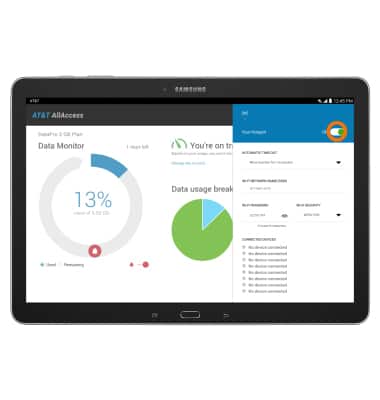
- Tap the Toggle to turn your hotspot on.
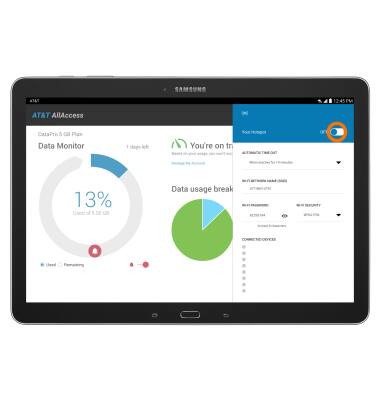
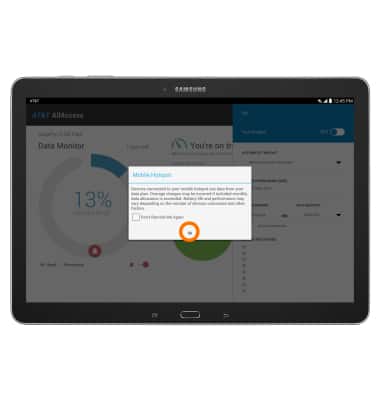
- Tap Ok.
- In the Your Mobile Hotspot area, you can view and edit your hotspot time out settings, name, password, security, as well as connected devices.
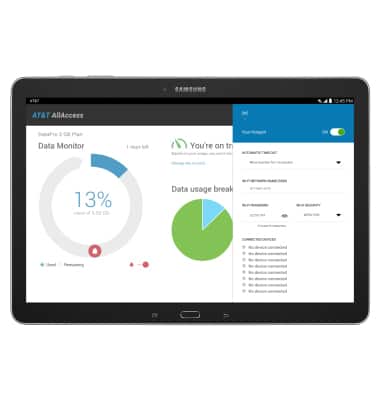
- When Mobile Hotspot is on, the Mobile Hotspot icon will be displayed in the Notification bar.
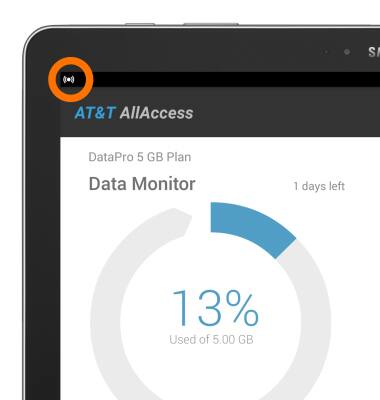
- To turn the hotspot off, tap the Mobile hotspot toggle.
Mobile hotspot
Samsung Galaxy Note Pro 12.2 (P907A)
Mobile hotspot
Set up your device as a personal hotspot and share your data connection with Wi-Fi-capable devices.
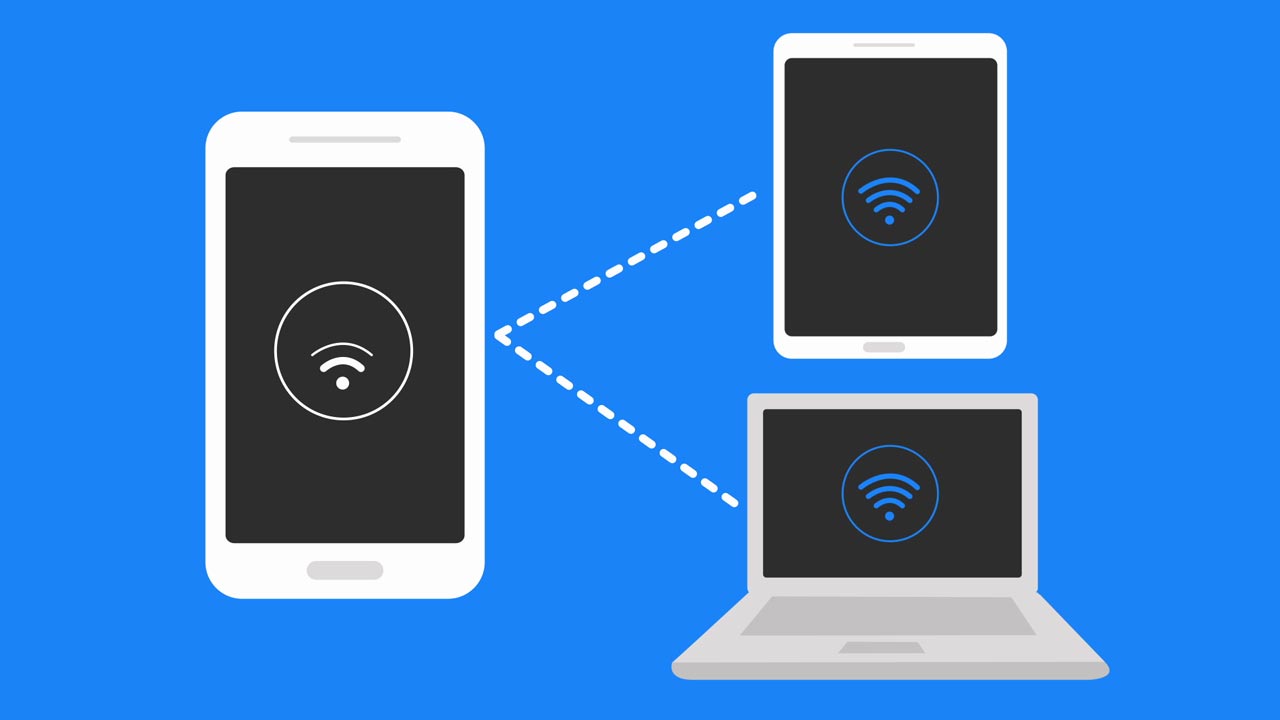
How to Set Up a Personal Mobile Hotspot
Learn what you need to use your smartphone as a personal mobile hotspot and how to set it up.
How to Set Up a Personal Mobile Hotspot
2:03
INSTRUCTIONS & INFO

Starting December 31, 2022, the AT&T AllAccess app is going away. As a result, some features on your device may no longer be supported. You'll be able to view data usage and notifications on your myAT&T account page, and you can explore other options to stay connected with your device on the go. Learn more about mobile hotspot options.