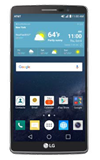
- To access the email inbox, from the home screen, tap the Email icon.

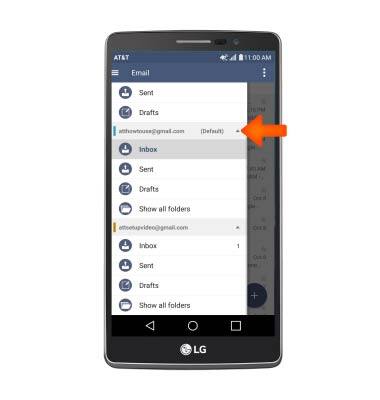
- To switch inboxes, tap the Menu icon.
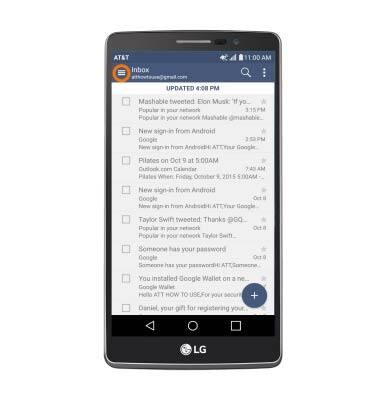
- Tap the Desired account.
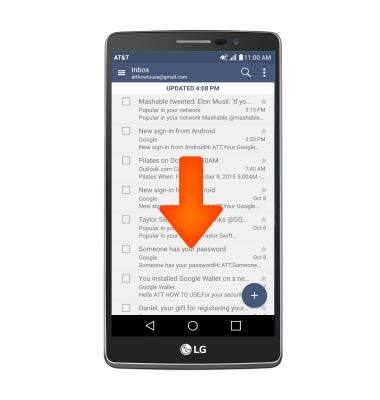
- To refresh the inbox, pull down from the top of the inbox.
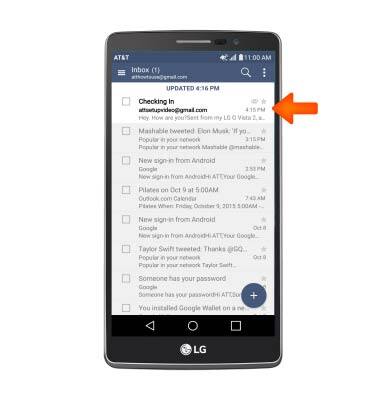
- To read a message, tap the Desired message.
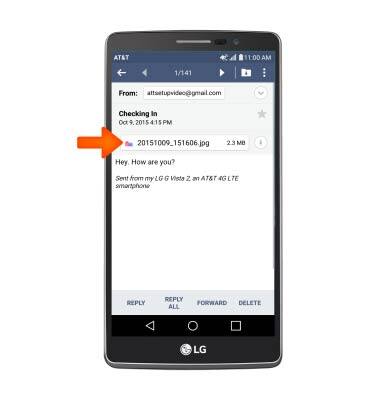
- Tap the Attachment to view it.
- Image will automatically download to the download folder.
Note: To view the saved attachment, from the home screen tap the Apps icon > Gallery icon > Desired content.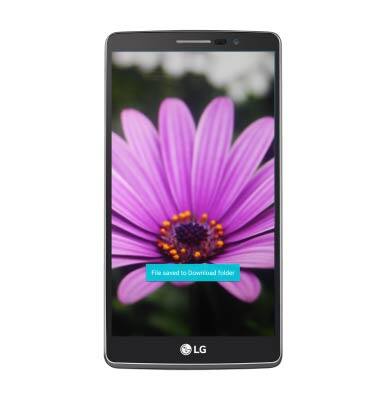
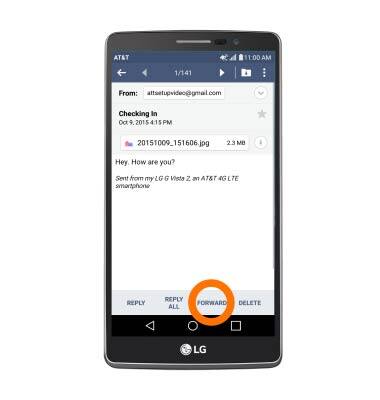
- To forward a message, tap FORWARD.
- To reply to a message, tap REPLY.
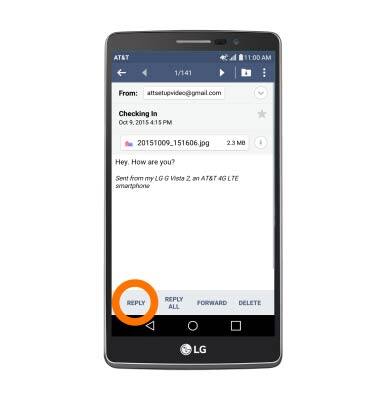
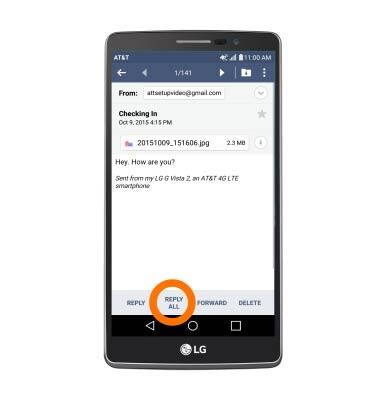
- To reply all to a message, tap REPLY ALL.
- To delete a message, tap DELETE.
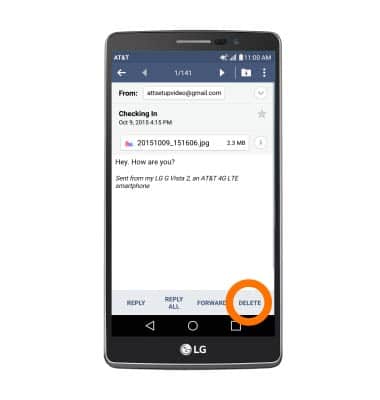
- Tap YES.

- To compose a new email, tap the + icon.
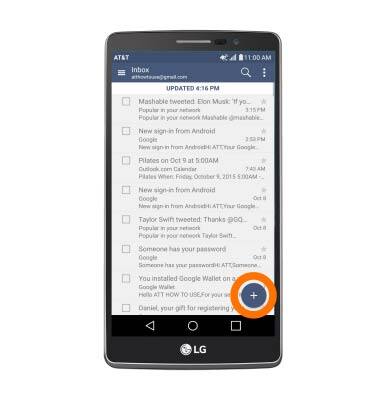
- Enter Desired recipient(s), subject and message.
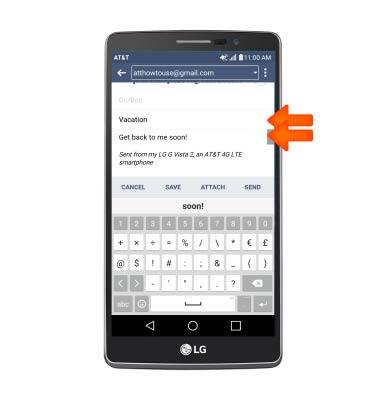
- To add an attachment, tap ATTACH, then follow prompts.
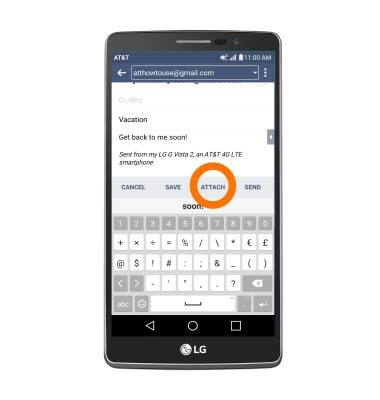
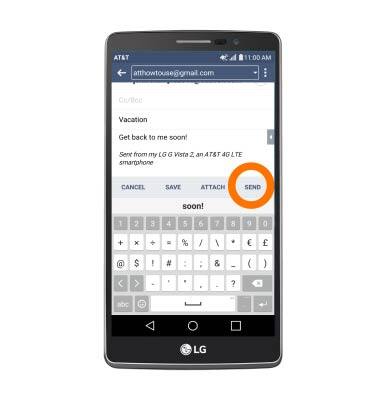
- Tap SEND.
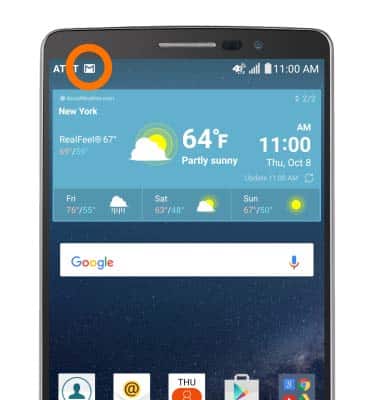
- The New Email icon displays in the Notification bar when a new email message is received.
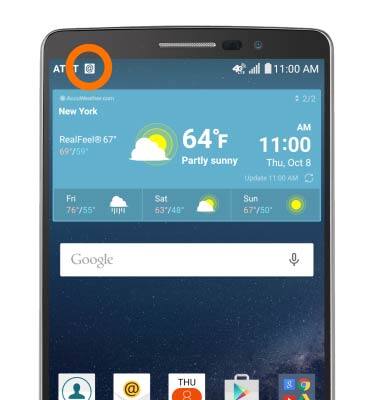
- The New Gmail icon displays in the Notification bar when a new Gmail message is received.
Send & receive email
LG G Vista 2 (H740)
Send & receive email
Add and download email attachments, respond to an email and more.
Send & receive email
Add and download email attachments, respond to an email and more.
Send & receive email
3:36
INSTRUCTIONS & INFO