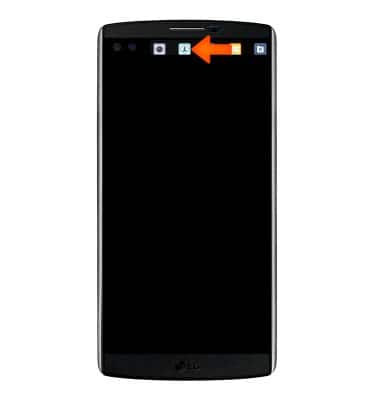
- To open Second screen when the main screen is off, swipe from right to left across the top of the screen.
- To open Second screen when the main screen is on, swipe from right to left across the top of the screen.
Note: You can see notifications and use features on the Second screen while using the main screen.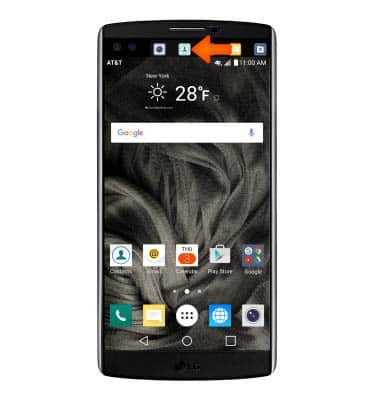
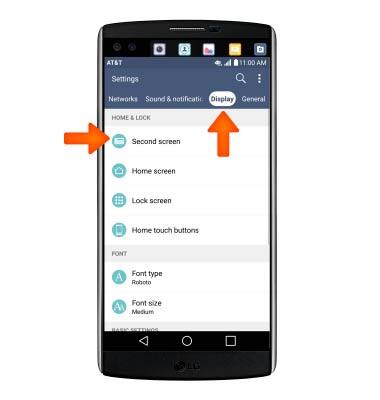
- To turn the Second screen on and off, swipe down from the top of the screen, then tap the Settings icon.
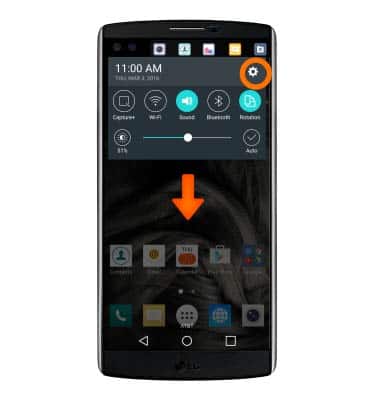
- From the Display tab, tap Second screen.
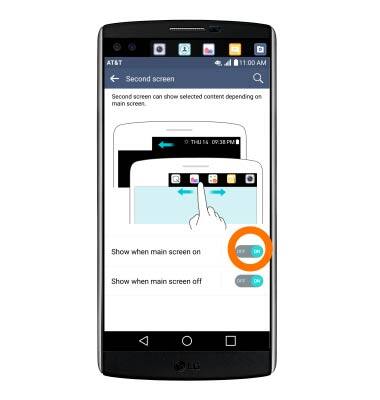
- To set whether to display the Second screen information when the main screen is on, tap the Show when main screen on switch.
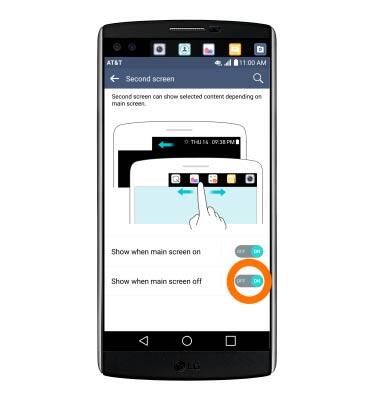
- To set whether to display the Second screen information when the main screen is off, tap the Show when main screen is off switch.
- To set which apps are available on Second screen when the main screen is turned on, tap Show when main screen on.
Note: You can follow the same process for Show when main screen off.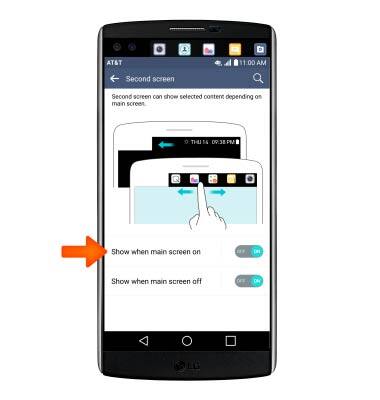
- Tap the Check box to add or remove from Second screen.
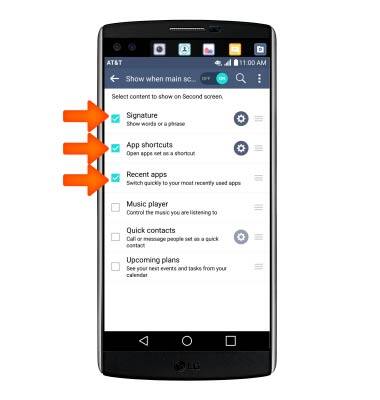
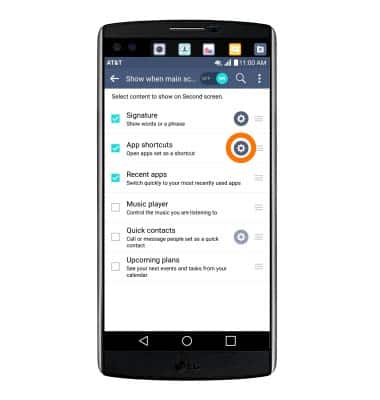
- Tap the Settings icon for additional options.
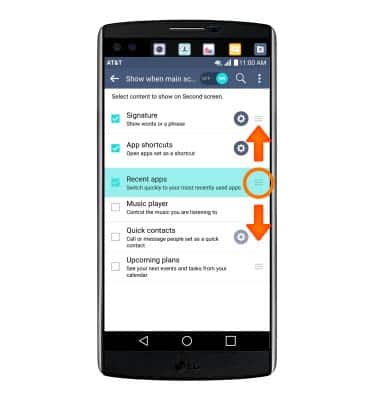
- To rearrange the order of the apps in the Second screen, touch, hold, and drag the App menu icon to the desired location. Then release.
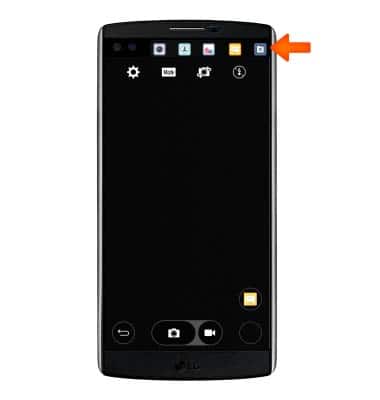
- While taking pictures or recording video, you can use the additional options available on the Second screen.
- To momentarily turn the Second screen feature off, flip the phone with the screen facing down.
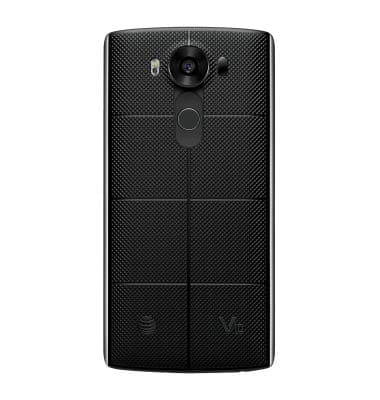
Second screen
LG V10 (H900)
Second screen
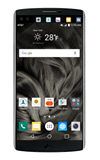
The Second screen function can display app icons, web tabs, notifications, contacts, useful information, and more.
Second screen
The Second screen function can display app icons, web tabs, notifications, contacts, useful information, and more.
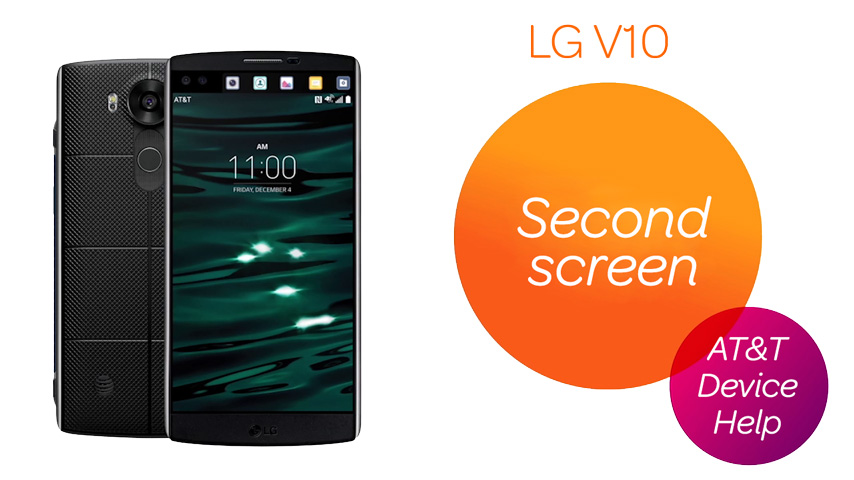
Second screen
1:29
INSTRUCTIONS & INFO