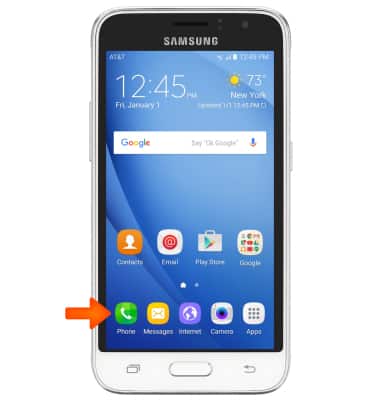
- From the home screen, tap Phone.
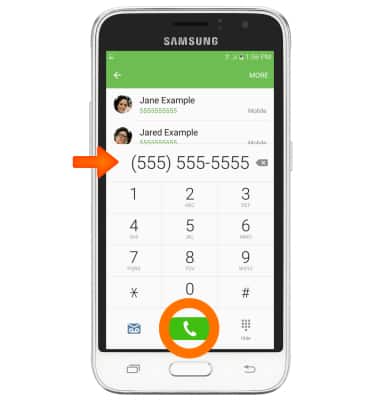
- To make a call, from the Dial pad enter the Desired phone number to call, then tap the Dial phone icon.
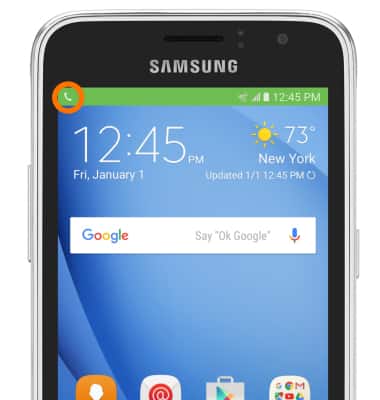
- While a call is active the Call icon will display in the notification bar.
- To receive an incoming call, swipe the Green phone icon to the right.
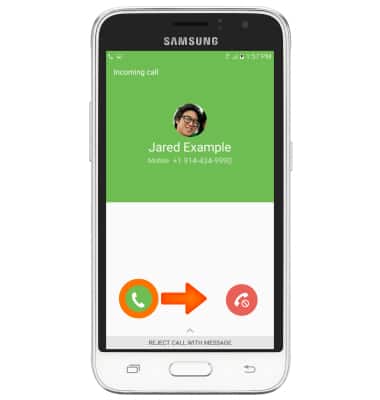
- To decline an incoming call, swipe the Red phone icon to the left.
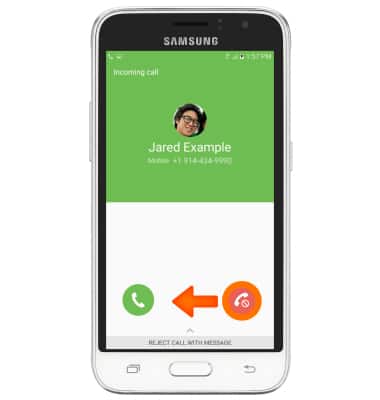
- To answer a call waiting call, swipe the Green phone icon to the right.
Note: Accepting a call waiting call will put the other call on hold.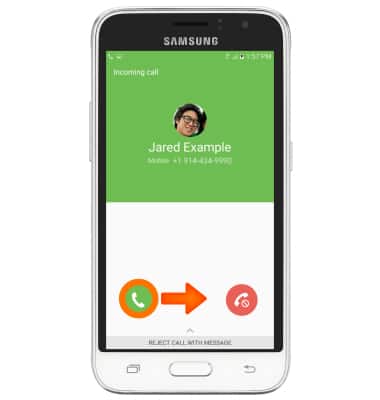
- To decline a call waiting call, swipe the Red phone icon to the left.
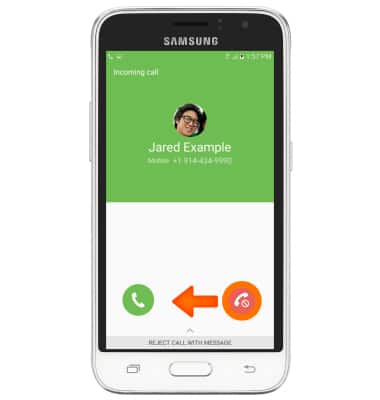
- To reject an incoming call with a text message, swipe up from the Bottom of the screen.
Note: When in "Easy" mode, you can't reject a call with a message, or see caller ID information.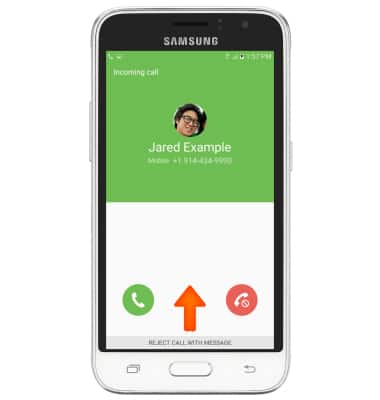
- To choose a prepared text message, tap the Desired message.
Note: To create or edit text message replies from the home screen tap > Phone > Menu icon > Settings > edit replies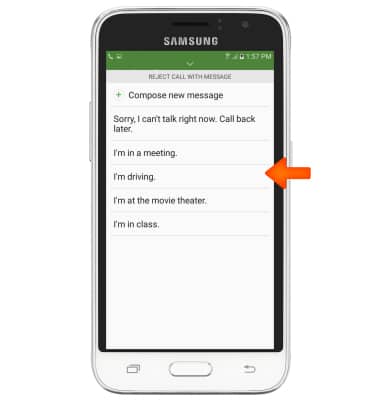
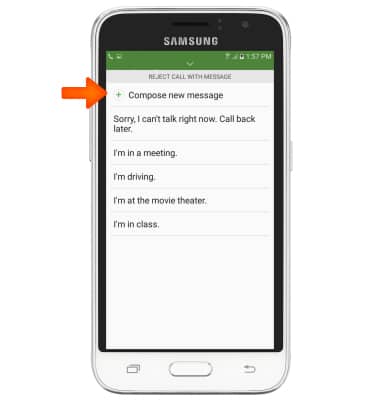
- To create your own text message reply, tap Compose new message.
- Type Desired message, then tap SEND.
Note: To learn about calling or using your device in other countries, visit the AT&T International Calling website.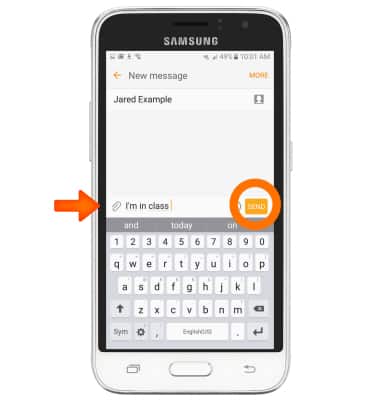
Make & receive a call
Samsung Galaxy Express 3 (J120A)
Make & receive a call
Place, receive, and reject a call.

0:00
INSTRUCTIONS & INFO