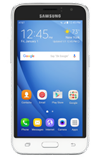
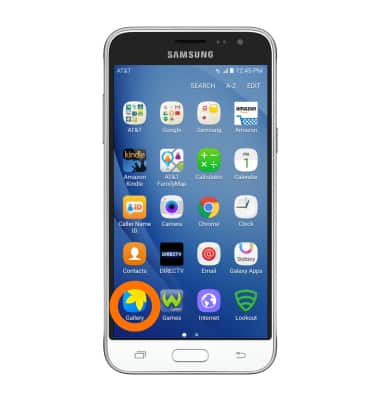
- To take a picture or video, from the home screen, tap Camera.
Note: You can also access the camera via the lock screen by swiping the Camera icon or via Quick Launch by double-tapping the Home key. To disable the Quick Launch feature, from the Camera, tap Settings > tap the Quick launch toggle.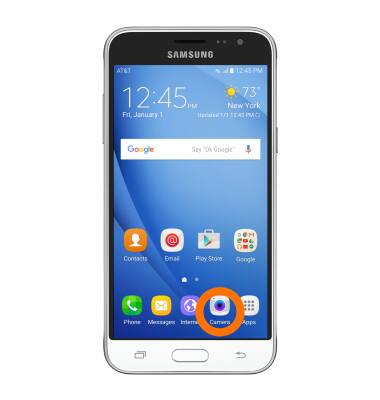
- To take a picture, tap the Camera icon.
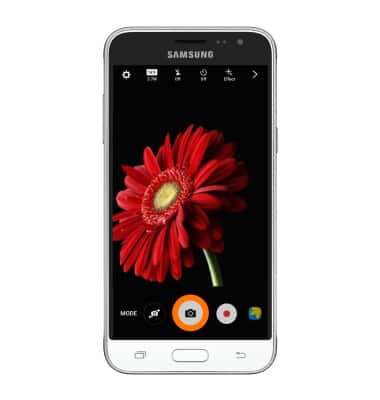
- To take a video, tap the Record icon. Recording starts immediately.
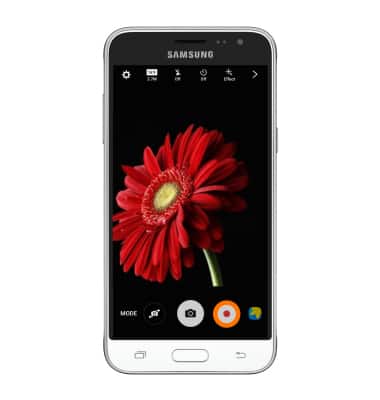
- To pause the recording, tap the Pause icon.
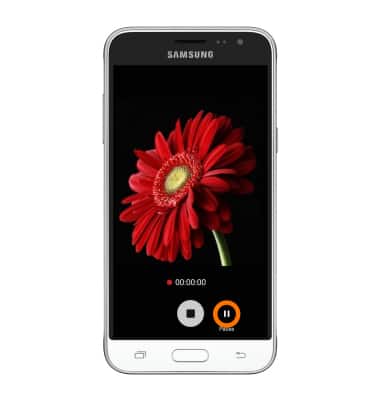
- Tap the Record icon to resume recording.
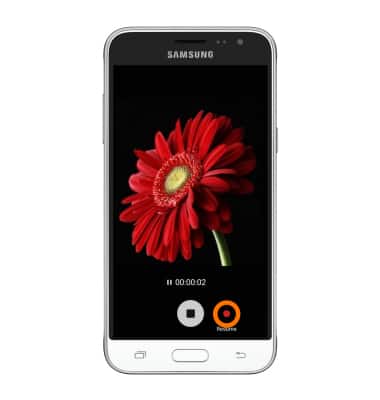
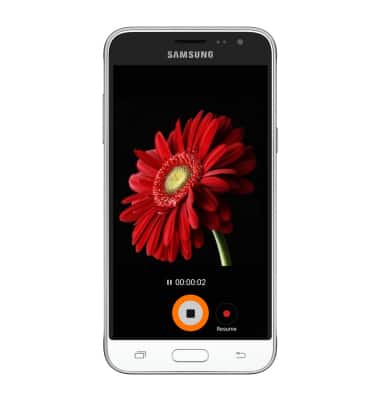
- Tap the Stop icon to stop and save the recording.
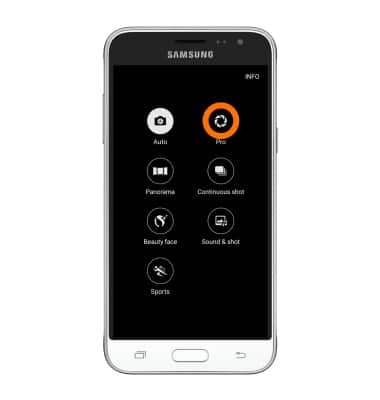
- To change shooting modes, tap Mode.
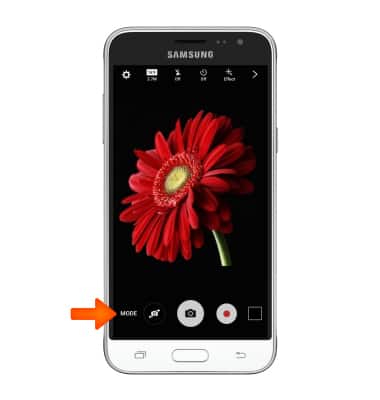
- Tap the Desired mode.
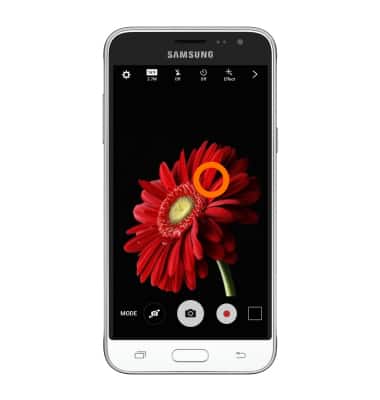
- Tap the screen to focus.
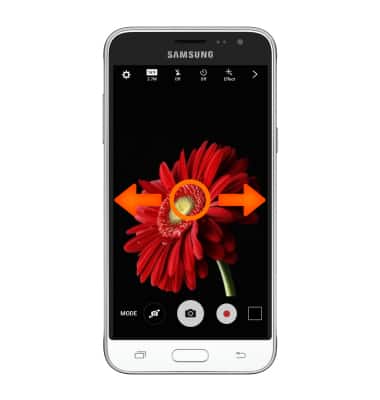
- To zoom in and out pinch your fingers together or apart.
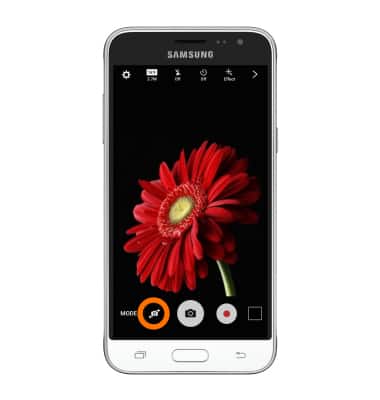
- To switch between the front and rear camera, tap the Switch camera icon.
- Tap the Gallery icon to view or edit saved pictures and videos
- The Samsung device has a 2MP front-facing camera, and a 5MP rear-facing camera.
Note: To take a screen shot, press and hold the Home and Power button at the same time until you hear the camera shutter sound and a short flashing animation. To view captured screen shots tap the Gallery or My Files app.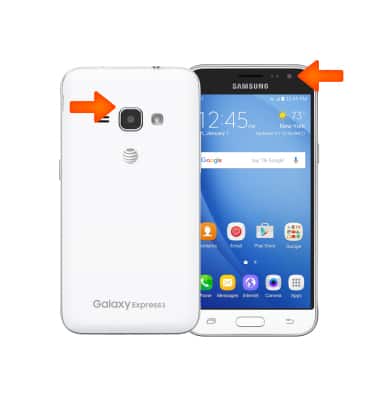
Take a picture or video
Samsung Galaxy Express 3 (J120A)
Take a picture or video
Take and edit a picture or video, use the front and rear camera, and switch between camera and video modes.
Take a Picture or Video
Take and edit a picture or video, use the front and rear camera, and switch between camera and video modes.
Take a Picture or Video
1:38
INSTRUCTIONS & INFO