- AT&T Navigator makes your travels easier with GPS-guided maps and directions, traffic alerts, and additional navigation features that give you real-time, on-the-road coverage to help you avoid traffic, find the best routes, and more.
Note: Separate subscription may be required. Data rates apply. For more information, visit the AT&T Navigator website.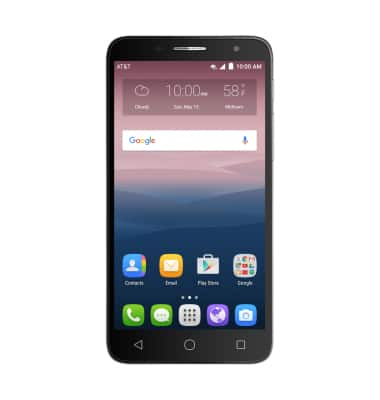
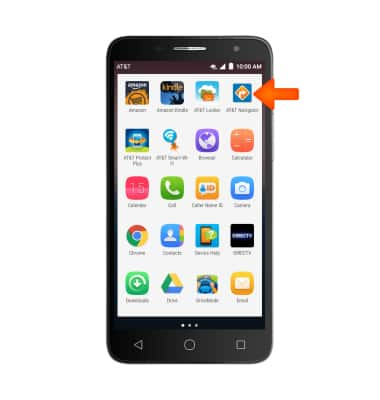
- To access AT&T Navigator, form the Apps menu, tap AT&T Navigator.
- If prompted, tap Continue.
Note: If GPS is not turned on tap OK > Location switch to ON > AGREE > Back key.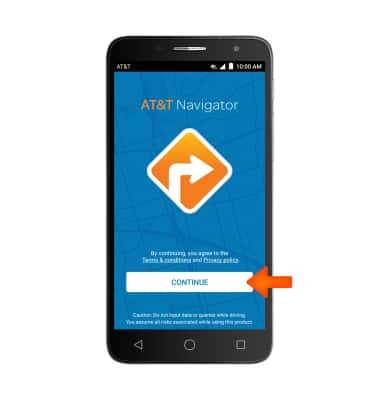
- To get directions, tap the Search field and enter the address or desired location, then tap a suggestion or tap the Done icon from the keyboard.
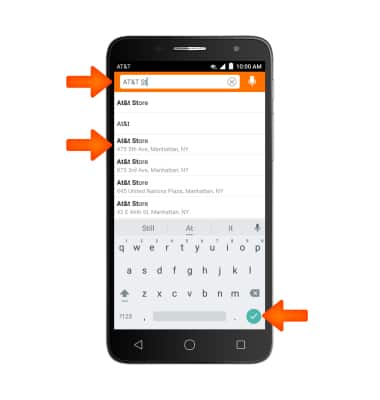
- Tap desired address.
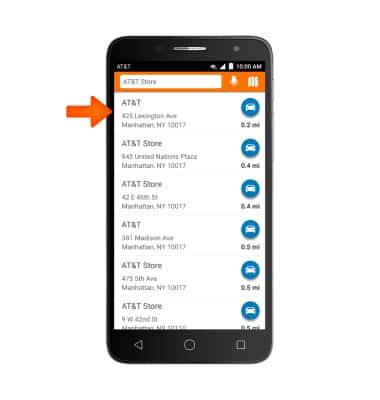
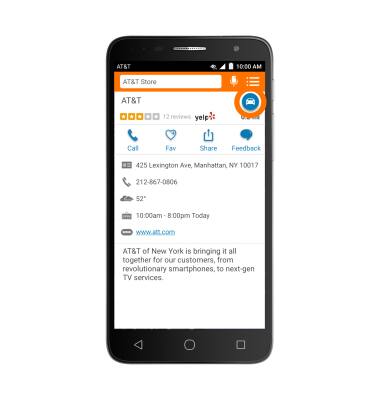
- Tap the Drive icon.
- Tap the desired route, then tap Drive.
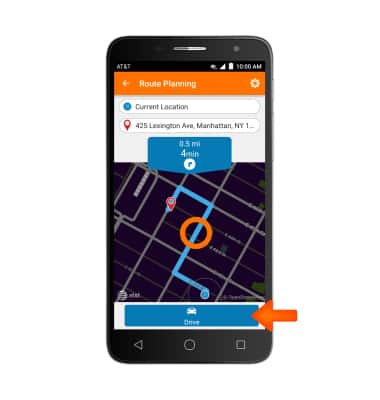
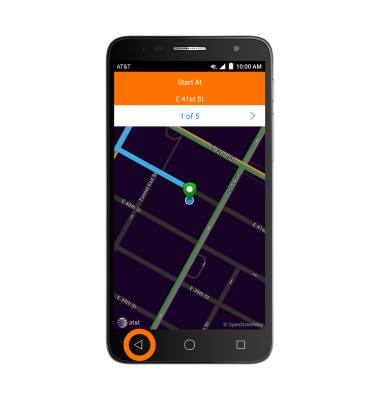
- Route navigation will begin. To end navigation, tap the Back button.
AT&T Navigator
Alcatel ONETOUCH ALLURA (5056O)
AT&T Navigator
Get directions and navigation using AT&T Navigator.
INSTRUCTIONS & INFO