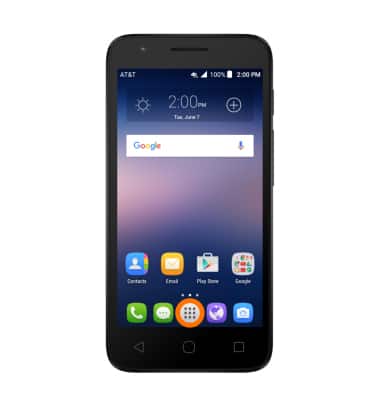
- To take a picture, from the home screen, tap the Apps icon.
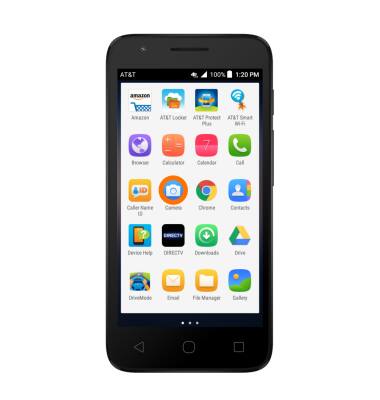
- Tap the Camera icon.
- Tap the Camera icon to take a picture.
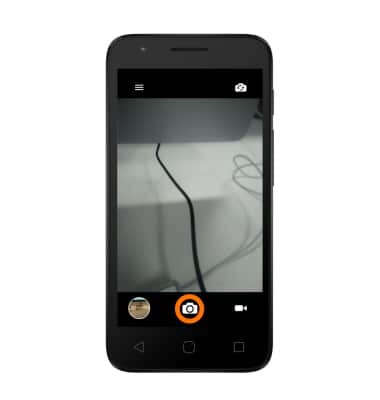
- To switch to or from the front-facing camera, tap the Switch camera icon.
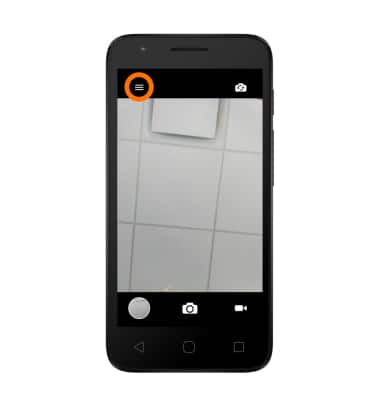
- To use Polaroid, an app integrated within the camera software that allows you to edit images, add color filters and create a collage from the camera, tap the Menu icon.
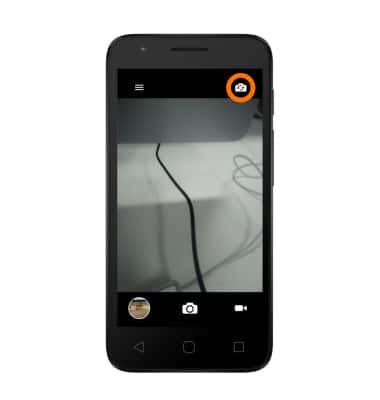
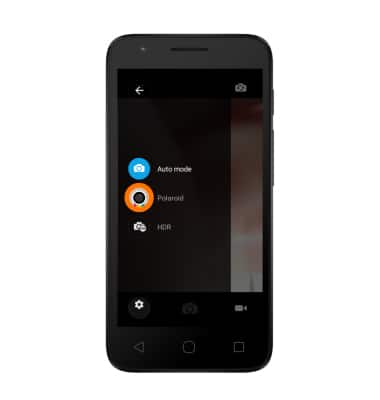
- Tap Polaroid.
- Tap the collage icon.
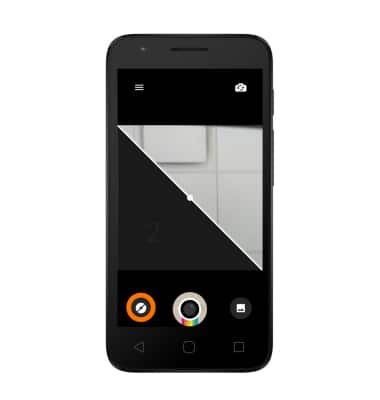
- Tap the desired number of images in your collage.
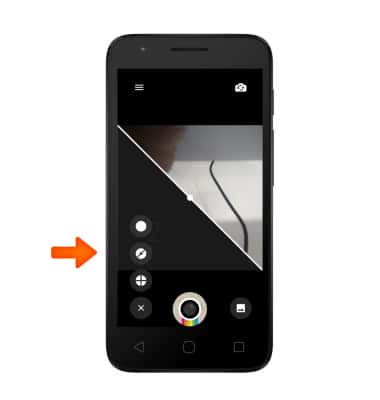
- Take the photos as desired.
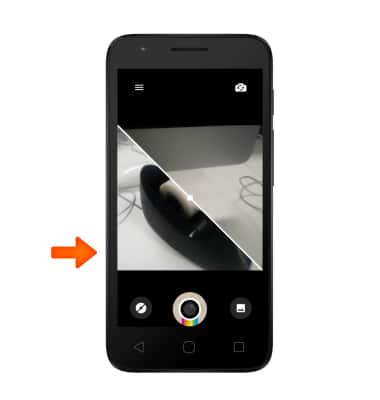
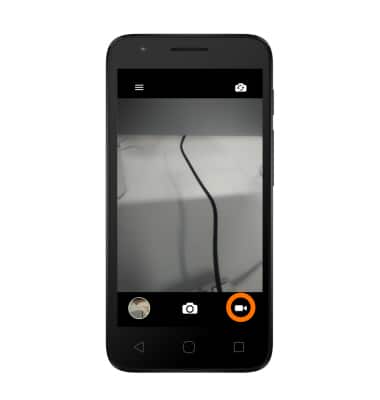
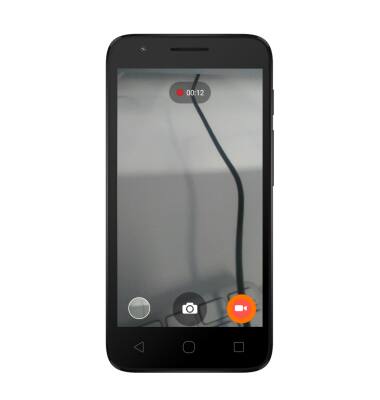
- To take a video, from the Camera app, tap the Video icon. Recording will begin automatically.
- To take a still picture while recording a video, tap the Camera icon.
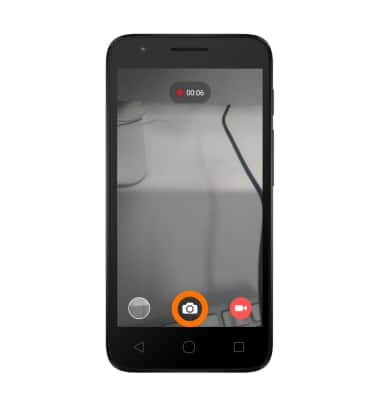
- To stop the recording and save, tap the Video icon.
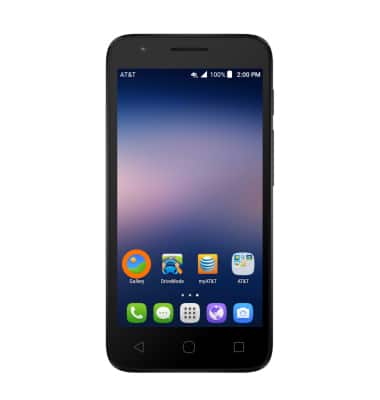
- To access saved pictures or videos, from the home screen swipe to, and tap the Gallery icon.
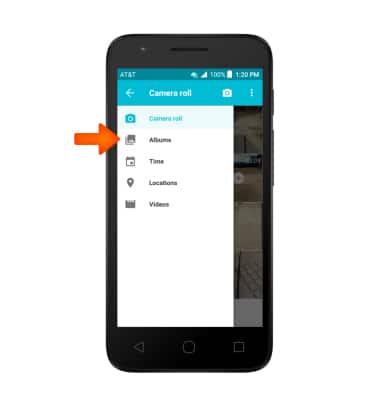
- Tap the Menu icon and tap the desired album.
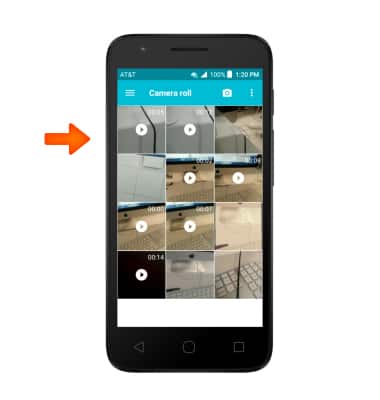
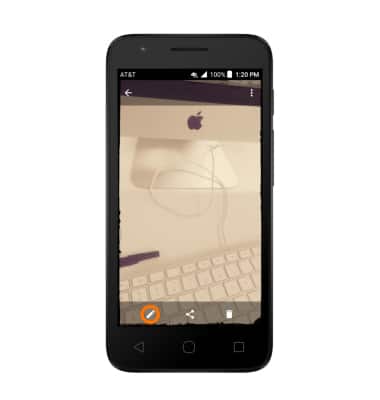
- Tap the desired photo or video to view.
- To edit a picture using Polaroid, tap the Edit icon, edit as desired.
- Then tap the Save icon.
Note: This device's rear camera is 8MP and the front camera is 2MP. To take a screen shot, press and hold the Power and Volume down buttons at the same time until you hear the camera shutter sound and a short flashing animation. To view captured screen shots tap the Gallery app.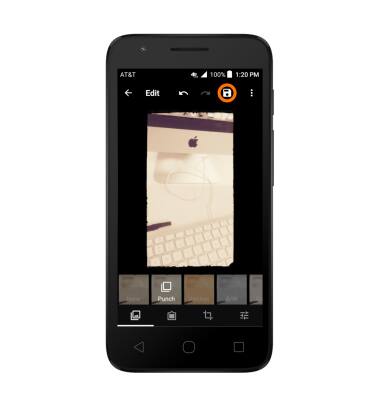
Take a Picture or Video
Alcatel IDEAL (4060A)
Take a Picture or Video
Take and edit a picture or video, use the front and rear camera, and switch between camera and video modes.
Take a Picture or Video
Take and edit a picture or video, use the front and rear camera, and switch between camera and video modes.
Take a Picture or Video
1:56
INSTRUCTIONS & INFO