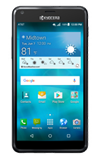
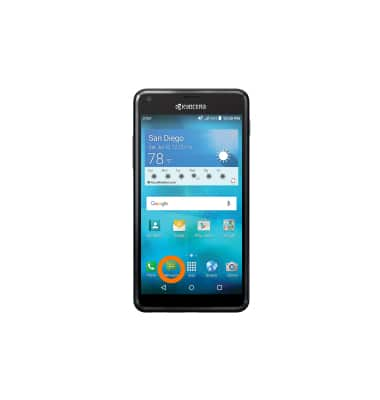
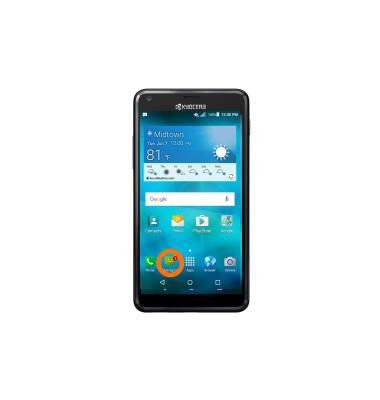
- To access the message inbox, tap the Messaging icon.
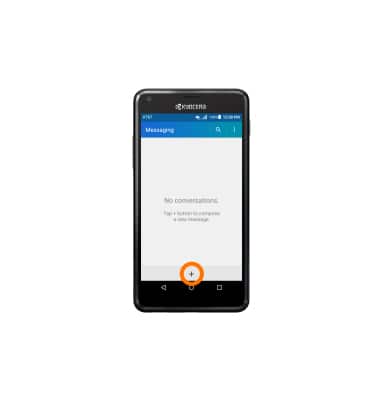
- To compose a new message, tap the + icon.
- Enter Desired recipient and message.
Note: To add additional recipients, tap the Recipient box and enter Desired additional recipients.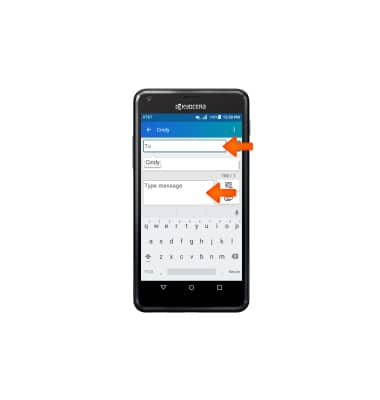
- To add an attachment, tap the Attachment icon and follow the prompts.
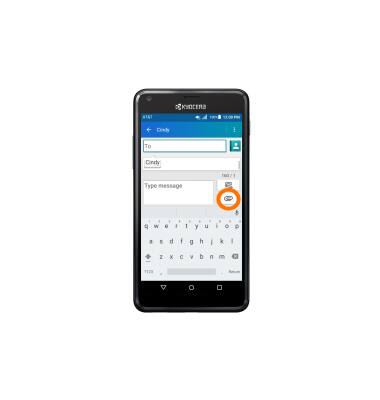
- To send a message, tap the Send icon.
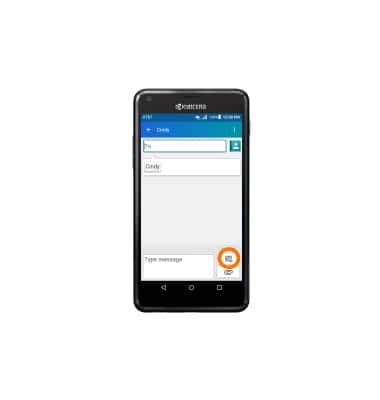
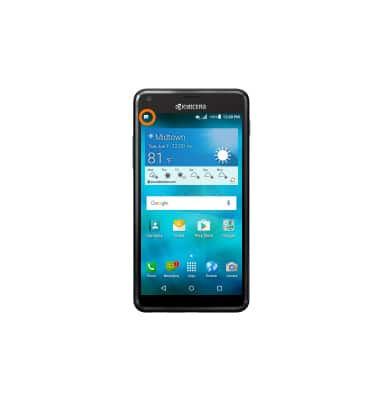
- When a new text or picture message is received, the New Message icon will display in the Status bar.
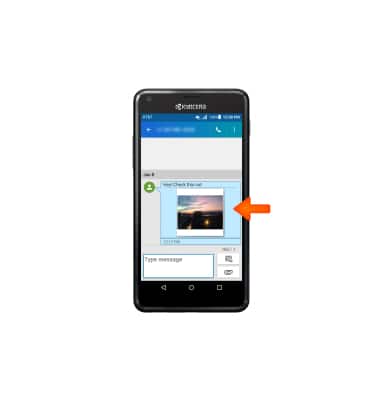
- To view a received message, from the home screen, tap the Messaging icon.
- Tap the Desired message thread.
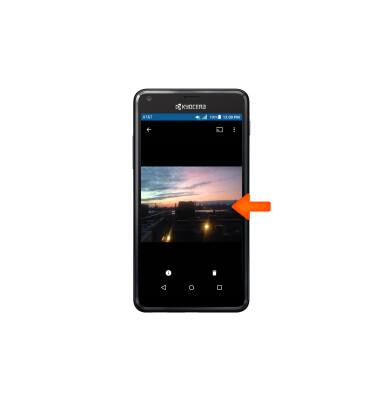
- To view an attachment, tap the Attachment.
- To save an attachment, tap and hold the Attachment.
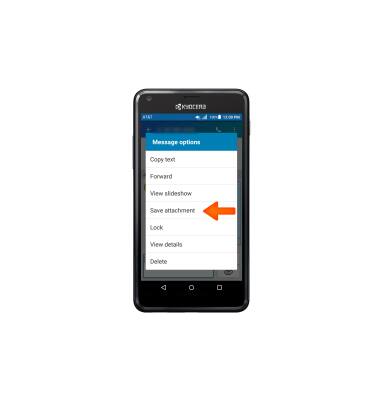
- Tap Save attachment.
Note: To view the saved attachment, from the home screen tap Apps > Gallery > Desired photo/video.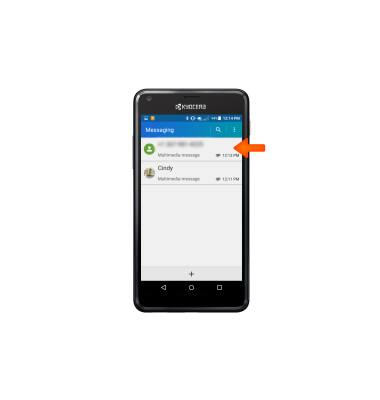
- To reply to a message, enter Desired message in the text area then tap the Send icon.
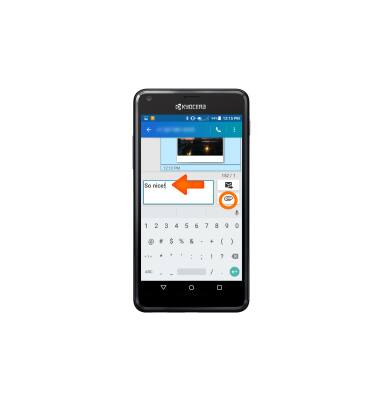
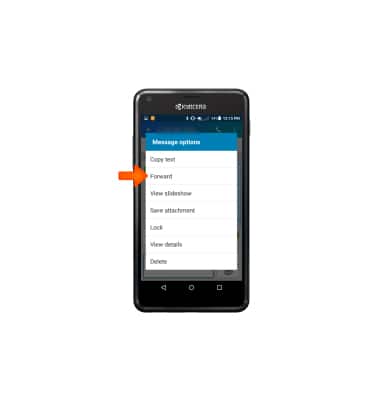
- To forward a message, tap and hold the message and then tap Forward.
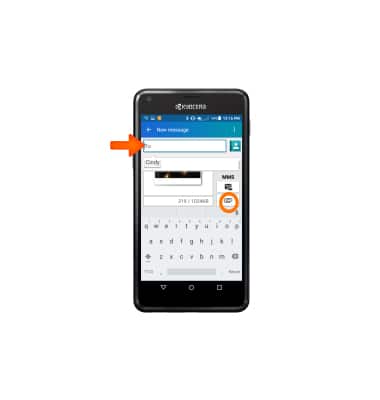
- Enter Desired recipient and then tap the Send icon.
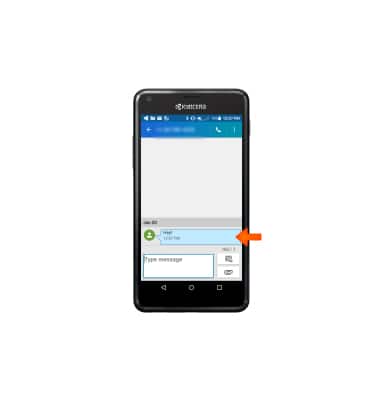
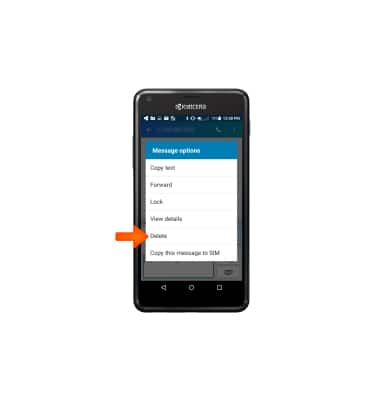
- To delete a message, tap and hold the Message and then tap Delete.
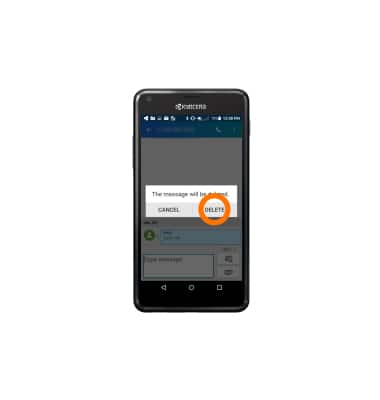
- Tap DELETE to confirm.
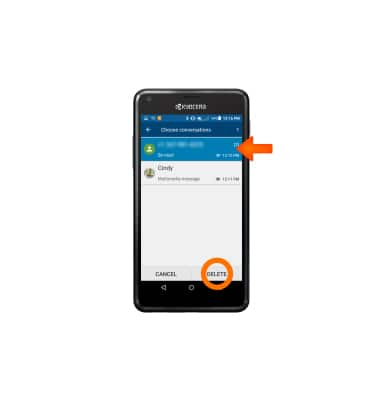
- To delete a conversation thread, from the inbox, tap and hold the Desired conversation, then tap DELETE.
- Tap DELETE to confirm.
Send & receive messages
Kyocera Hydro SHORE (C6742A)
Send & receive messages
Create and respond to text (SMS) or picture (MMS) messages, add, save, and view received attachments and more.
Send & Receive Messages
Create and respond to text (SMS) or picture (MMS) messages, add, save, and view received attachments and more.
Send & Receive Messages
2:05
INSTRUCTIONS & INFO