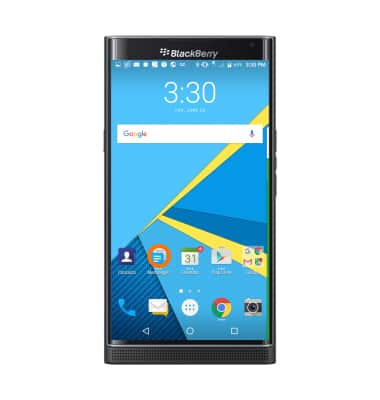
- From the home screen, tap the Messaging icon.
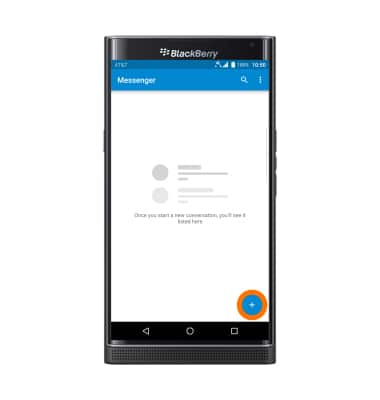
- Tap the Add icon to compose a message.
- Enter the Desired recipient and message.
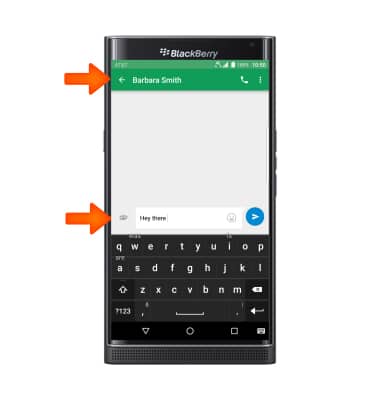
- To add an attachment, tap the Paperclip icon and then follow the on-screen prompts.
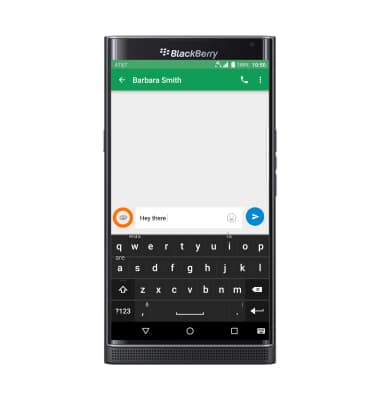
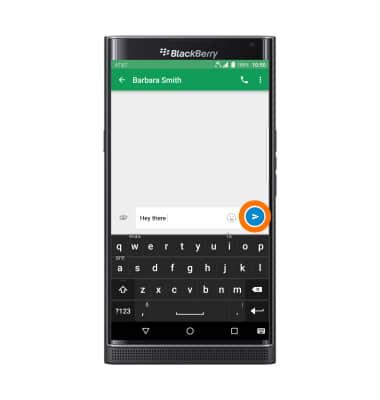
- Tap the Send icon.
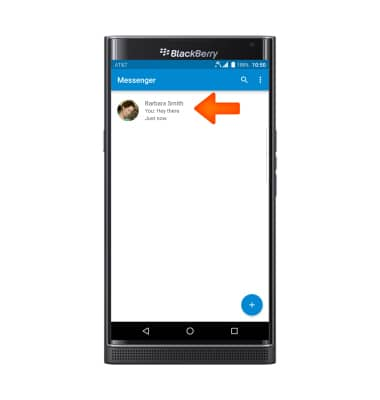
- To view a message thread, tap the Desired message thread.
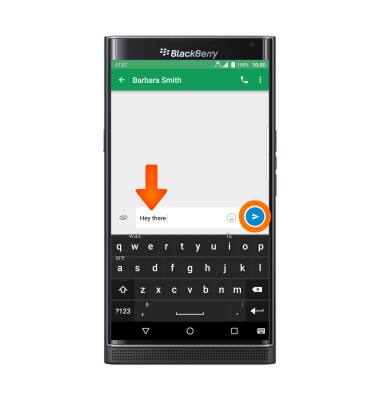
- To reply, tap the Add text field, and type the desired message. The tap the Send icon.
- To save the attachment, tap and hold on the Desired attachment.
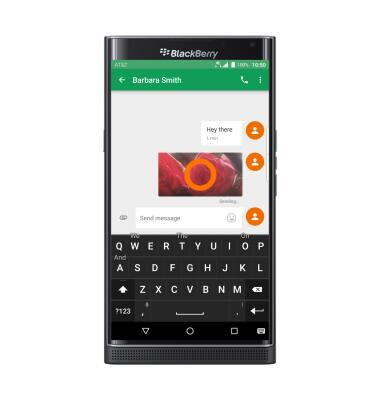
- Tap Save icon.
Note: By default attachments will be saved to Apps > File Manager > Download. Images can also be viewed in Gallery > View tab > Downloads & screenshots.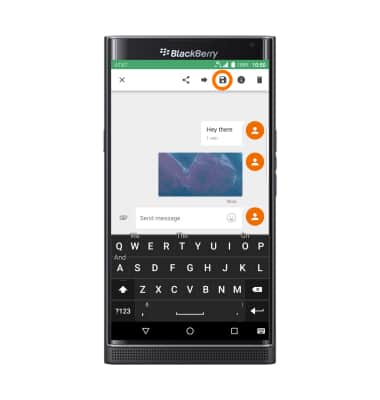
- To forward a message, tap and hold the Desired message, then tap Forward.
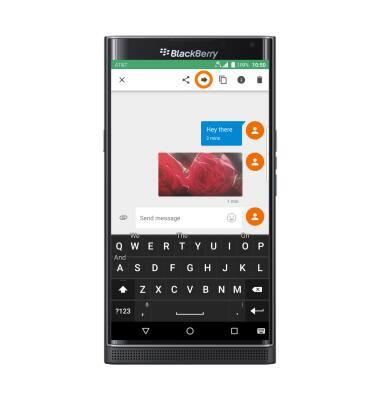
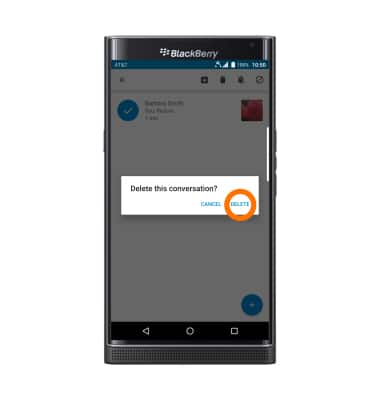
- To delete a message, tap and hold the Desired message, tap the Delete icon, then tap DELETE.
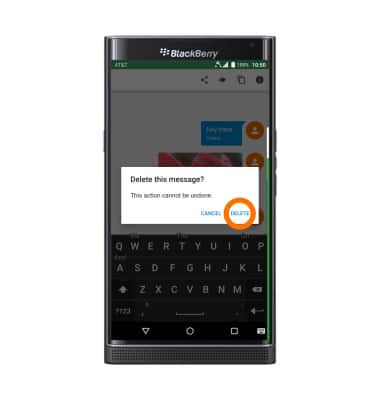
- To delete a message thread, in the inbox, tap and hold the Desired thread.
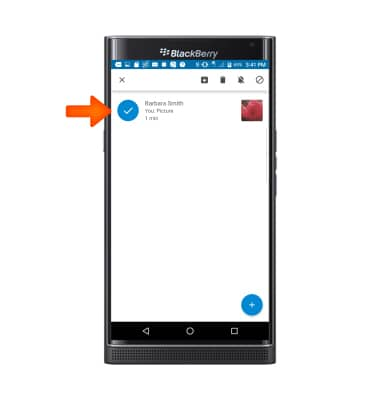
- Tap Delete icon, then tap DELETE.
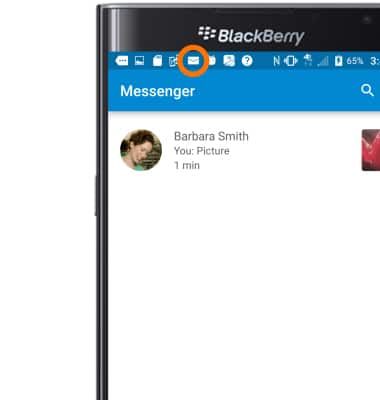
- When a new text message is received, the New Message icon will display in the Notification bar.
Send & receive messages
BlackBerry PRIV by BlackBerry (STV100-1)
Send & receive messages
Create and respond to text (SMS) or picture (MMS) messages, add, save, and view received attachments and more.
Text Messaging
Create and respond to text (SMS) or picture (MMS) messages, add, save, and view received attachments and more.
Text Messaging
2:05
INSTRUCTIONS & INFO