- To access the date and time settings, from the home screen, tap the Settings icon.
Note: The device will automatically attempt to set the date and time from the network. This tutorial demonstrates how to manually set the date and time on your device.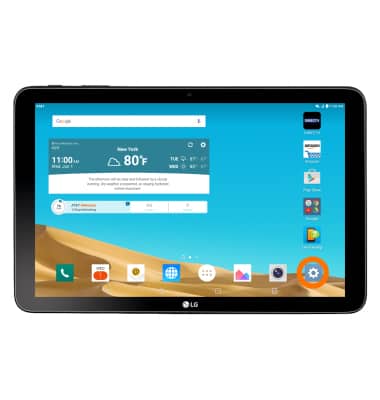
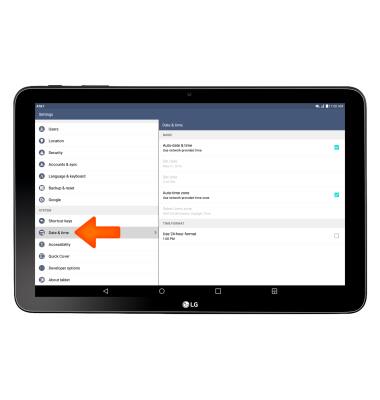
- Scroll to and tap Date & time.
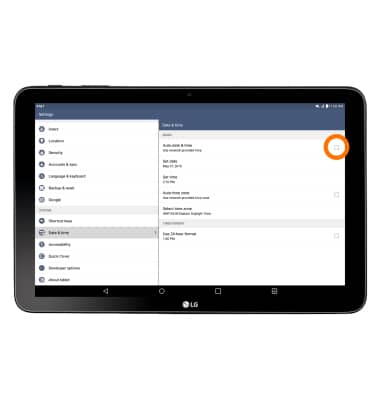
- To deactivate Auto-date and time, tap the Auto-date & time checkbox.
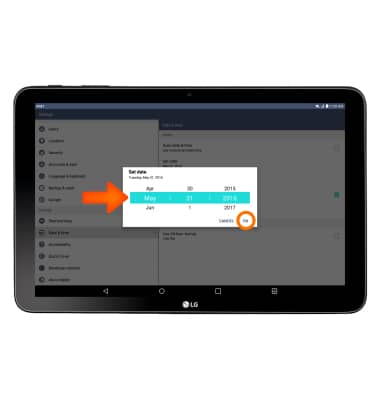
- To set your date, tap Set date. Select the Desired date, then tap OK.
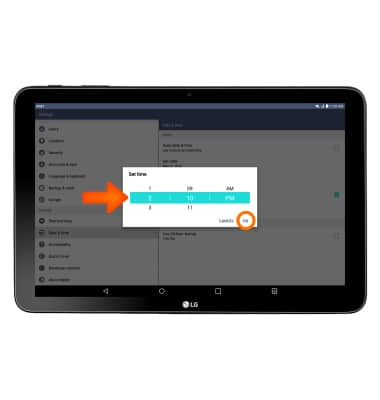
- To set your time, tap Set time. Select the Desired time, then tap OK.
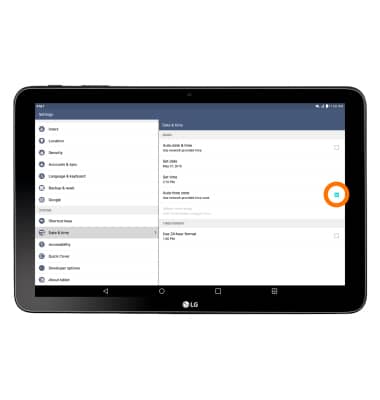
- To change your time zone, turn off Auto-time zone by tapping the Checkbox.
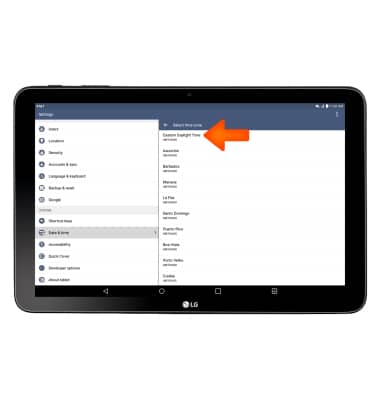
- Tap Select time zone. Select the Desired time zone.
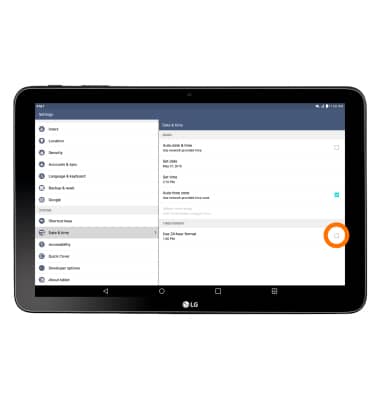
- Your device clock automatically is set to a 12 hour format. To change your device to a 24-hour format, tap the Checkbox.
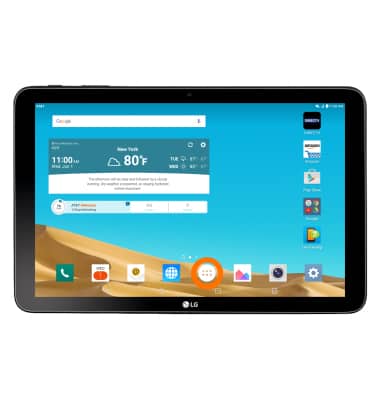
- To set an alarm, from the home screen, tap the Apps icon.
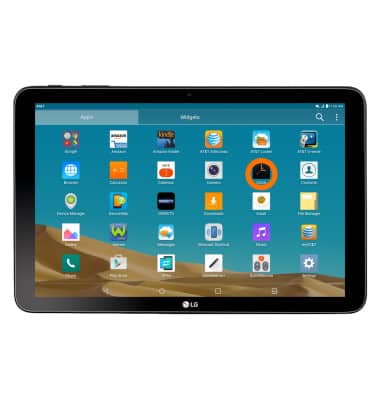
- Tap the Clock icon.
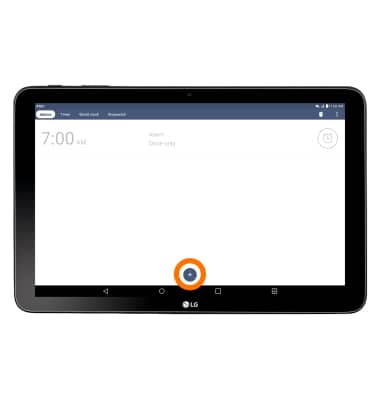
- Tap the Add icon.
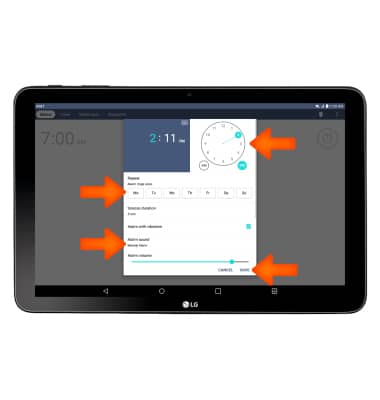
- Set Desired alarm and settings, then tap SAVE.
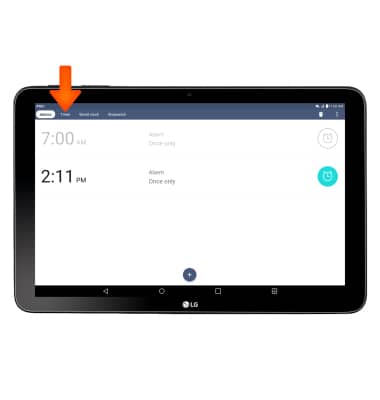
- To set a timer, from the Clock app, tap the Timer tab.
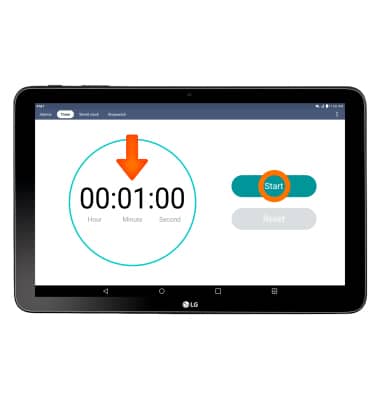
- Set timer to the Desired length, then tap Start to start the timer.
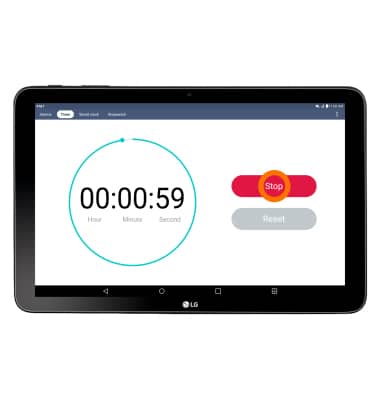
- Tap Stop to stop the timer.
Date & time
LG G Pad X 10.1 (V930)
Date & time
Set the date and time.
INSTRUCTIONS & INFO