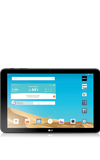
- Android Factory reset protection allows you to prevent non authorized users from accessing your device if it's been lost, stolen, or reset to factory settings without your permission. Only someone with the associated Google account or screen lock information can use the device.
Note: Android Factory Reset Protection is now available on devices with software version 5.1. To view your software version, see the 'Software version' tutorial under System & Storage.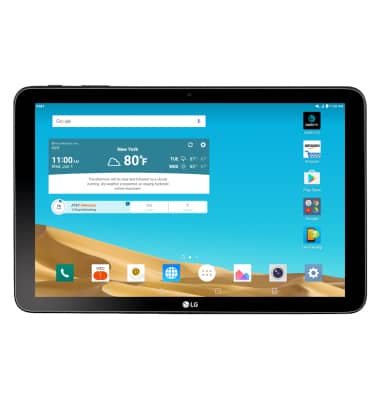
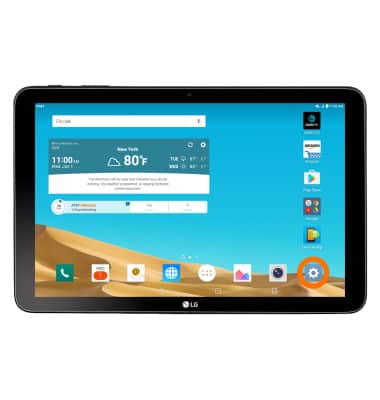
- Prerequisites for Android Factory reset include establishing a security lock and setting up a Google account. To enable a security lock, tap the Settings icon.
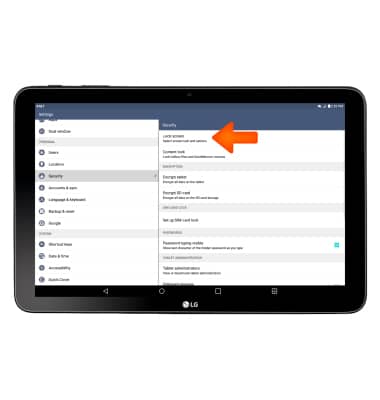
- From the settings menu, tap the Security tab, and then tap Lock screen.
- Tap Select screen lock.
Note: For this example, PIN was selected.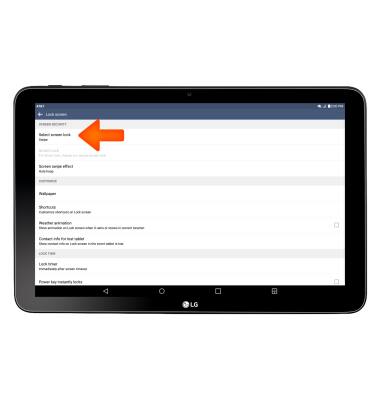
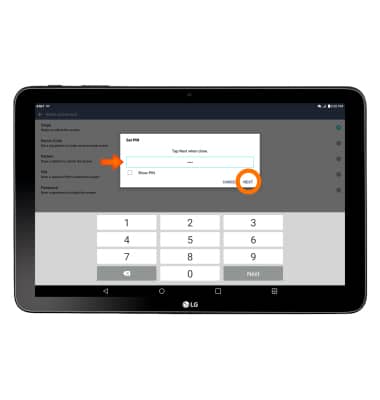
- Enter your PIN, then confirm your PIN and tap NEXT.
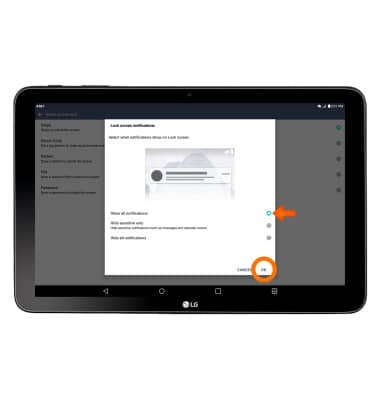
- Choose your Desired Lock screen notifications, and then tap OK.
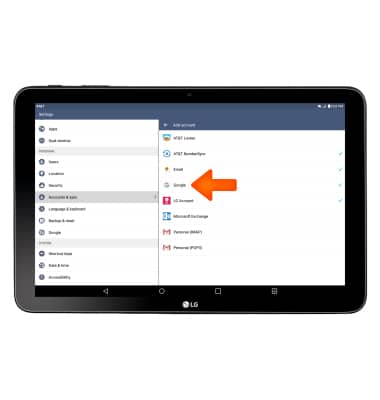
- To associate a Google account with your device, under Settings, tap Accounts & sync, then tap Add account.
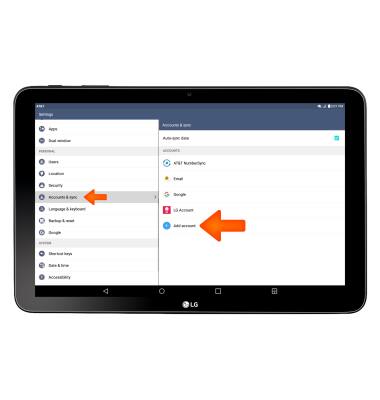
- Tap Google and follow prompts to sign into your account.
- For more information on device protection from Google, please go to Google’s support site.
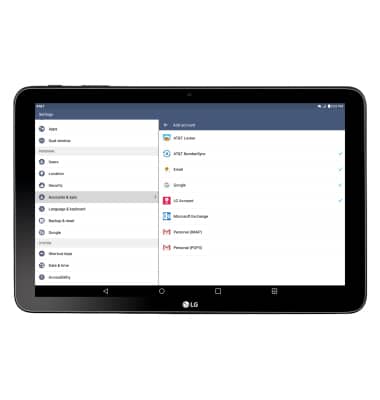
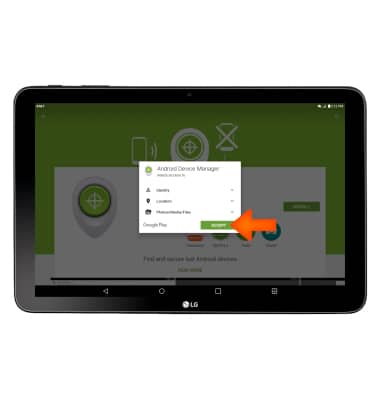
- To remotely ring, lock or erase device using another Android device, you must have the Android Device Manager downloaded on both devices. To download, tap Play Store > Search Android Device Manager > Android Device Manager > INSTALL > ACCEPT.
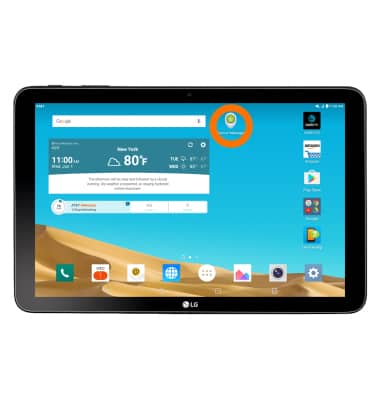
- Tap the Android Device Manager icon.
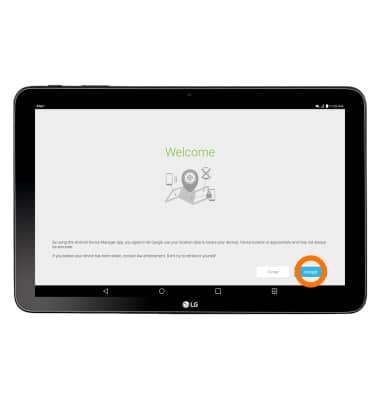
- Tap ACCEPT.
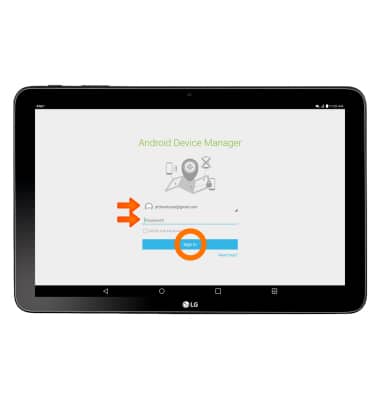
- Enter your Account information, then tap Sign in.
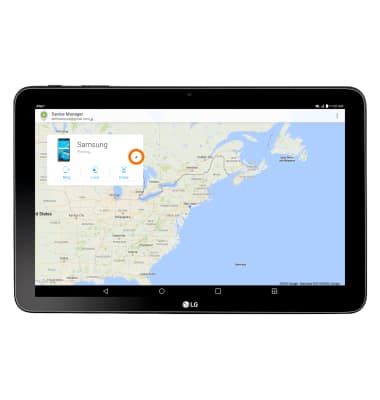
- Tap the Drop down and select your device.
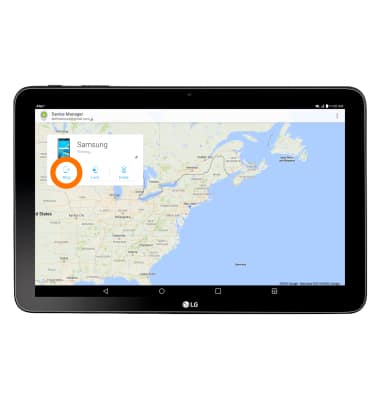
- To remotely ring the device, tap the Ring icon.
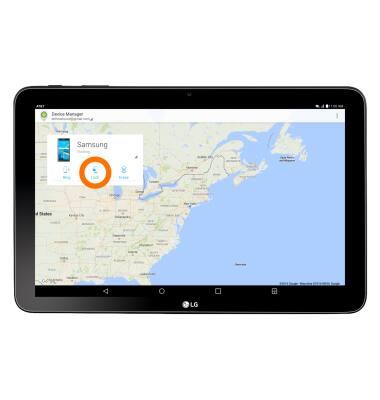
- To lock the device, tap the Lock icon.
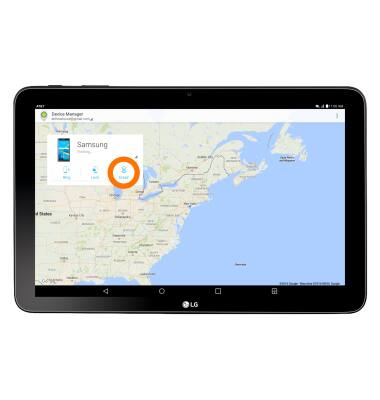
- To erase the device, tap the Erase icon.
Anti-theft
LG G Pad X 10.1 (V930)
Anti-theft
Set up your device so you can remotely locate and control.
INSTRUCTIONS & INFO