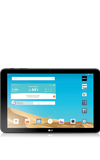
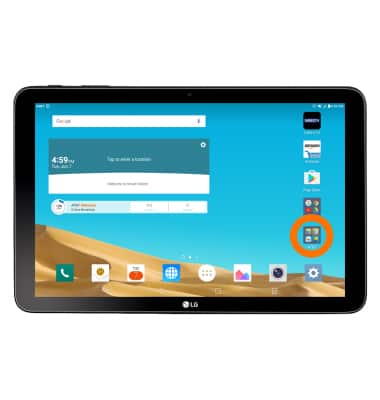
- From the home screen, tap the AT&T folder.
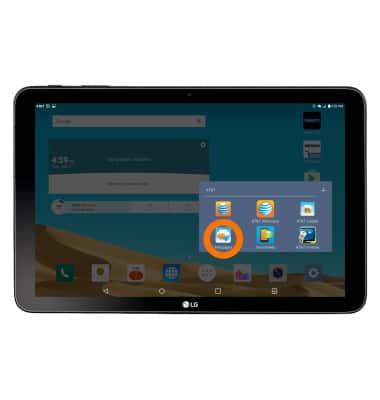
- Tap Messages.
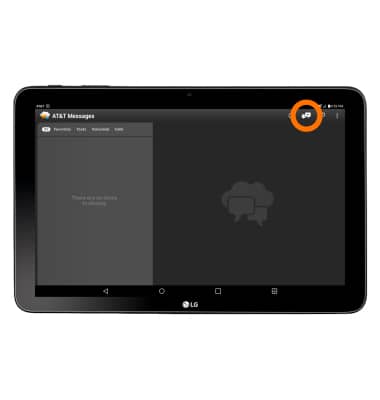
- To compose a new message, from the 'Messaging' inbox, tap the + icon.
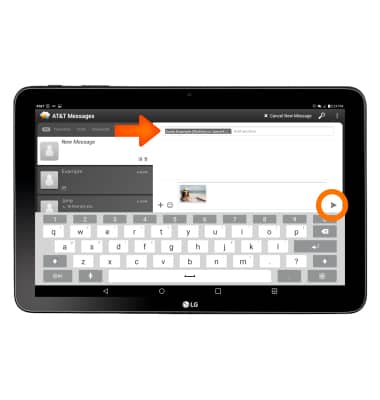
- Enter the contact, and then tap Write a message.
Note: To add additional recipients and create a Group Message, tap the Contacts icon, select the desired contacts, then tap DONE.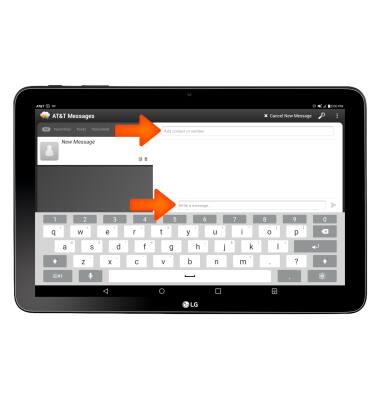
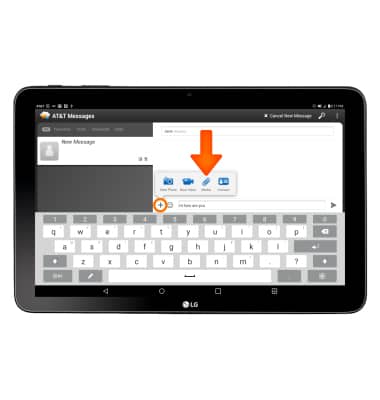
- To add an attachment, tap the + icon choose the desired attachment type. Follow the on-screen prompts to navigate to the desired file.
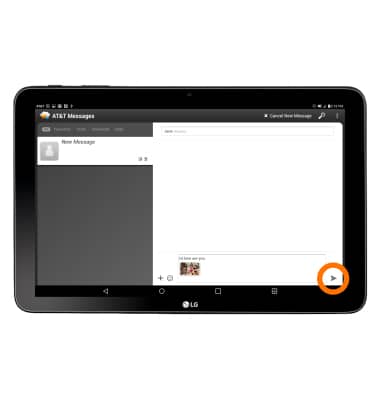
- When finished, tap the Send icon.
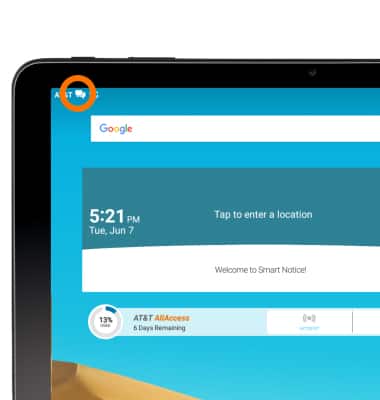
- When a new message is received, the New Messages icon will appear in the Notifications bar.
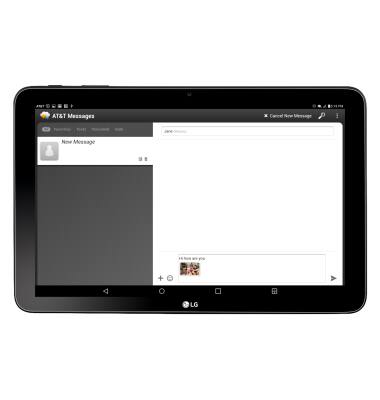
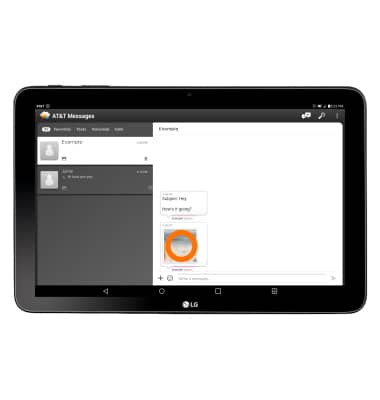
- To read a new message, from the 'Messaging' inbox, tap the Message thread.
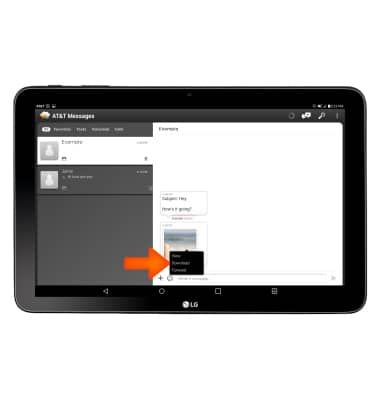
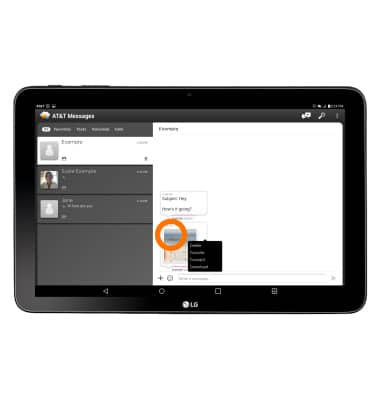
- To save an attachment, tap and hold on the desired attachment.
- Tap Download.
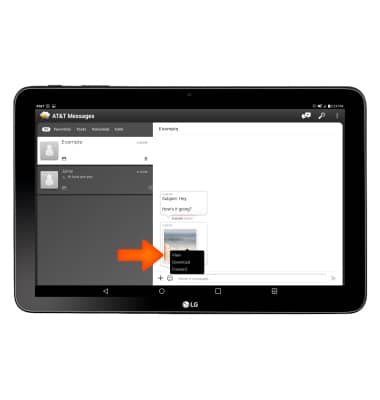
- To forward a message from the desired message thread, tap the desired message then tap Forward.
- Enter the contact, and then tap Send.
- To delete a message, tap and hold on the desired message.
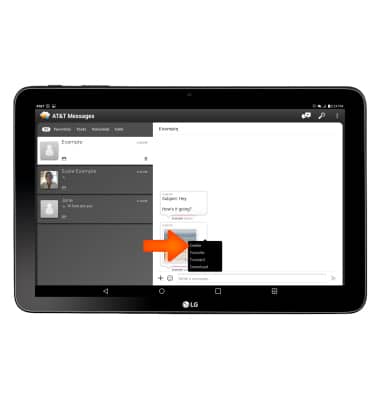
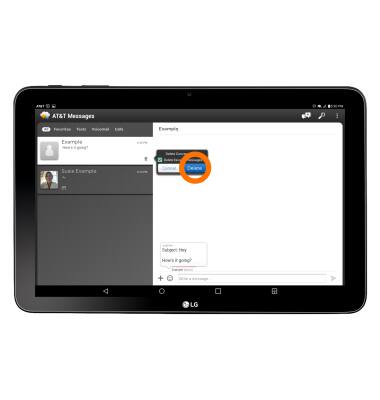
- Tap Delete.
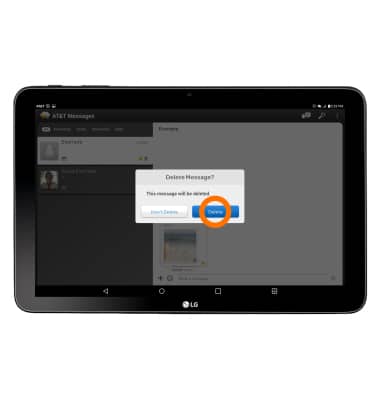
- Tap Delete again.
- To delete a message thread, from the messaging page, tap the desired message thread.
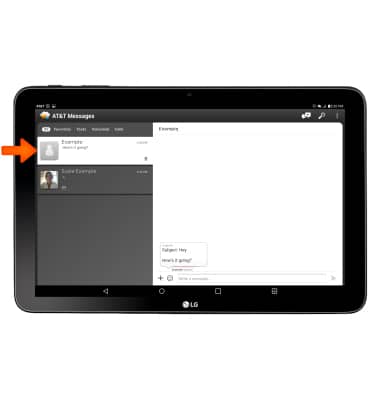
- Tap the Delete icon.
Send & Receive Messages
LG G Pad X 10.1 (V930)
Send & Receive Messages
Create and respond to text (SMS) or picture (MMS) messages, add, save, and view received attachments and more.
INSTRUCTIONS & INFO