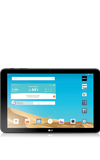
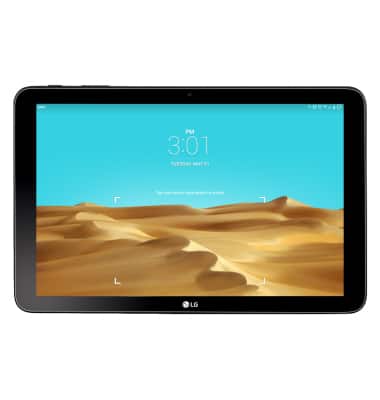
- To put the device screen to sleep, press the Power/Lock button.
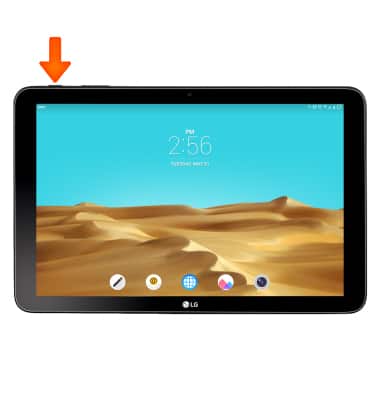
- To wake the device screen, press the Power/Lock button.
Note: You can also wake your device using KnockON by tapping the screen twice.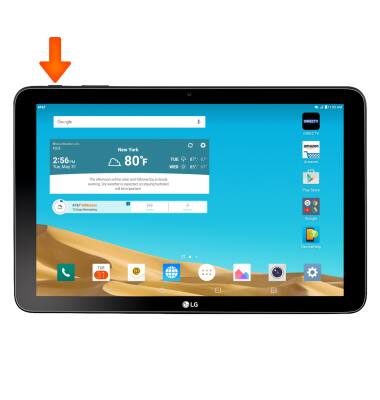
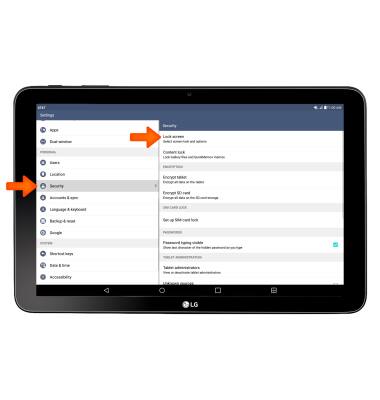
- To change the security lock type, from the home screen, tap the Settings icon.
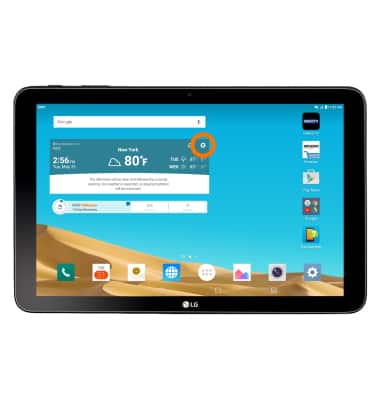
- Tap the Security tab, and then tap Lock screen.
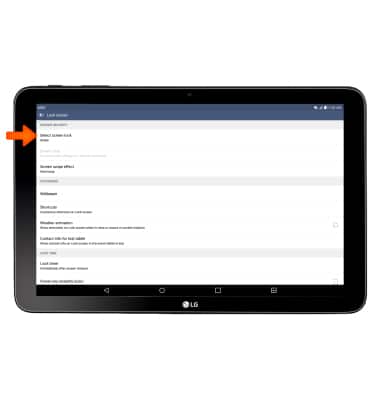
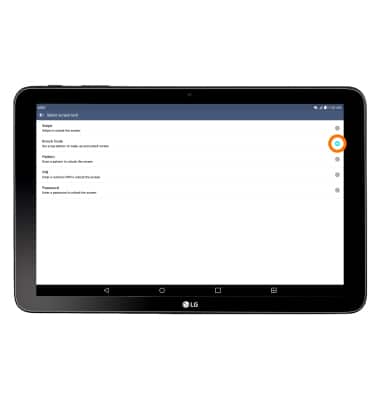
- Tap Select screen lock.
- Tap the Desired lock type.
Note: Knock Code was used for this demonstration.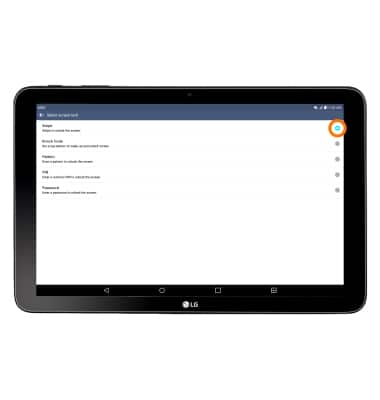
- Carefully read the prompt and tap NEXT.
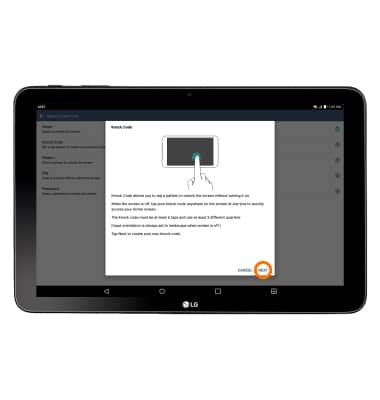
- Enter the Desired knock code, then tap CONTINUE. Enter the Knock code again, then tap CONFIRM.
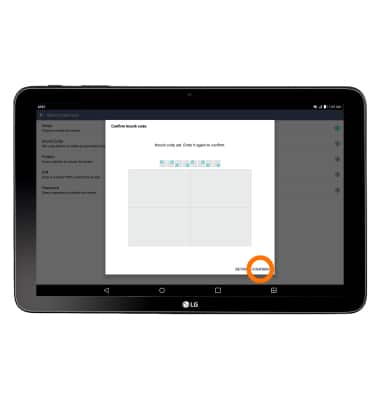
- You will now be asked to set up a PIN, tap NEW PIN.
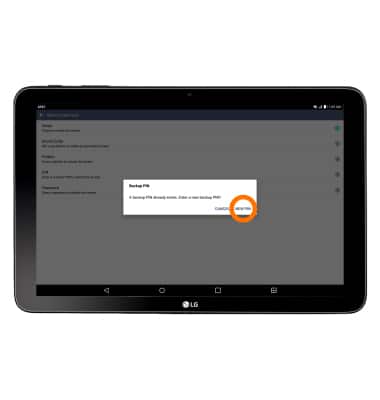
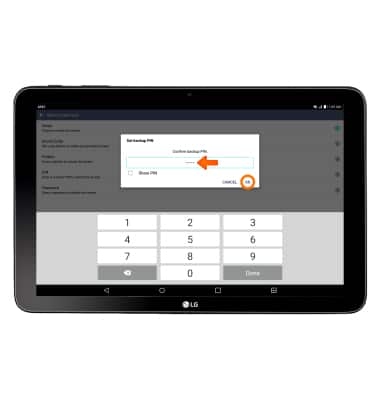
- Enter your PIN and tap NEXT. Re-enter your PIN, then tap OK.
- Follow prompt and tap OK.
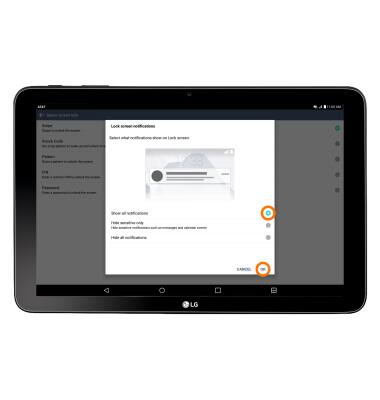
- Your device now has a Knock Code screen lock type. To unlock your device screen, press the Power/Lock button. Enter your Knock Code to unlock.
- To change your screen lock, tap the Settings icon > Security tab > Lock screen > Select screen lock > Enter your current lock code > NEXT > Select the desired screen lock and follow prompts to complete setup.
Secure my device
LG G Pad X 10.1 (V930)
Secure my device
Lock the device screen, set and change security lock, and locate device.
INSTRUCTIONS & INFO