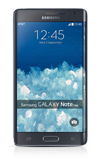
- Tap an App icon to open.
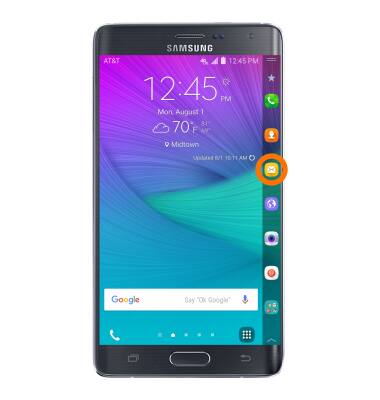
- Swipe left or right to access other home screens.
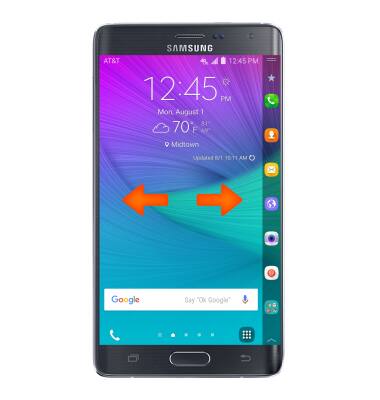
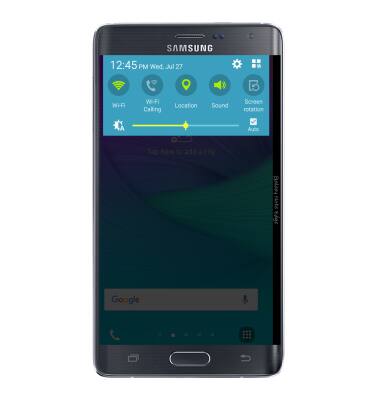
- Swipe down from the top of the screen to access the Quick settings menu.
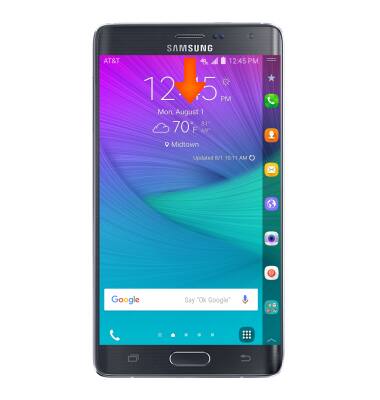
- The quick settings menu will be displayed.
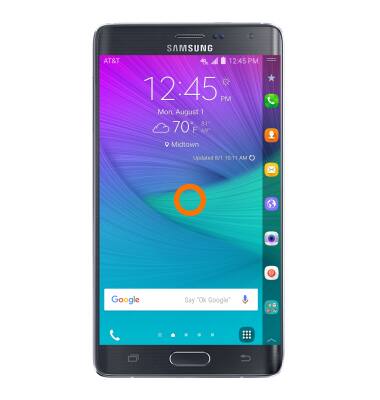
- To customize the home screen, touch and hold an Empty area of a home screen.
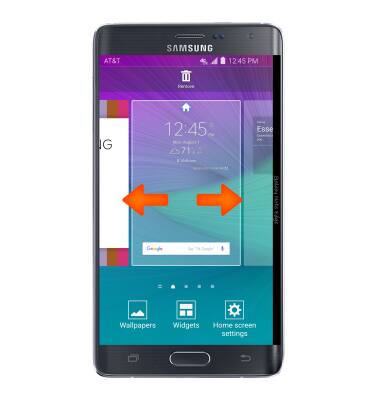
- Swipe left or right to customize the other home screens.
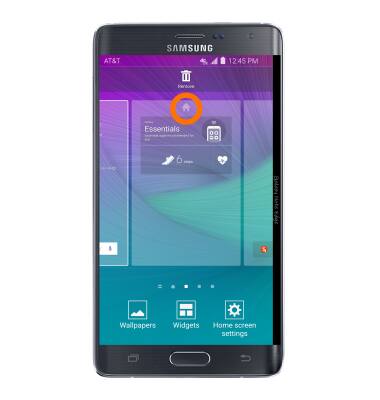
- Tap the Home icon to set the current home screen to the default home screen.
- Swipe to, then tap the Add icon, to add a home screen panel.
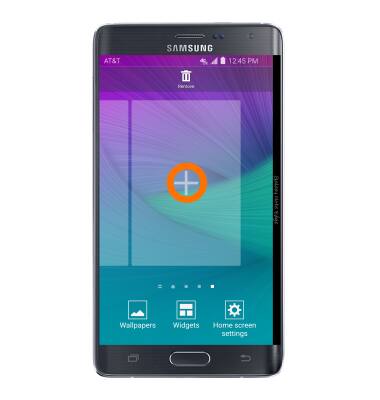
- To change the order of home screens, touch and hold the Desired home screen.
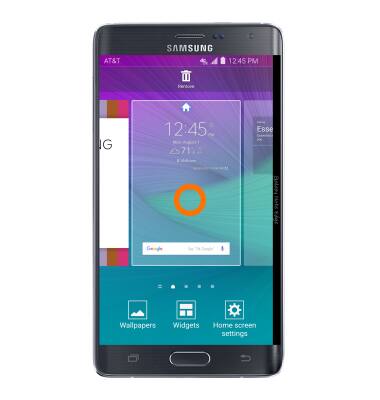
- Drag the home screen to the Desired location, then release.
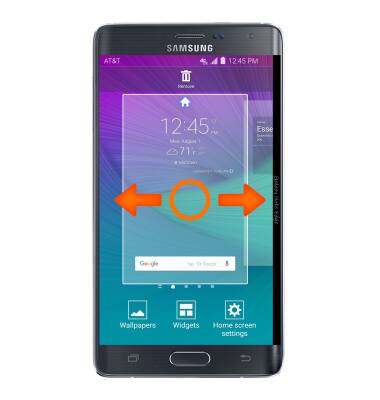
- To remove a home screen, touch then drag the Desired home screen to the Remove icon.

- To change the wallpaper, touch and hold an empty area of a home screen and then tap Wallpapers.
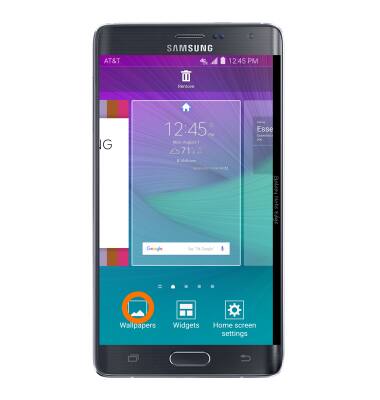
- Tap the More icon.
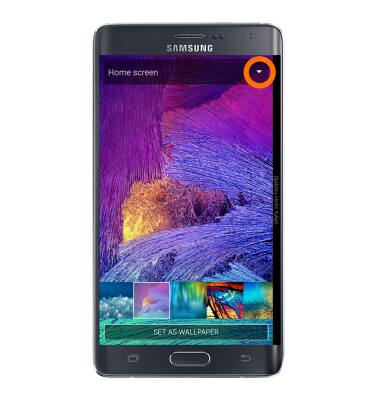
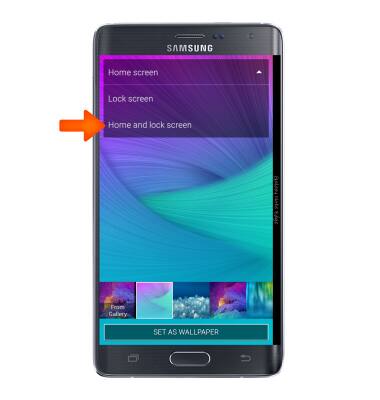
- Tap the Desired option.
- Select the desired wallpaper and tap SET AS WALLPAPER.
Note: Live wallpapers can increase battery consumption.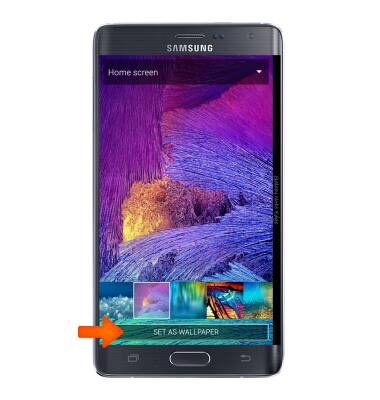
Learn and customize the home screen
Samsung Galaxy Note Edge (N915A)
Learn and customize the home screen
Add shortcuts and widgets, access the notification panel, changing wallpaper, and more.
Use the home screen
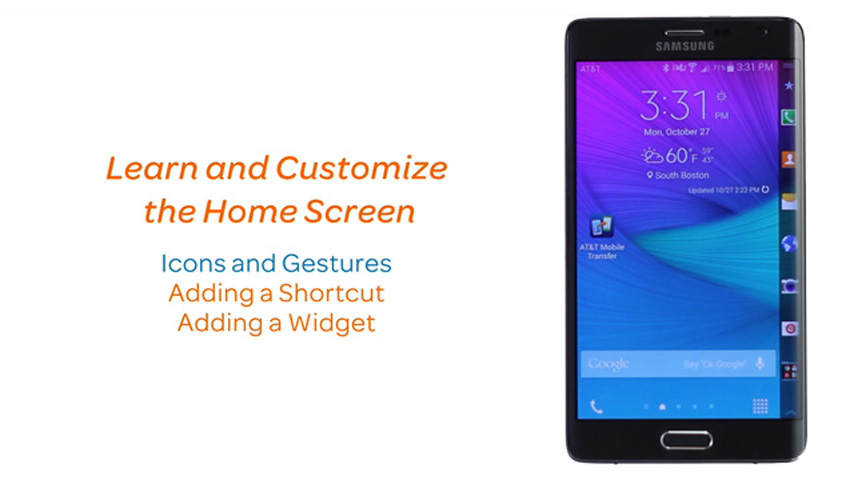
This video explains how to navigate and customize the home screen on your device.
Use the home screen
2:18
INSTRUCTIONS & INFO