- The Google Play Store provides access to the latest music, apps, games, videos, and more. A Google account is required to access. To download an application, from the home screen, select the Play Store icon.
Note: For more information or support, please see the Google Play Help site.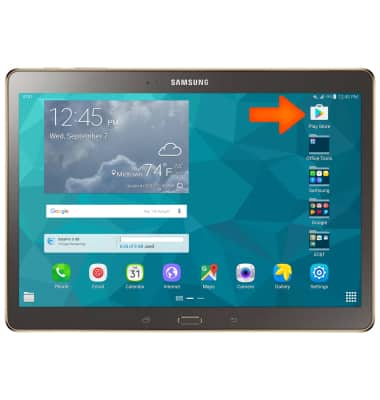
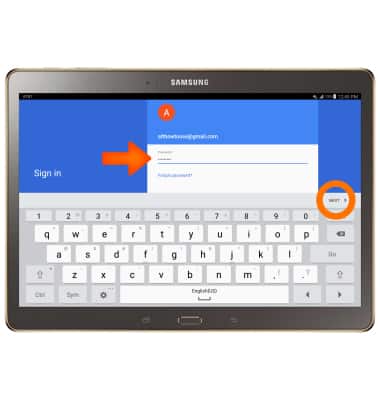
- Sign in using your Gmail account. Enter your Account information, then select NEXT.

- Enter your account password then select NEXT.
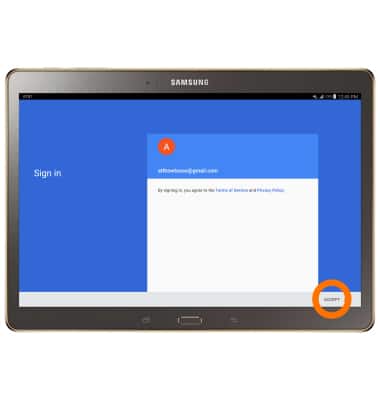
- Select ACCEPT.
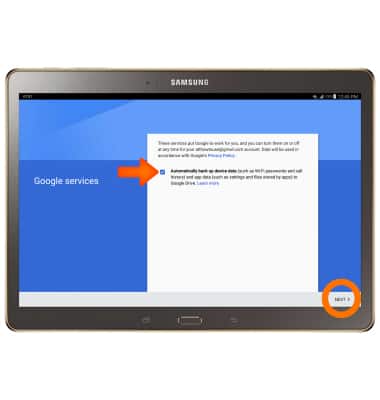
- Select the Checkbox if you would like your device’s information backed up to your Google Account. Select NEXT.
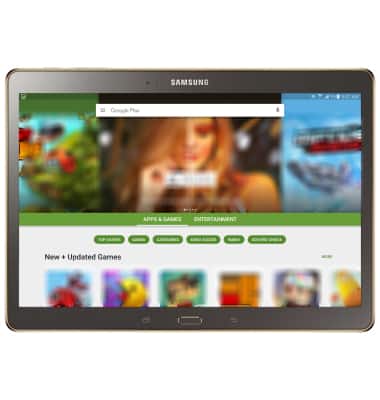
- You will be taken to the Google Play Store.
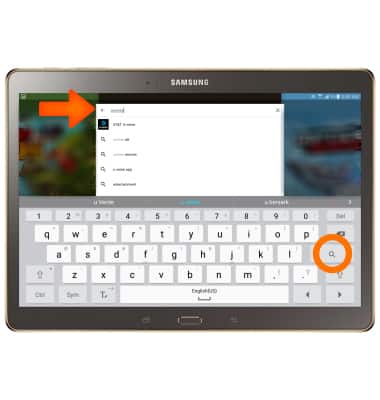
- To download an application, select the ‘Search Google Play’ search field and enter the name of the Desired app. Select the Search icon.
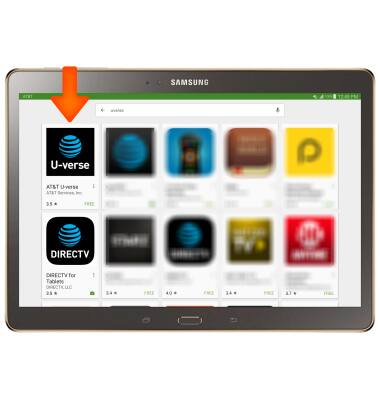
- Select the Desired app.
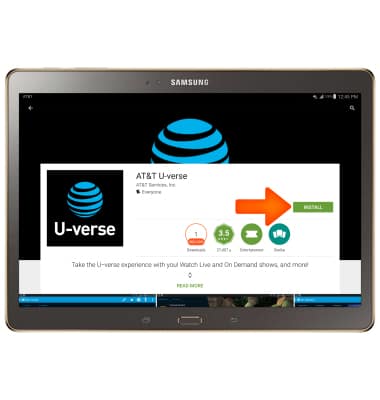
- Select INSTALL.
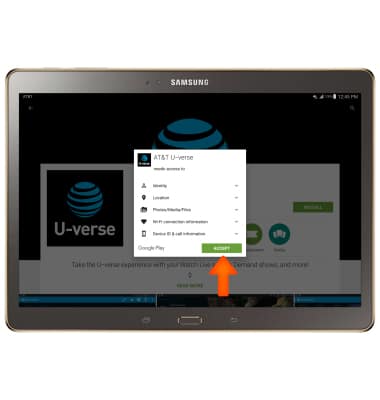
- Select ACCEPT.
- While the app is downloading, a Download icon will appear in the Notification bar.
Note: Once you have purchased an app, you have 15 minutes to return the app in the Play Store. To return an app, from the Play Store tap the Menu icon > My apps > The desired app > REFUND > YES.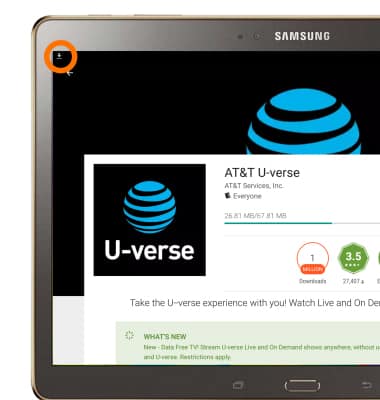
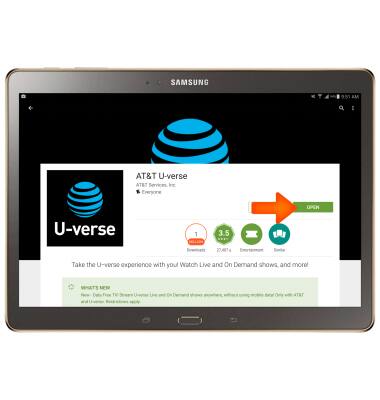
- Select OPEN to begin using your app.
- The downloaded app icon will appear on your Home screen.
Note: Alternatively, from the home screen, tap the Apps icon to access downloaded apps.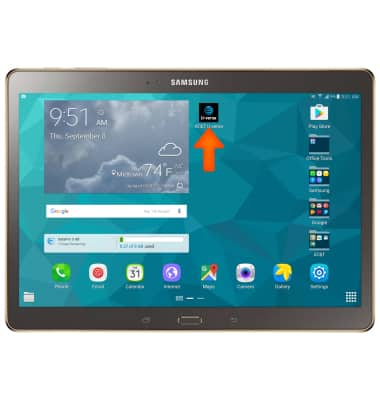
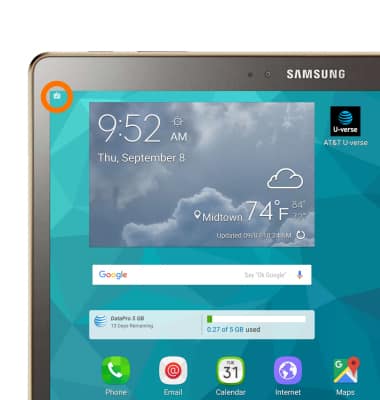
- When app updates become available the Play Store icon will be displayed in the Notification bar.
Download Apps & Games
Samsung Galaxy Tab S 10.5 (T807A)
Download Apps & Games
Download apps, games, movies, music, books, magazine, newspapers and more.
INSTRUCTIONS & INFO