- Digital Life lets your protect and manage your home from your PC, smartphone, tablet, or wearable device. It is a simple, easy, and easily accessible remote control for your entire home when you're on the go. To access Digital Life from your device, press the Power/Lock button.
Note: Access to Digital Life requires a Digital Life subscription and Digital Life must already be set up by the user. To learn more, click here.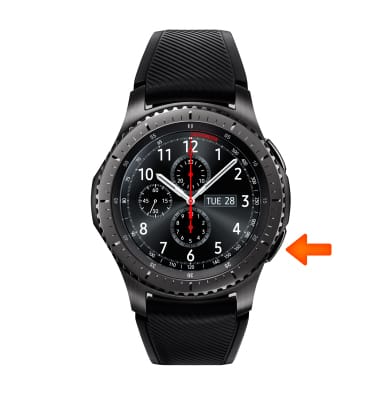
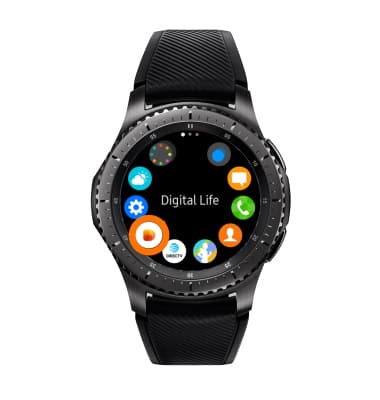
- Rotate the bezel to and select Digital Life.
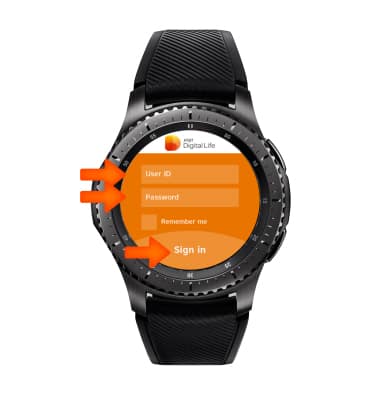
- Enter your Account information, then select Sign in.
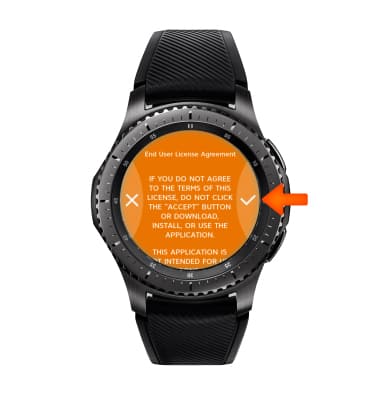
- Review the End User License Agreement, then select the Check icon.
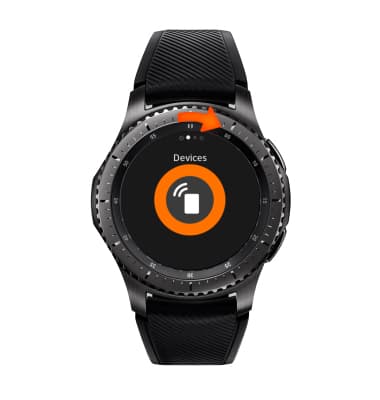
- Rotate the bezel to and select Devices.
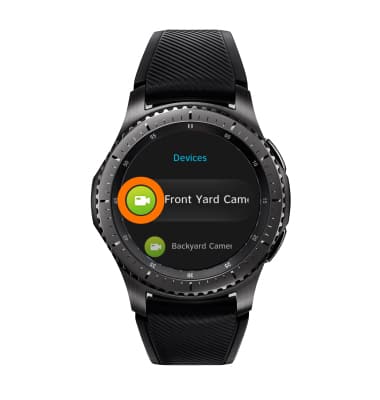
- The Devices tab lets you access any cameras, locks, or electronic devices connected to Digital Life. To view a camera, rotate the bezel to and select the Desired camera.
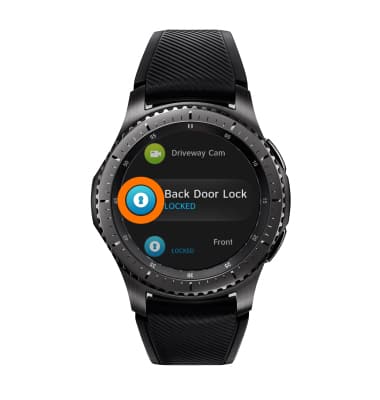
- To lock or unlock a door, rotate the bezel to and select the Desired lock.
- To turn an electronic device on or off, rotate the bezel to and select the Desired device.
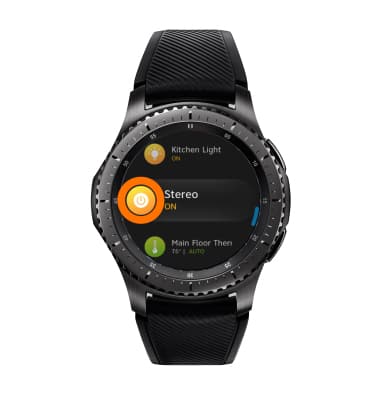
- Digital Life also allows you to set custom programs for your house, such as turning the porch lights on at a specific time. To turn a program on or off, from the Digital Life menu, rotate the bezel to and select Programs.
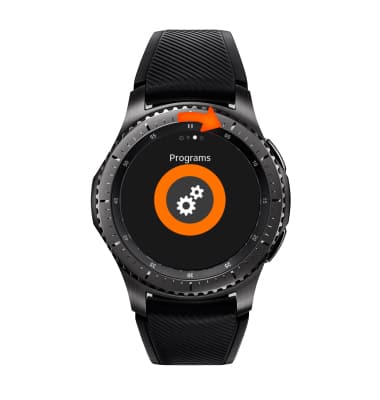
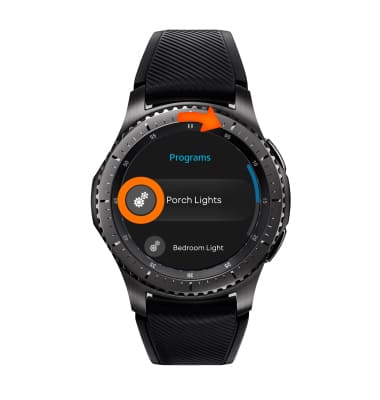
- Rotate the bezel to and select the Desired program.
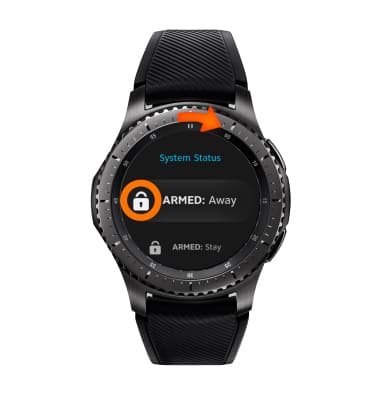
- To arm or disarm your security system, from the Digital Life menu, rotate the bezel to and select System Status.
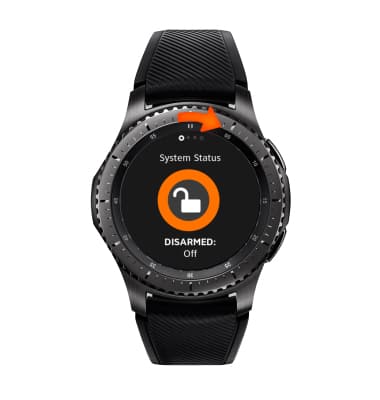
- Rotate the bezel to and select the Desired option.
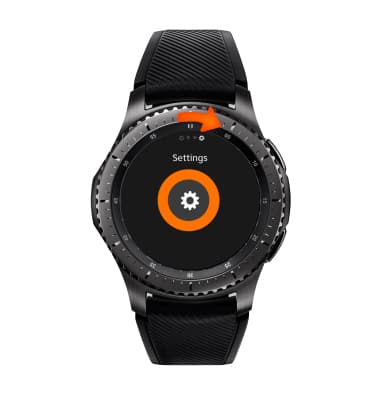
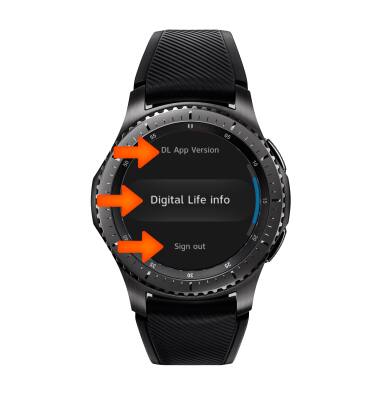
- To view your Digital Life settings or sign out of your account, from the Digital Life menu, rotate the bezel to and select Settings.
- Rotate the bezel to and select the Desired option.
Digital Life
Samsung Gear S3 frontier (R765A)
Digital Life
How to access, use, and view alerts.
INSTRUCTIONS & INFO