- TURN ON WI-FI: From the clock screen, press the Power/Home button.
Note: To optimize battery life, turn Wi-Fi off when not in use.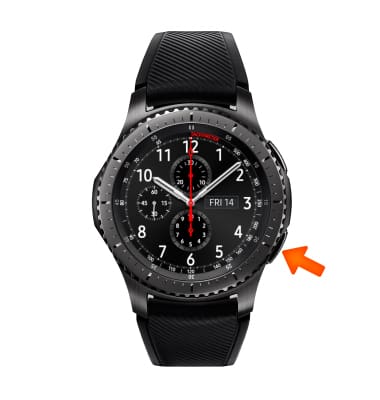
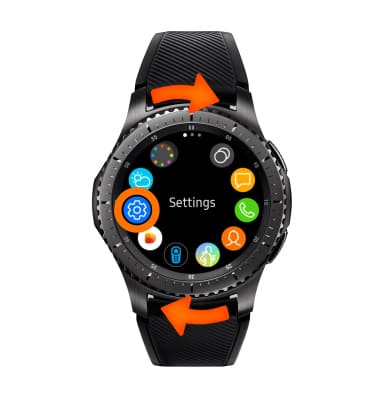
- Rotate the bezel to and select the Settings app.
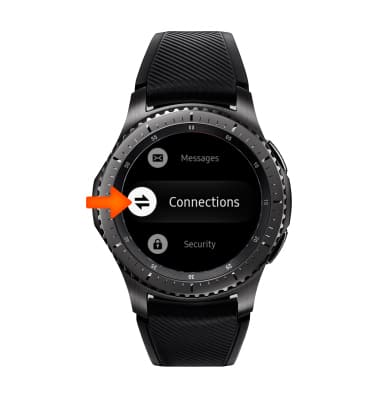
- Scroll to and select Connections.
- Scroll to and select Wi-Fi.
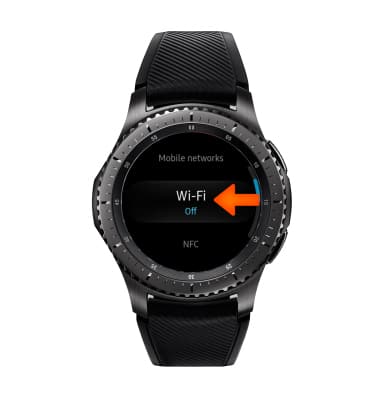
- Select Wi-Fi again.
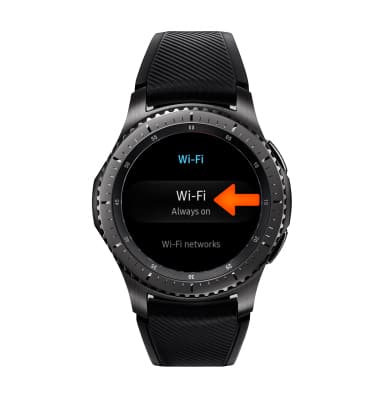
- Select the desired option to turn on or off.
Note: Gear S3 will use your phone's data connection when paired via Bluetooth. When Wi-Fi is on, Gear S3 will automatically connect to saved WiFi networks if its Bluetooth connection is lost.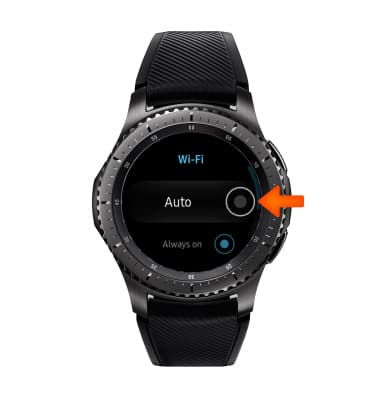
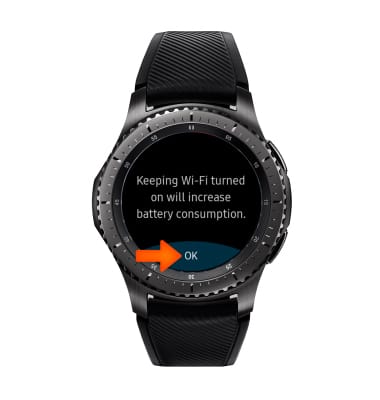
- Select OK.
- SCAN FOR WI-FI DEVICES: Scroll to and select Wi-Fi networks.
Note: Select Add Wi-Fi network to connect to a hidden or unbroadcasted Wi-Fi network. You will need to enter the network SSID, security type, and a password (if necessary) to continue.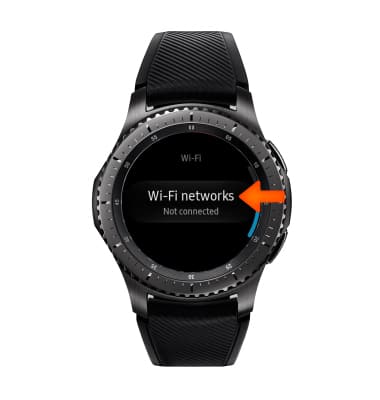
- CONNECT TO WI-FI NETWORK: Select the desired network name.
Note: Data transmitted over a Wi-Fi network does not count toward your AT&T data plan, and will not be billed. When using the AT&T network, data rates apply.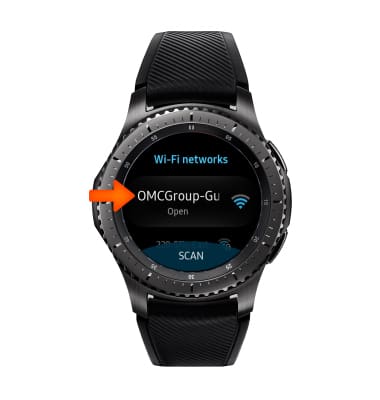
- If connecting to a secure network, select Password then enter the Wi-Fi network password. Select CONNECT.
Note: Secure networks will display with a Lock icon.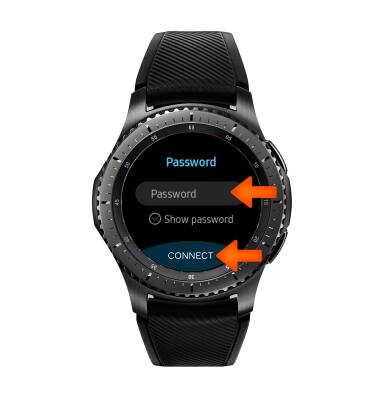
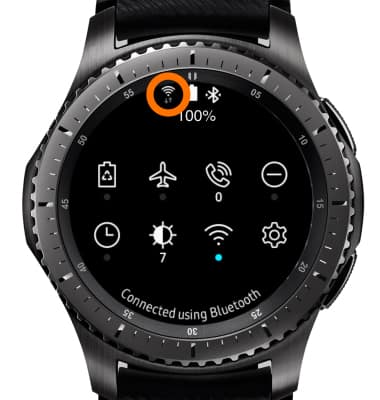
- When Wi-Fi is connected, the Wi-Fi Connected icon will display in the Notification bar.
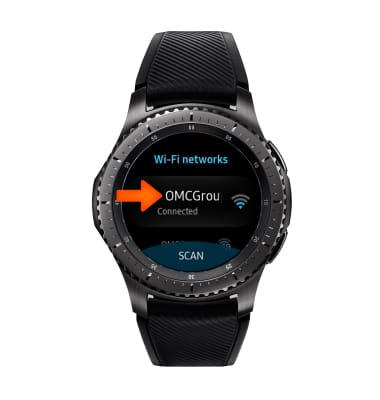
- To remove saved Wi-Fi networks, select the desired network name.
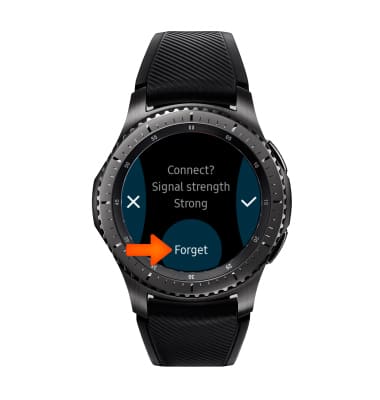
- Select Forget.
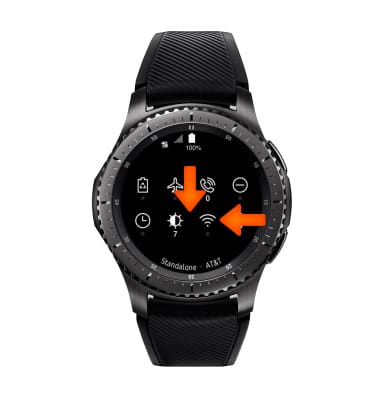
- QUICKLY TURN ON/OFF WI-FI: Swipe down from the top of the screen, then select the Wi-Fi icon.
Wi-Fi
Samsung Gear S3 frontier (R765A)
Wi-Fi
How to connect to a Wi-Fi network.
INSTRUCTIONS & INFO