- MAKE A PHONE CALL: From the phone app, dial the desired number then select the Call icon.
Note: To access the phone app, from the home screen, select the Phone icon. To learn about calling or using your device in other countries, visit the AT&T International website.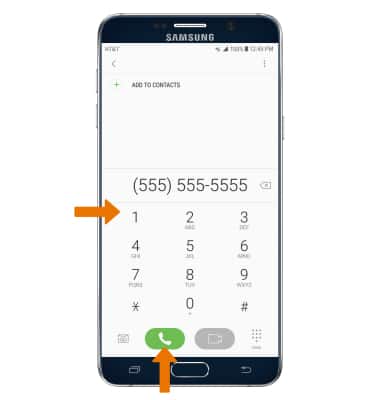
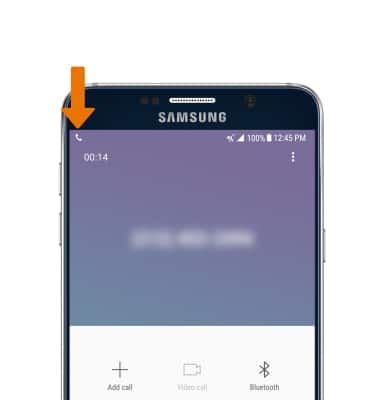
- While a call is active, the Call icon will display in the Notification bar.
- ANSWER OR DECLINE A CALL: Swipe the Answer icon in any direction. To decline a call, swipe the Decline icon in any direction.
Note: To turn automatic answering on or off, from the Home screen select Phone > Menu icon > Settings > Answering and ending calls > select the Automatic answering switch on.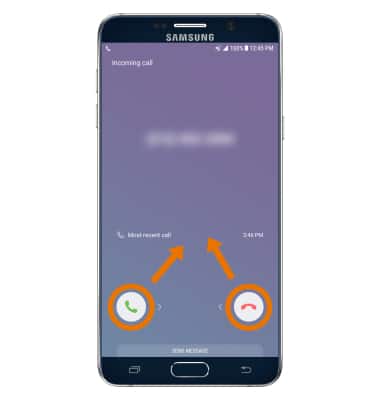
- REJECT A CALL WITH A TEXT MESSAGE: Swipe up from SEND MESSAGE.
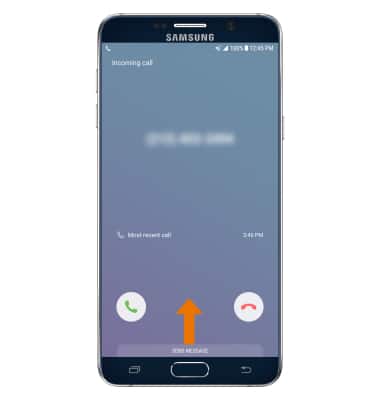
- Select the desired response or select Compose new message to write your own.
Note: To create or edit text message replies from the home screen, select Phone > Menu icon > Call Settings > Quick decline messages > enter the desired message > select the Add icon.
- SPEED DIAL: Select and hold the assigned speed dial number.
Note: To assign a speed dial number, from the Phone app select the Menu icon > Speed dial > enter the desired number > select desired contact. To remove a contact from speed dial, select the Delete icon next to the desired contact.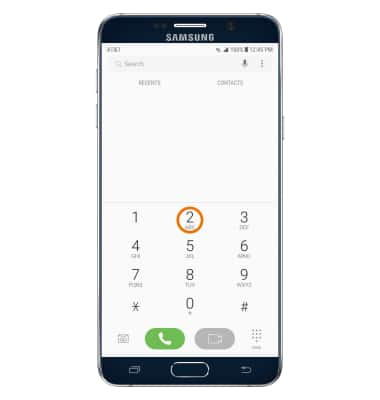
- CONFERENCE CALL: While on an active call select the Add call icon > enter desired number or contact > Call icon > Merge calls.
Note: To end one call select Manage members then the End call icon next to the desired contact. To end all calls select End.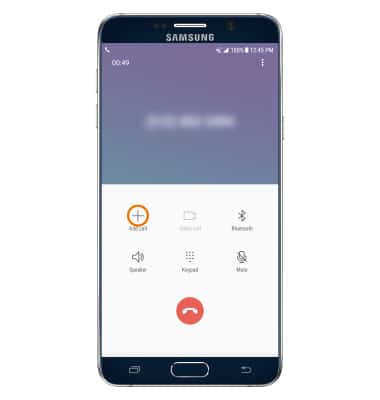
Make & Receive a Call
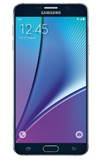
Samsung Galaxy Note 5 (N920A)
Make & Receive a Call
Place, answer and decline a call, reject a call with a text message, use speed dial to make a call, and create a conference call.
Calling
Place, receive, and reject a call.
Calling
4:47
INSTRUCTIONS & INFO