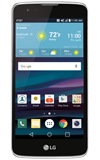
- ACCESS EMAIL SETTINGS: From the home screen, select the Email app.
Note: In order to access email settings, you must have already Set Up Email.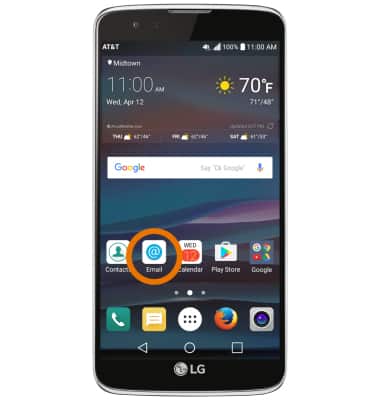
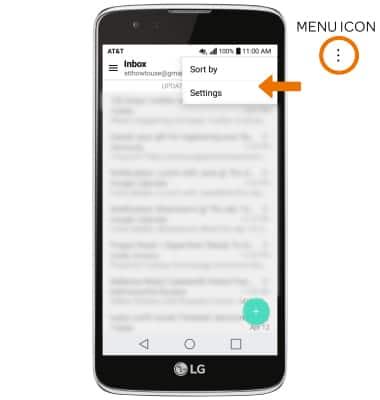
- Select the Menu icon, then select Settings.
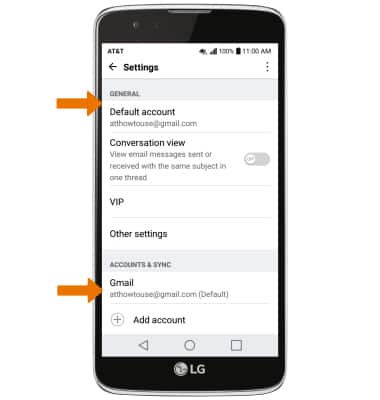
- Edit email settings as desired. To change settings specific to an account, select the desired account under ACCOUNTS & SYNC.
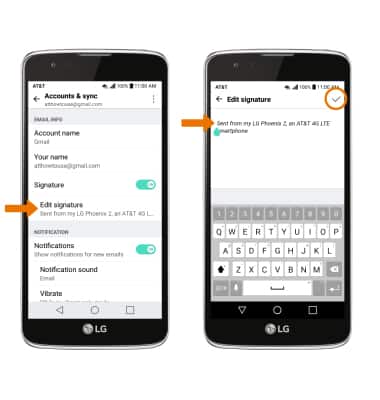
- EDIT EMAIL SIGNATURE: Select Edit signature > enter the desired email signature > Check icon.
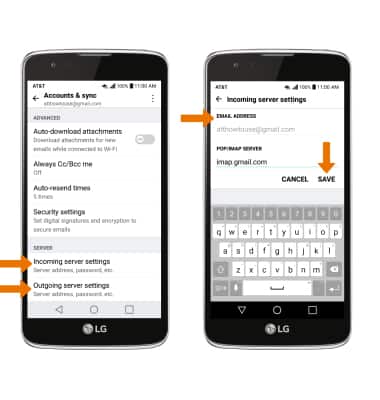
- CHANGE ACCOUNT SERVER SETTINGS: In the desired account settings screen, scroll to and select Incoming server settings or Outgoing server settings > enter desired server settings > SAVE.
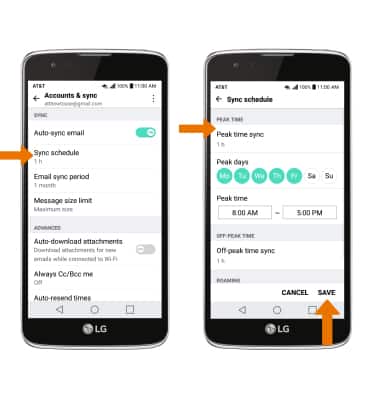
- EDIT SYNC FREQUENCY: From the desired email settings screen, scroll to and select Sync schedule > enter the desired sync preferences > SAVE.
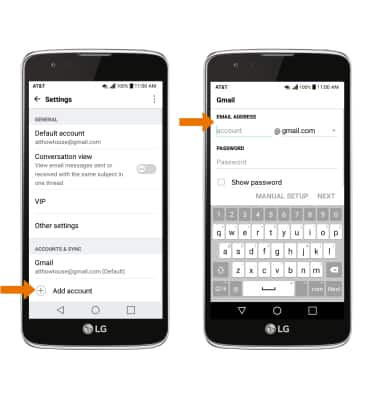
- ADD ADDITIONAL EMAIL ACCOUNTS: From the Email settings screen, scroll to and select Add account > select the desired email provider > follow the prompts to sign in.
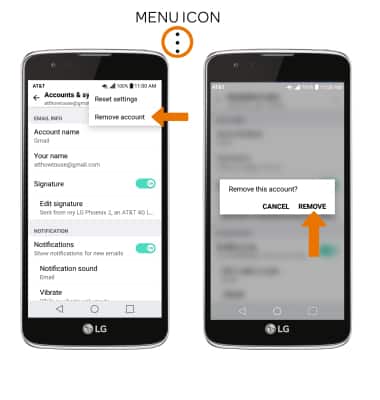
- DELETE AN EMAIL ACCOUNT: From Email settings, select the Menu icon then select Remove account. Select REMOVE to confirm.
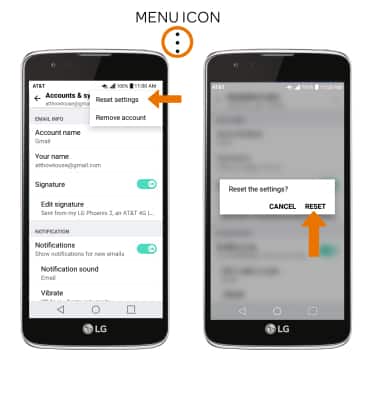
- RESTORE DEFAULT EMAIL SETTINGS: From the Email settings screen, select the Menu icon > Select Reset settings > Select RESET.
Email Settings
LG Phoenix 2 (K371)
Email Settings
Manage email settings such as account password, server settings, signature, sync frequency, add an account, delete an account, and restore default settings.
INSTRUCTIONS & INFO