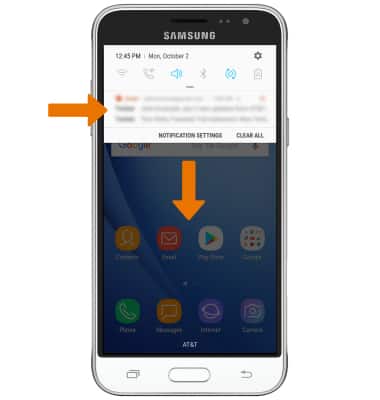
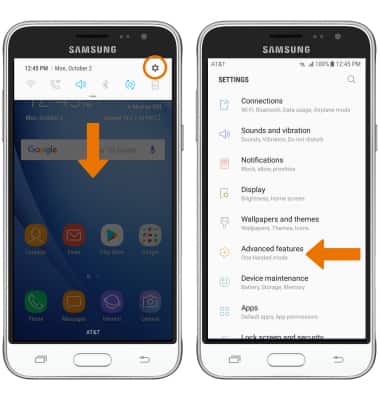
- ACCESS NOTIFICATIONS & QUICK SETTINGS: Swipe down from the Notification bar. Notifications will be displayed.
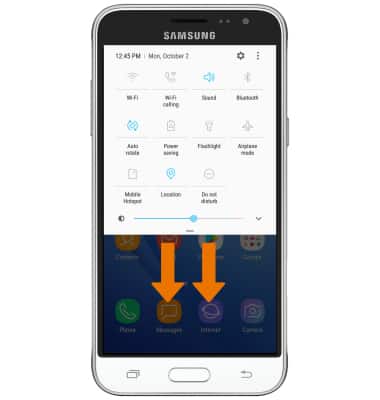
- ACCESS EXPANDED QUICK SETTINGS: Swipe down from the Notification bar with two fingers.
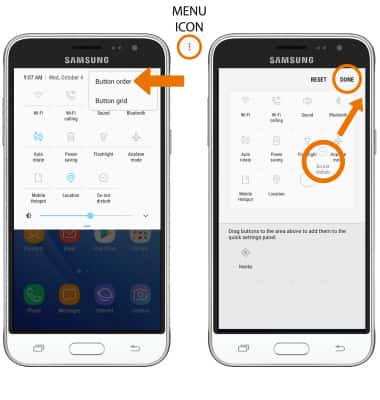
- EDIT QUICK SETTINGS MENU: Select the Menu icon, then select Button order. Select and drag the desired icon to the desired location, then select DONE.
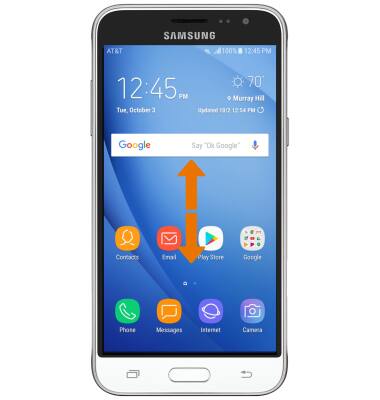
- ACCESS THE APPS TRAY: Swipe up or down from the center of the home screen.
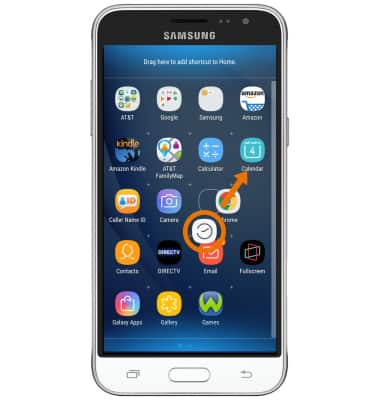
- MOVE AN APP OR WIDGET: Select and drag the desired app to the desired location.
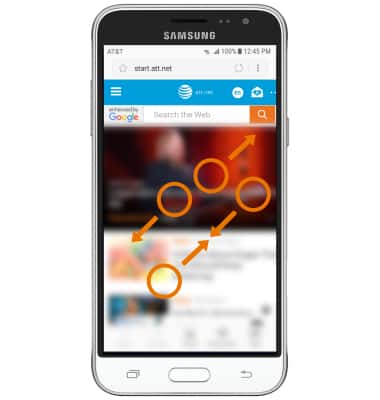
- ZOOM IN OR OUT: With two fingers on the screen, move fingers apart to zoom in and pinch fingers together to zoom out while viewing photos and web pages or while taking photos.
- ACCESS ADDITIONAL MOTIONS & GESTURES: Swipe down from the Notification bar, then select the Settings icon. Select Advanced features.
- ENABLE SMART ALERT: From the Advanced features screen, select the Smart alert switch.
Note: When smart alert is enabled, your phone will vibrate when you pick it up to let you know about missed calls and messages.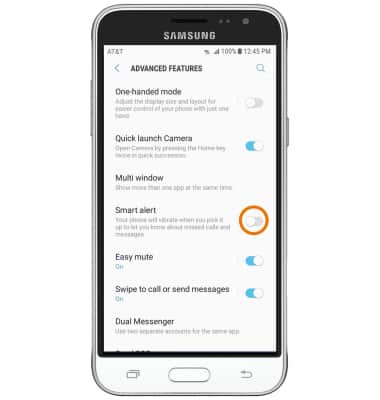
- ENABLE EASY MUTE: From the Advanced features screen, select the Easy mute switch.
Note: When easy mute is enabled, you can mute incoming calls and alarms by turning the phone face down.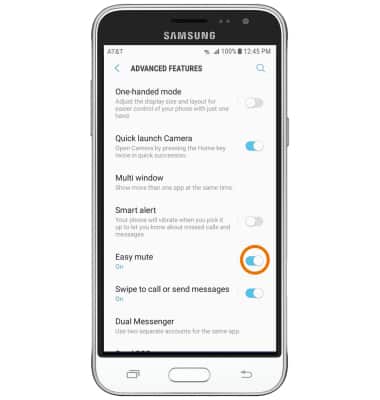
Gestures & Navigation
Samsung Galaxy J3 (2016) (J320A)
Gestures & Navigation
Control your device by making specific movements with your hand.
INSTRUCTIONS & INFO