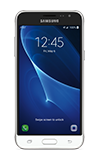
- ACCESS FIND MY MOBILE: Swipe down from the Notification bar, then select the Settings icon.
Note: Find My Mobile allows you to manage your device in a secure way by tracking and controlling your device remotely. For more information, visit the Samsung Find My Mobile website.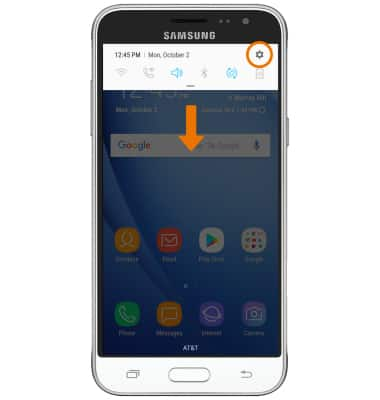
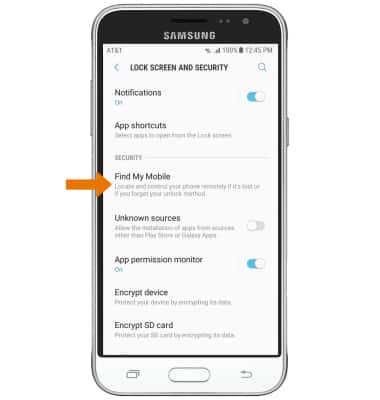
- Scroll to and select Lock screen and security.

- Select Find My Mobile.
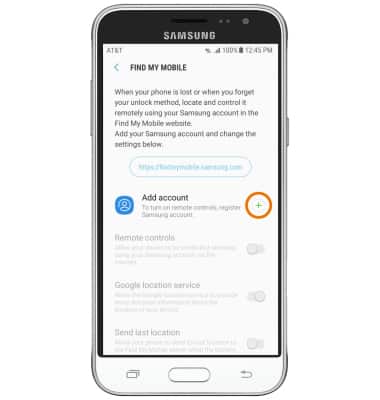
- Select the Add icon beside Add account.
- Enter the Account information, then select SIGN IN.
Note: You must have a Samsung account to access this feature. Follow the prompts to sign in to your account. If you don’t have a Samsung account, select CREATE ACCOUNT then follow the on-screen prompts to sign in.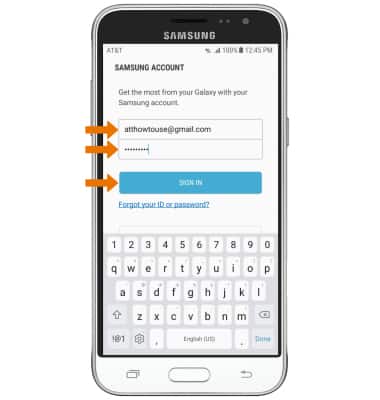
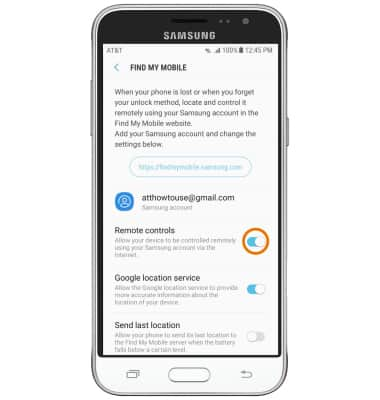
- Select the Remote controls switch to turn Find My Mobile features on.
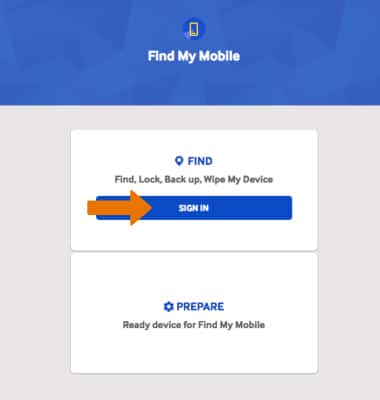
- FIND MY MOBILE ON ANOTHER DEVICE: If your device is lost or stolen, you may locate your device from another mobile phone or the web. To locate your device, from a computer or phone web browser go to the Samsung Find My Mobile website. Select SIGN IN.
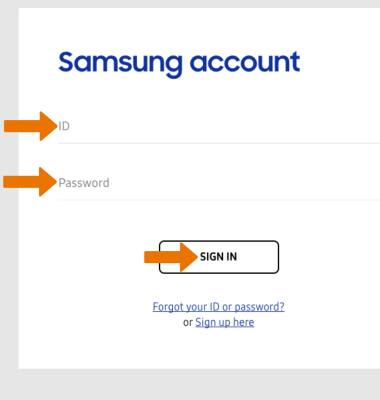
- Enter your Account information, then select SIGN IN.
- Find My Mobile will automatically begin to search for your device.
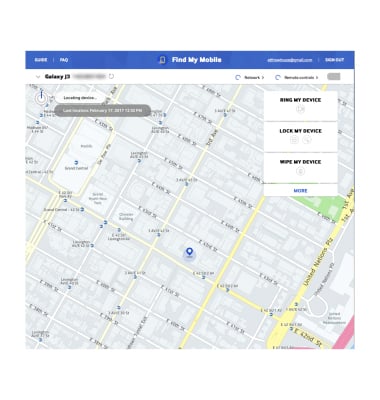
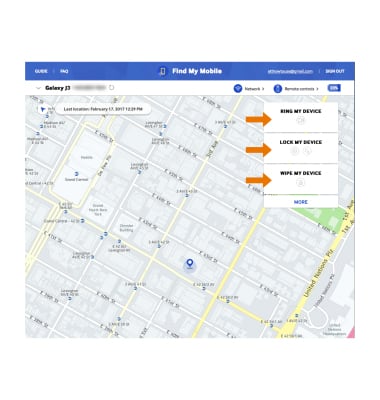
REMOTELY CONTROL THE DEVICE: Select RING TO MY DEVICE to ring the device at full volume for 5 minutes, even if it is set to silent or vibrate. Select LOCK MY DEVICE to lock the device with a new password. Select WIPE MY DEVICE to permanently delete all of the data on the device.
Find My Mobile
Samsung Galaxy J3 (2016) (J320A)
Find My Mobile
Find My Mobile allows you to manage your device in a secure way by tracking and controlling your device remotely.
INSTRUCTIONS & INFO