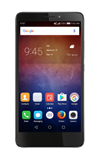
- From the home screen, swipe down from the Notifications bar, and then tap the Settings icon from the Shortcuts tab.
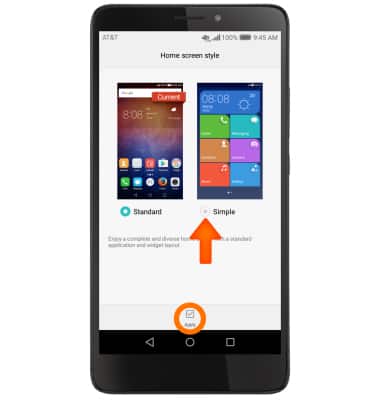
Note: Standard mode is the default screen layout and Simple mode is a simpler layout. The Simple Mode layout has larger text and icons, making for a more straightforward visual experience.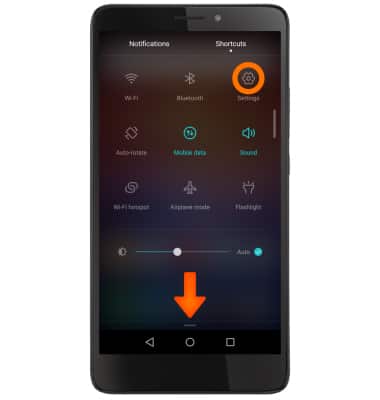
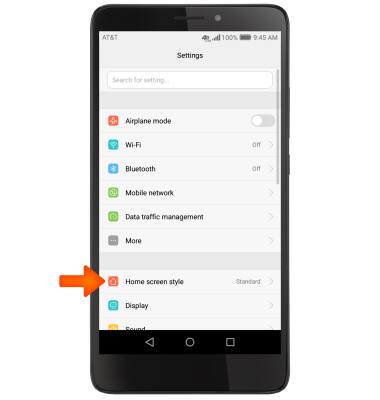
- Select Home screen style.
- Select Simple then select Apply.
- Your home screen will now feature a Simple home screen layout.
Note: Customization/personalization is limited while in Simple mode. The Simple mode layout is a grid, and the user can add or remove apps/contacts in any of those grid spaces. The user does not have access to widgets. The two widgets (on screen 1-2) that show in the default layout are non-customizable. User downloaded applications appear in the Downloads folder. All applications, when opened, run normally.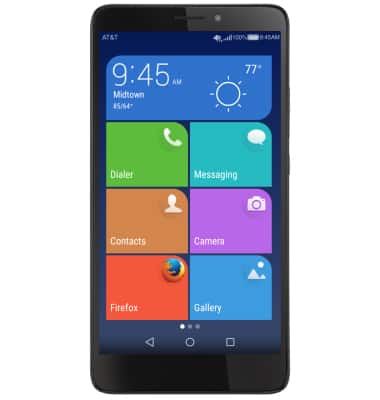
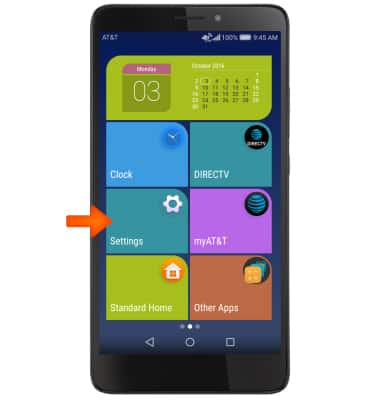
- To disable Simple mode, swipe to then select Settings.
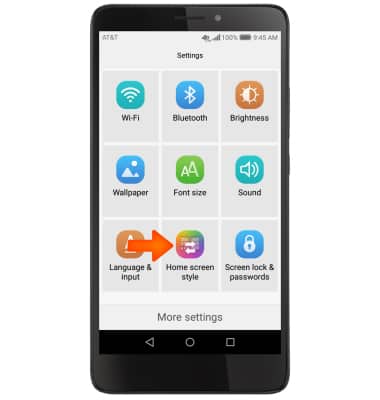
- Select Home screen style.
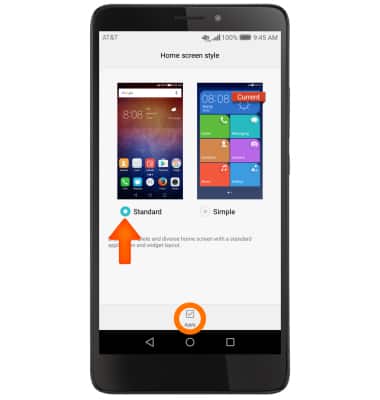
- Select Standard then select Apply.
Simple Mode
Huawei Ascend XT (H1611)
Simple Mode
Switch between Simple Mode (changes your Home screen to a more simple experience for first-time smartphone users) and Standard mode.
INSTRUCTIONS & INFO