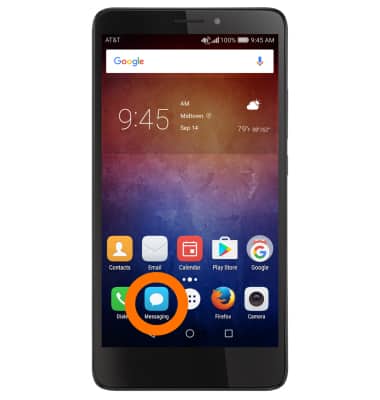
- To access the text & picture message settings screen, from the home screen, select the Messaging icon.
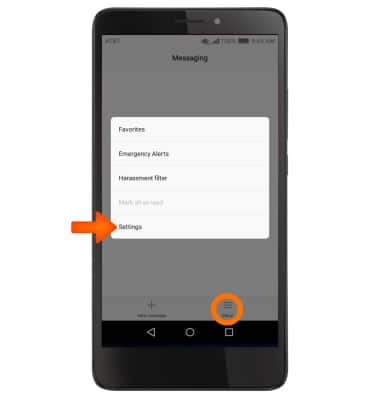
- Select the Menu icon, then select Settings.
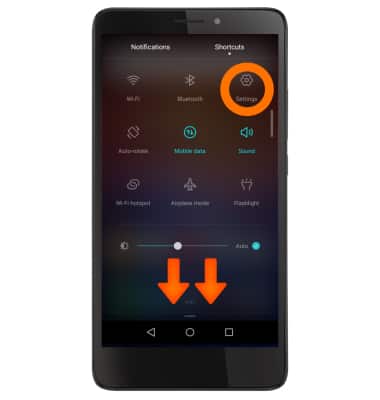
To turn notifications on or off, swipe down from the top of the screen and select the Settings icon from the Shortcuts tab.
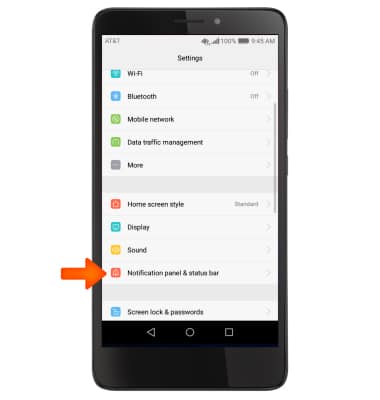
- Scroll down then select the Notification panel & status bar.
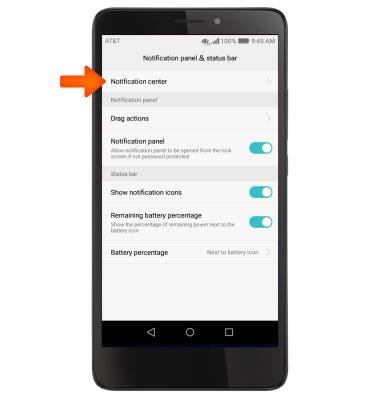
- Select Notification center.
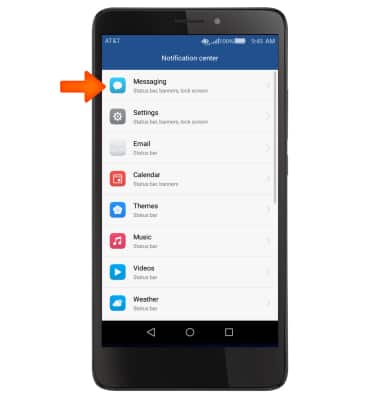
- Select Messaging.
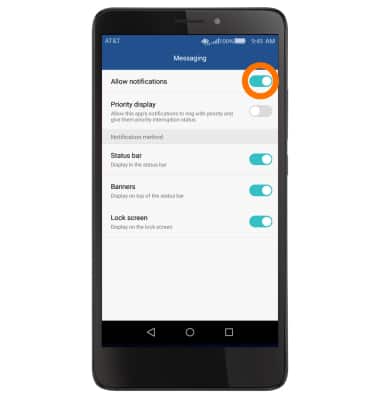
- To turn notifications on or off, select the toggle next to Allow notifications.
To change the notification alert, in the messaging app, select the Menu icon.
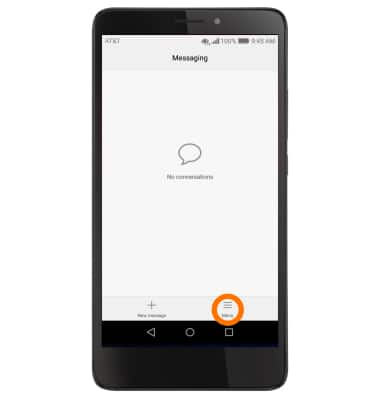
- Select Settings then Choose ringtone.
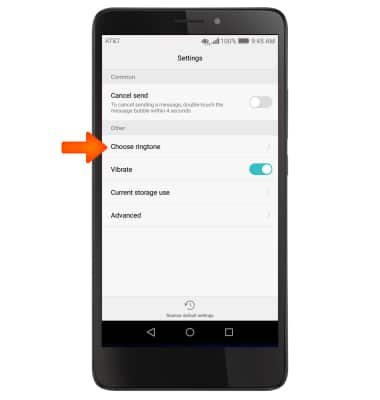
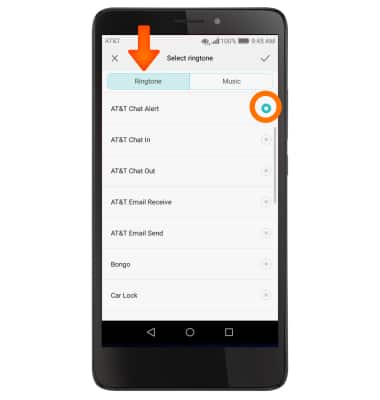
- Allow Themes to access the device's SD card, select Recieve message tone, then select desired ringtone.
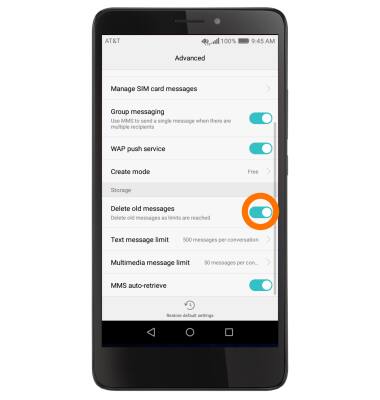
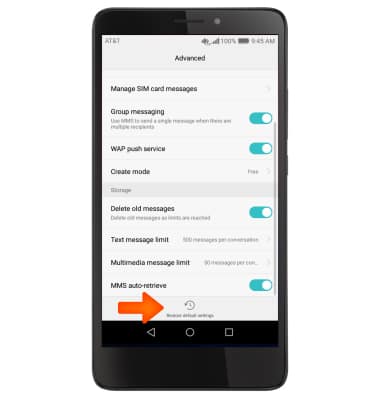
- To adjust text/picture mesage limit, select settings then advanced, select toggle next to Delete old messages to turn feature on or off. Then set desired text or multimedia message limit.
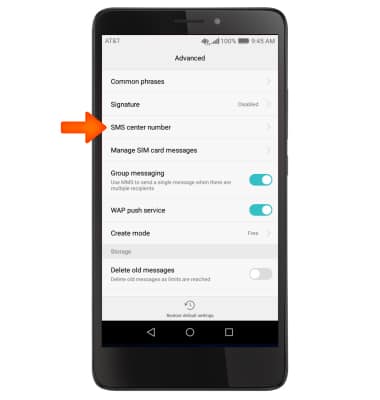
- To review the message center number, in advanced, select SMS center number.
- To restore default settings, from the Messaging settings menu, select the Restore default settings icon at the bottom of the screen.
- To set emergency alerts, from your phone settings, select More.
Note: Learn more about Wireless Emergency Alerts (WEA).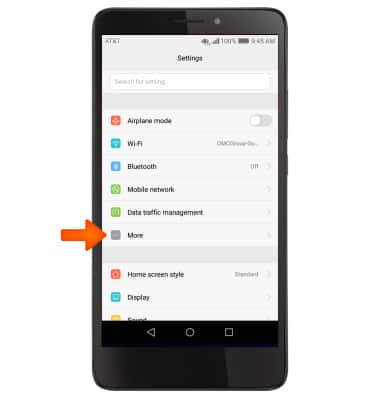
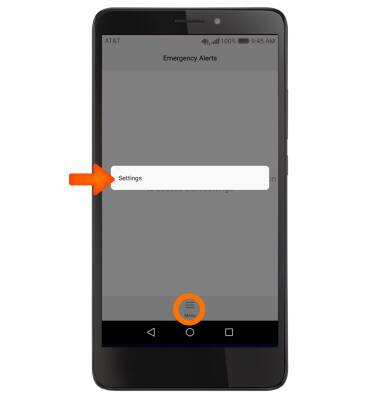
- Select Emergency Alerts then select the Menu icon.
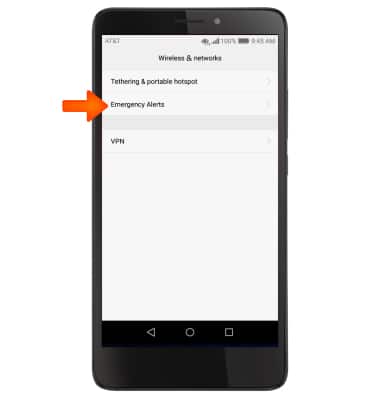
- Select Settings then adjust the Emergency Alert features to your preference.
Messaging Settings
Huawei Ascend XT (H1611)
Messaging Settings
Change text (SMS), picture (MMS), emergency, and AMBER alert settings.
INSTRUCTIONS & INFO