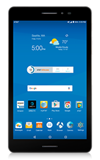
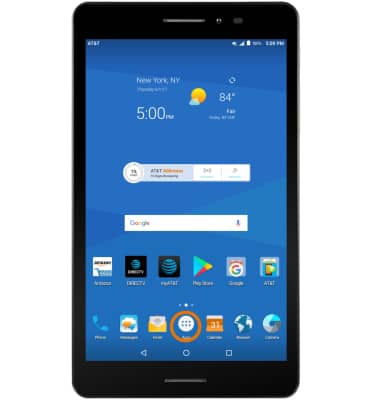
- ACCESS YOUR CONTACTS: From the home screen, select the Apps tray.
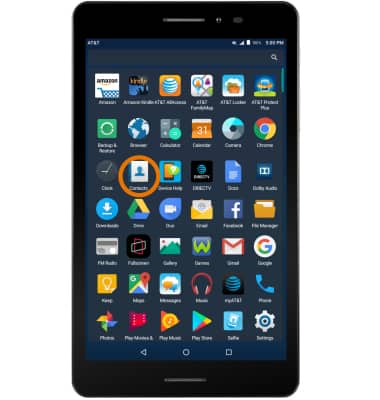
- Select the Contacts app.
- CREATE CONTACT: Select the Add icon.
Note: Upon first access, you will be presented with a sync prompt. Select the desired account.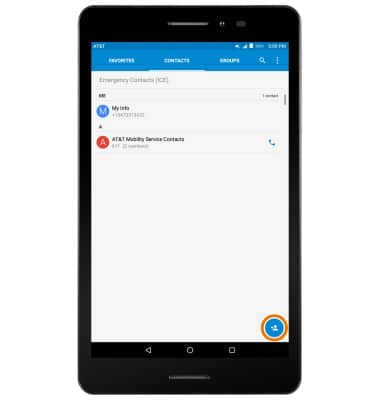
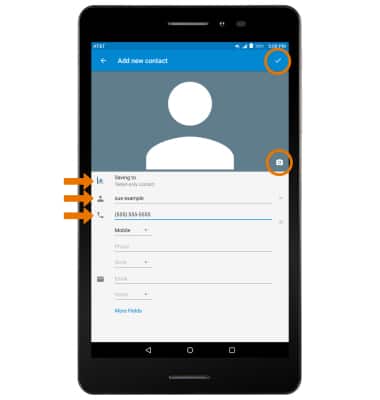
- Enter the desired contact information in the corresponding fields. To add a picture, select the Camera icon and navigate to the desired image. Select the Checkmark icon to save.
- ADD RINGTONE: From the Contacts screen, select the desired contact > Edit icon > More Fields > Default ringtone > desired Ringtone > OK > select the Checkmark icon to save.
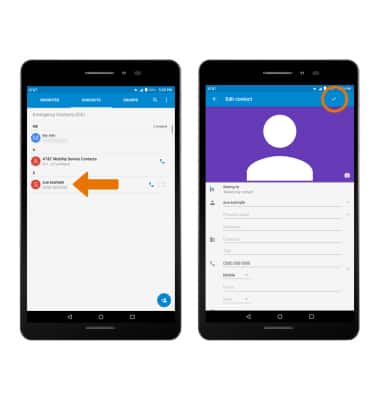
- EDIT A CONTACT: From the desired contact, select the Edit icon.
Note: When you are finished editing your contact, select the Save icon.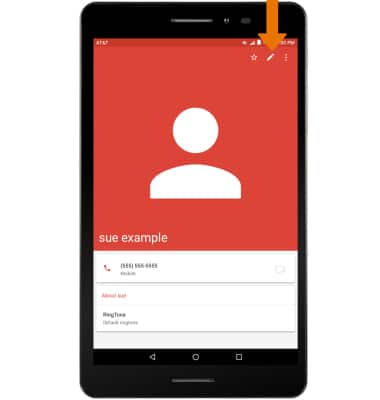
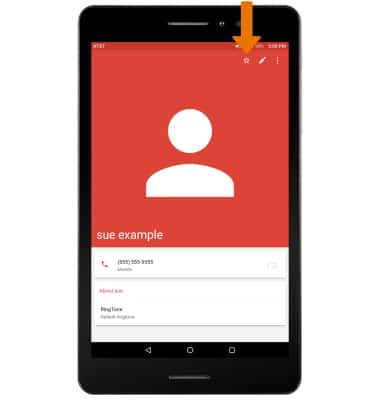
- ADD OR REMOVE A CONTACT FROM FAVORITES: From the desired contact, select the Favorites icon.
- DELETE ONE OR MORE CONTACTS: Select and hold the desired contact > additional contact(s) > Delete icon.
Note: You will be prompted to select OK to confirm.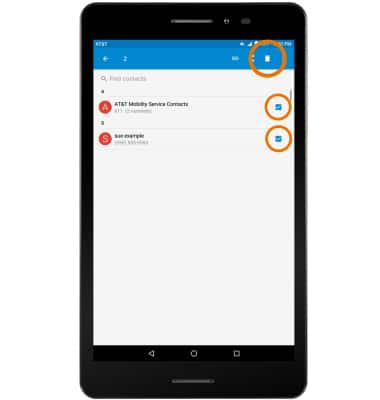
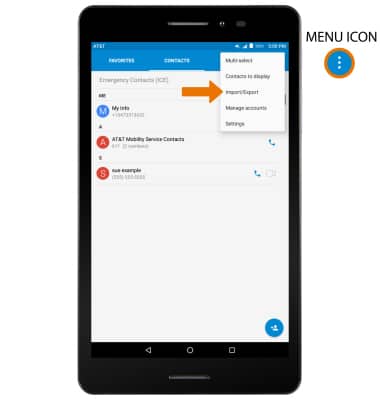
- BACKUP CONTACTS: From the contacts list, select the Menu icon then select Import/Export.
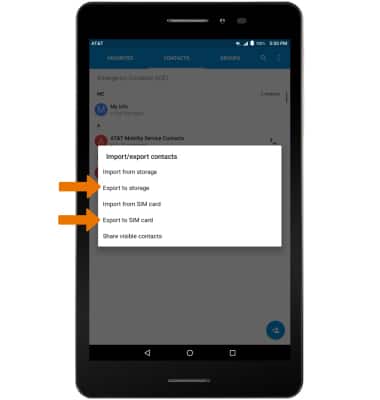
- Select Export to storage to backup your contacts to storage. Select Export to SIM card to backup your contacts to your SIM card.
Contacts
AT&T Trek 2 HD (K88)
Contacts
Add, view, delete, and customize contacts by adding a picture or ringtone.
Contacts
Add, view, delete, and customize contacts by adding a picture or ringtone.
Contacts
2:25
INSTRUCTIONS & INFO