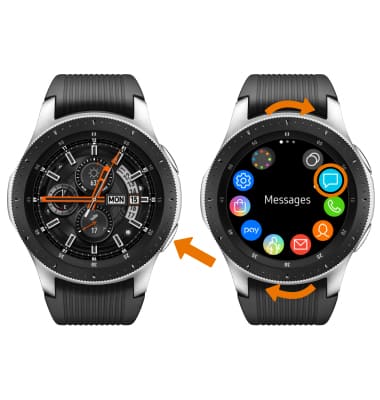
- SEND A TEXT MESSAGE: From the clock screen, press the Power/Home button. Rotate the bezel to and select Messages.
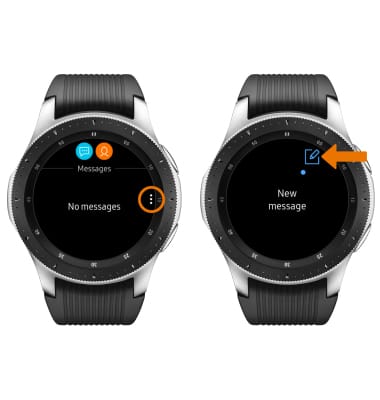
- Select the Menu icon, then select New message.
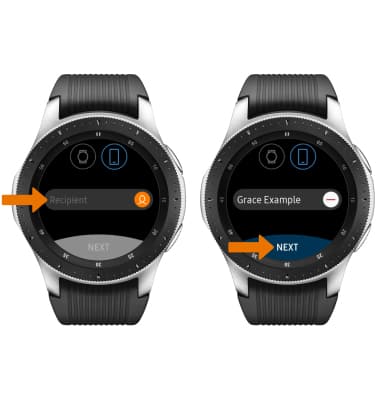
- Select Recipient field > enter the desired contact > select the desired contact > NEXT.
- Select the desired text input option or auto response option.
Note: Keyboard icon was selected for this tutorial. When using the microphone, you will have the option to record your message as a text message or an audio clip.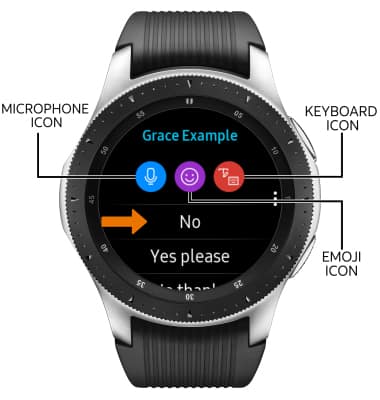
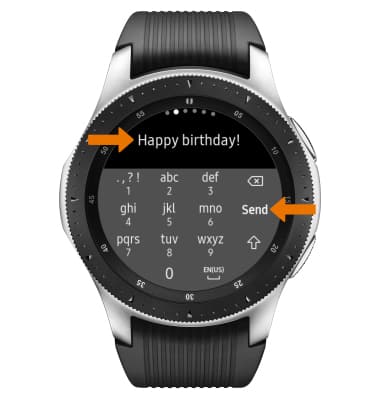
- Enter the desired message, then select Send.
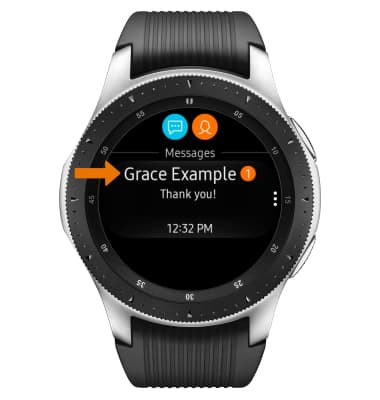
- READ A TEXT MESSAGE: From the Messages screen, select the desired message.
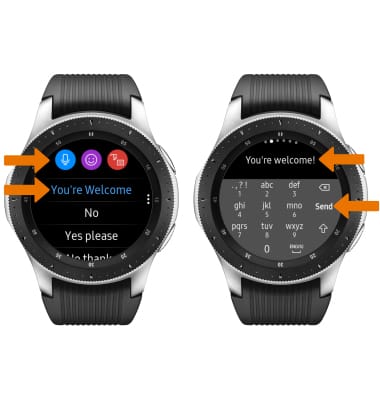
- REPLY TO A TEXT MESSAGE: From the desired message, scroll down to select the desired text input option or auto response option > enter desired message > select Send.
- VIEW AN ATTACHMENT: Select the desired attachment.
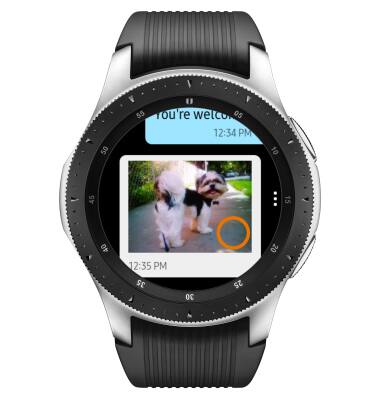
- SAVE AN ATTACHMENT: Select the desired attachment > Menu icon > Save to watch.
Note: To view saved attachments, from the clock screen press the Power/Home button > rotate the bezel to and select the Gallery app > select the desired saved attachment.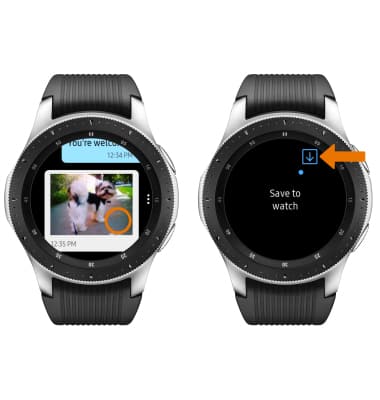
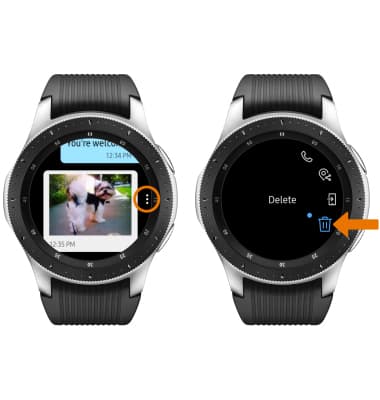
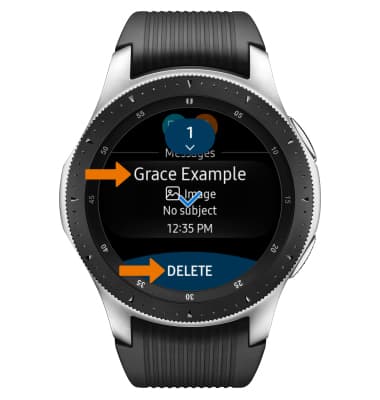
- DELETE A TEXT MESSAGE: From the desired message thread, select the Menu icon then select the Delete icon.
- Select the desired message(s), then select DELETE.
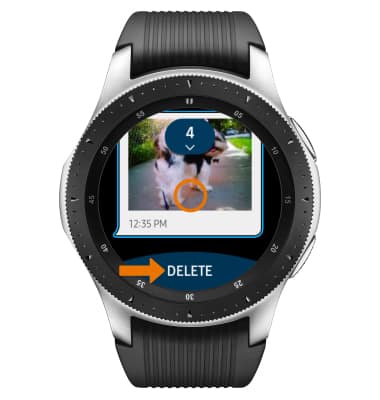
- DELETE A TEXT MESSAGE THREAD: From the Messages screen, select and hold the desired message thread. Select DELETE.
Send & Receive Messages
Samsung Galaxy Watch (R805U/R815U)
Send & Receive Messages
Create and respond to text (SMS) or picture (MMS) messages, add, save, and view received attachments and more.
INSTRUCTIONS & INFO