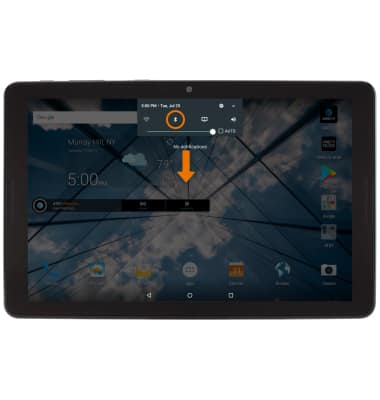
- ENABLE BLUETOOTH: Swipe down from the Notification bar, then select and hold the Bluetooth icon.
Note: To enable Bluetooth via settings, swipe down from the Notification bar > select the Settings icon > scroll to then select Bluetooth > Bluetooth switch ON.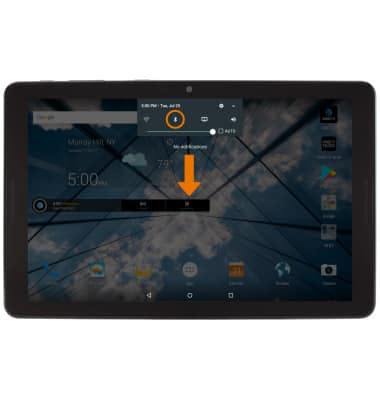
- SCAN FOR DEVICES: Select the Bluetooth switch. The device will automatically scan for devices when Bluetooth is enabled.
Note: If the desired device is not shown, make sure it is set to discoverable. Select the Menu icon, then select Refresh.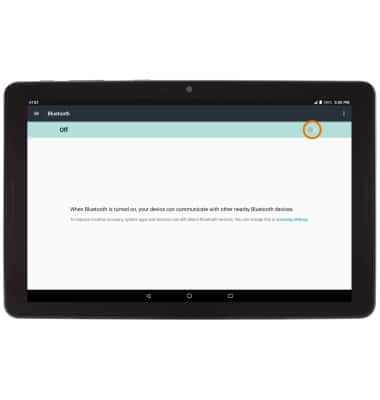
- CONNECT TO A DEVICE: Select the desired device.
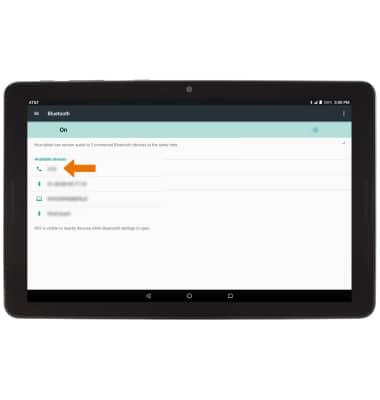
- Select PAIR when prompted to request a pairing.
Note: You may be prompted to enter a passcode (common default passcode is 0000).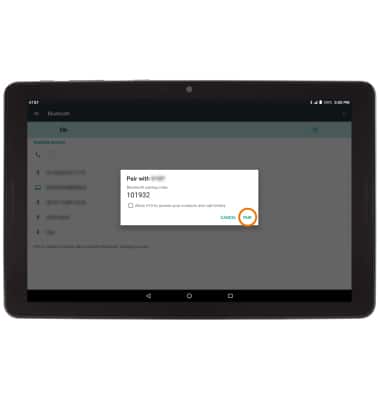
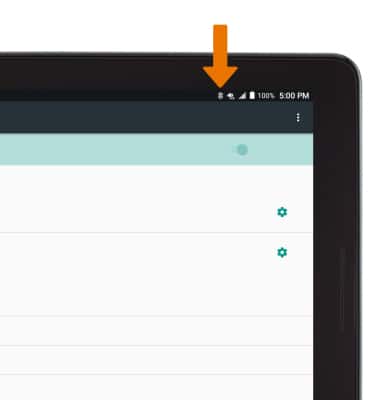
- When connected, the Bluetooth connected icon will be displayed in the Notification bar.
Note: To optimize battery life, turn Bluetooth off when not in use.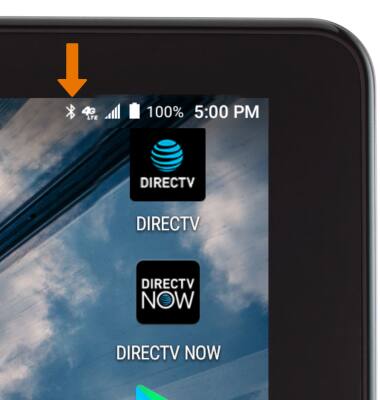
- ADJUST SETTINGS OR UNPAIR: Select the Settings icon.
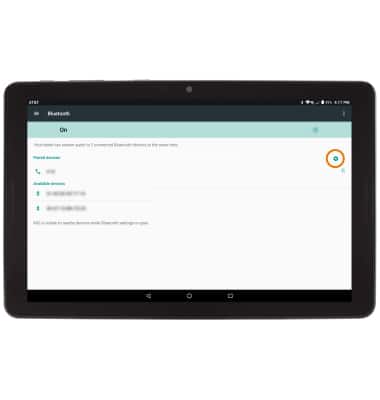
- Adjust settings as desired or select FORGET to unpair the device.
Note: If having trouble pairing/unpairing your device with your vehicle, please refer to your vehicle's user manual for additional information.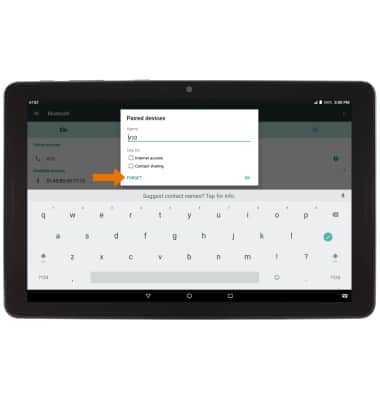
- QUICKLY TURN BLUETOOTH ON OR OFF: Swipe down from the Notification bar, then select the Bluetooth icon.
- ACCESS DUAL MEDIA STREAM: Swipe down from the Notification bar, then select the Settings icon.
Note: Dual media streaming allows two devices to connect to the same audio/media stream. For more information on using Dual media stream see the Dual Media Stream tutorial.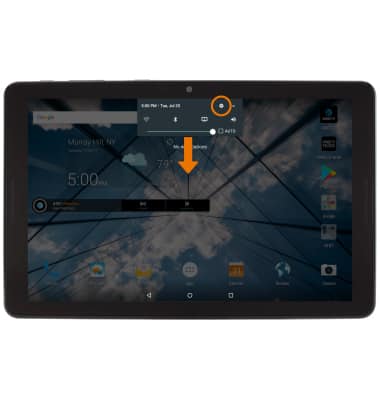
- Select Bluetooth.
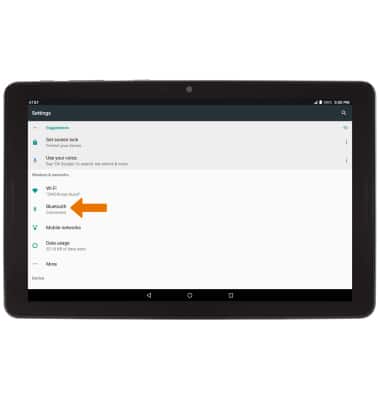
- Select the Bluetooth switch. Available devices to connect with will be displayed.
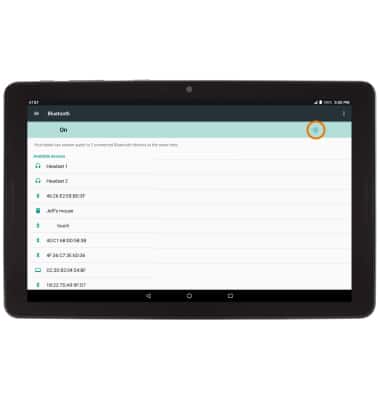
- Select the desired device to connect.
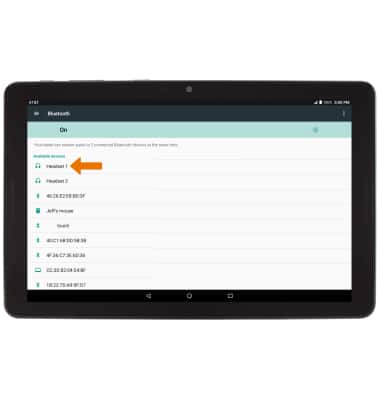
- Select the second desired device to connect.
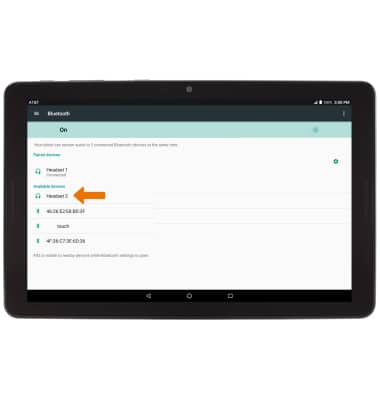
- When multiple devices are connected, the Bluetooth icon will be displayed in the Notification bar.
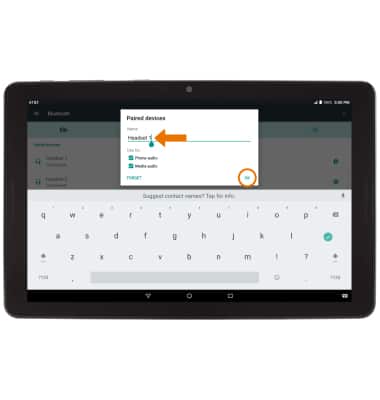
- ADJUST BLUETOOTH DEVICE SETTINGS: From the Bluetooth screen, select the Settings icon next to the desired device.
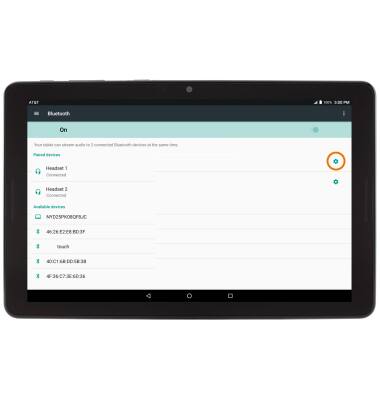
- Edit the settings as desired, then select OK.
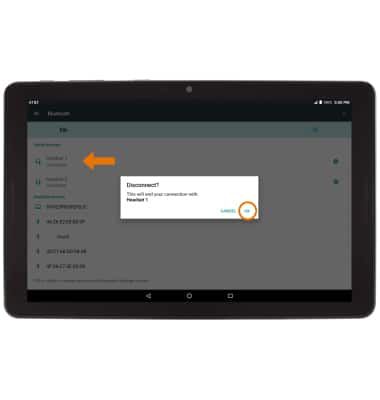
- DISCONNECT FROM A DEVICE: From the Bluetooth screen, select the desired device then select OK.
Bluetooth
AT&T Primetime (K92)
Bluetooth
Turn Bluetooth on or off, scan and connect to other Bluetooth devices, and unpair a connected device.
INSTRUCTIONS & INFO