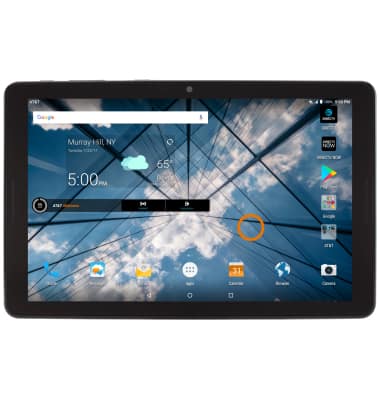
- SET WALLPAPER: Select and hold an empty space on the home screen to access the Customization screen.
- Select the Wallpapers tab, then navigate to and select the desired wallpaper.
Note: Live wallpapers can increase battery consumption. You may also select PHOTOS to use your photos as wallpaper. Go to your photos, then select one to use as your wallpaper.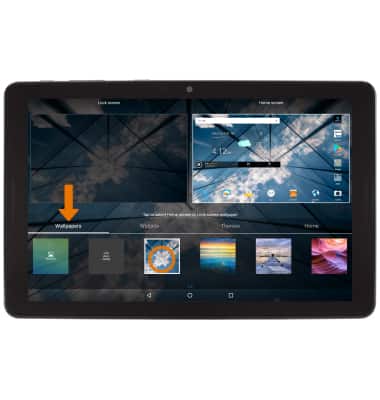
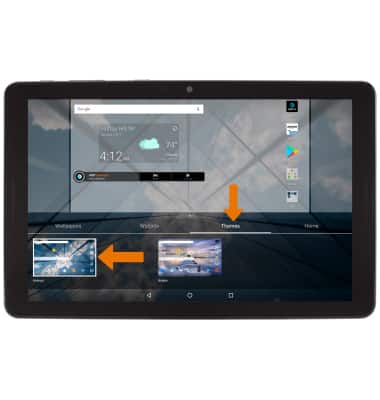
- CHANGE DEVICE THEME: From the Customization screen, select the Themes tab then select the desired theme.
- ADD/REMOVE A HOME SCREEN PANEL: From the Customization screen, swipe left or right to the Add home screen panel then select the Add icon.
Note: To remove a home screen panel, select, hold, and drag all apps and widgets onto another panel, or delete/disable them.
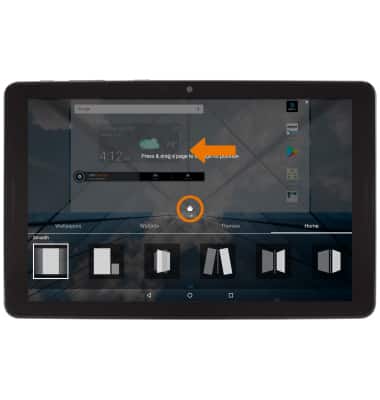
- SET DEFAULT HOME SCREEN PANEL: From the Customization screen, swipe to the desired panel then select the Home icon on the bottom of the panel.
- ADD AN APP TO THE HOME SCREEN: From the Apps tray, select and drag the desired app to the desired location on the home screen.
Note: To add a widget (a mini app) to the home screen, select and hold an empty part of the home screen > select the Widgets tab > select and drag the desired widget to the desired location.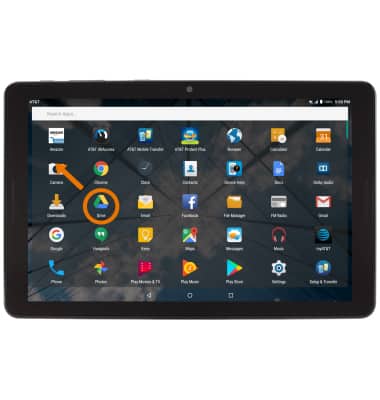
- ADD A FOLDER TO THE HOME SCREEN: Select and drag the desired app to Folder at the top of the screen.
Note: To remove a folder, select and drag all the apps out of the folder to Remove at the top of the screen.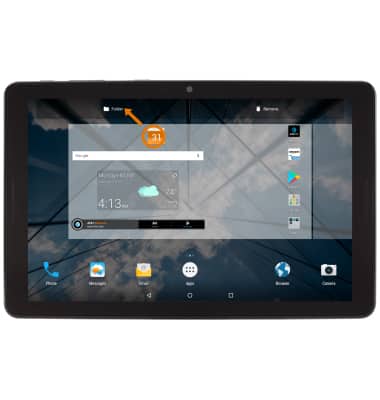
Learn & Customize the Home Screen
AT&T Primetime (K92)
Learn & Customize the Home Screen
Choose your wallpaper, update your home screen panels, set your Home touch buttons, change your home screen grid and add the Apps tray icon to your home screen.
Learn & Customize the Home Screen
Add shortcuts and widgets, access the notification panel, changing wallpaper, and more.
Learn & Customize the Home Screen
1:51
INSTRUCTIONS & INFO