
• Camera modes
• Manual photo mode
• Manual video mode
• Portrait Mode
• AI CAM
• Cine shot
This tutorial requires you to open the Camera app. From the home screen, select the  Camera app. To access the camera from the lock screen, select and drag the Camera icon up or press the volume down button twice.
Camera modes
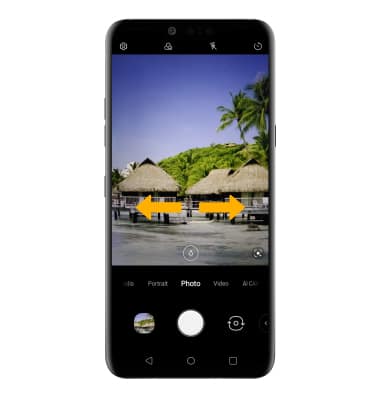
To access additional camera features such as Slo-mo, Panorama, and Flash Jump-Cut, from the camera screen, swipe left to More then select the desired camera mode.
Note: Slo-mo allows you to record videos in slow motion. Panorama allows you to create a wide photo of a panoramic view. Flash Jump-Cut will take photos in 3 second increments, then save them as a GIF file. 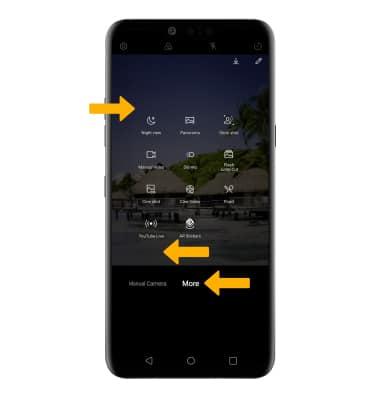
Manual photo mode
From the Camera app, swipe left or right to Manual Camera. Select the desired settings, then adjust as desired.
Note: Manual photo mode allows you to use more sophisticated camera settings while taking photos.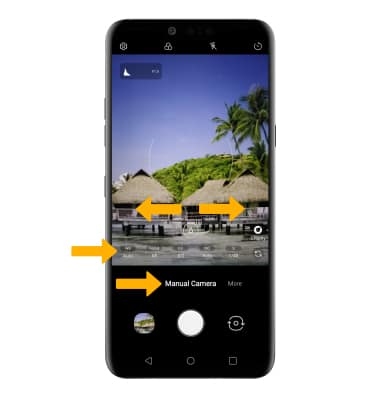
Manual video mode
From the More screen, select the Manual Video. Select the desired settings, then adjust as desired.
Note: Manual video mode allows you to use more sophisticated camera settings while recording video. 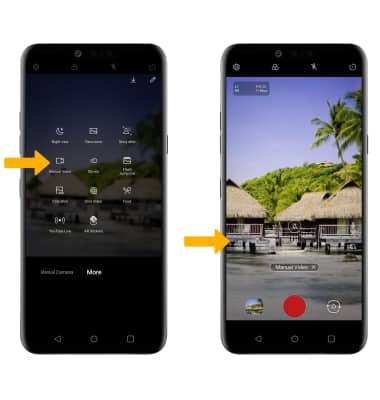
Portrait Mode
From the Camera app, swipe left or right to Portrait. Select and drag the Blur slider to adjust the amount of blur surrounding the portrait subject.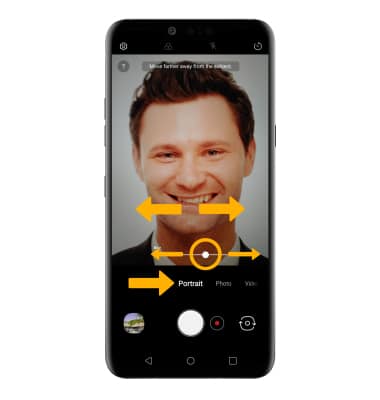
AI CAM
From the Camera app, swipe left or right to AI CAM. Select the Capture icon to take a photo.
Note: AI CAM adjusts the lighting of the photo by automatically detecting the subject.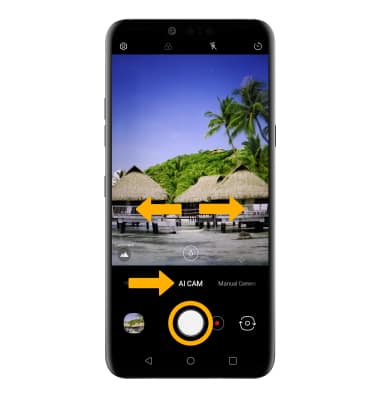
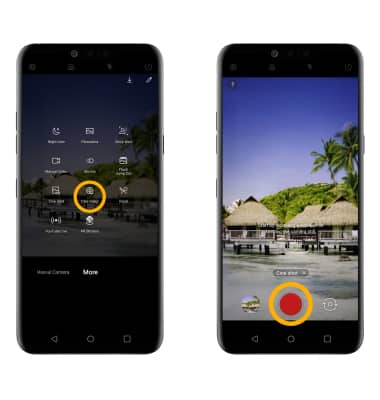
Cine shot
From the More screen, select Cine Video. Select the Record icon, then follow the prompts.
Note: Cine shot allows you to animate certain areas of the scene to add a touch of life to your photos.