

• View battery usage
• Enable battery saver mode
• Turn off auto-sync
• Turn off auto-updates for apps
• Turn off unused services and activate Airplane mode
• Change display settings
• Disable infinity wallpapers
Use the original charger and battery to maintain optimal battery performance over the life of your device. The battery comes partially charged. Battery life and charge cycles vary by use and settings.
View battery usage
1. Swipe down from the Notification bar, then select the  Settings icon.
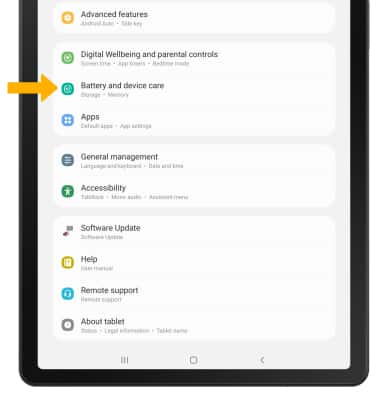
Settings icon.2. Scroll to and select Battery and device care.
3. Select Battery. Battery usage information will be displayed.
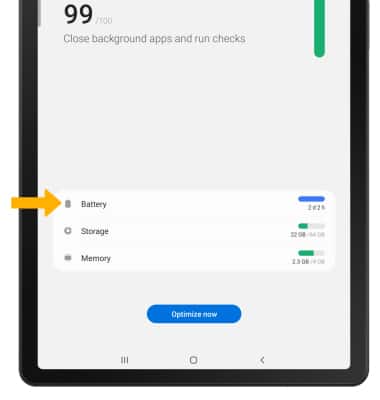
3. Select Battery. Battery usage information will be displayed.
Enable battery saver mode
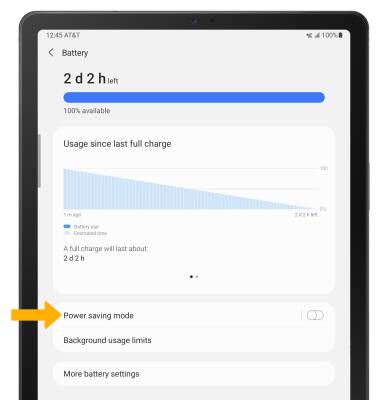
1. From the Battery screen, select Power saving mode.
2. Select the Power saving mode switch and edit settings as desired.
2. Select the Power saving mode switch and edit settings as desired.
Note: Alternatively, swipe down from the Notification bar then select and hold the  Power saving mode icon. Battery-smart features can help save your battery for what matters most. Seldom used apps go into App Standby to conserve battery.
Power saving mode icon. Battery-smart features can help save your battery for what matters most. Seldom used apps go into App Standby to conserve battery.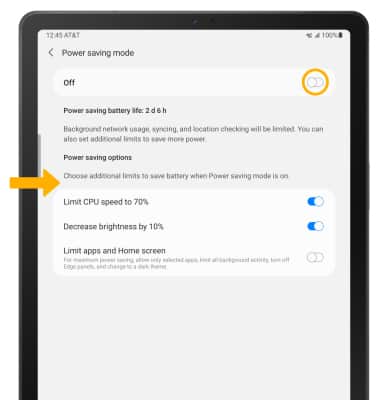
Turn off auto-sync
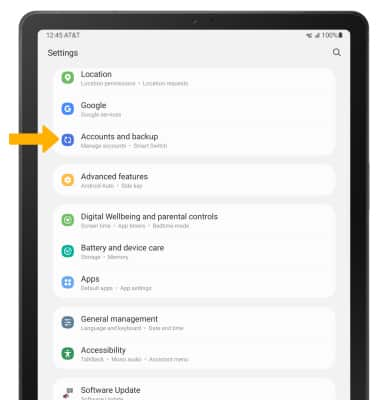
1. From the Settings screen, scroll to and select Accounts and backup.
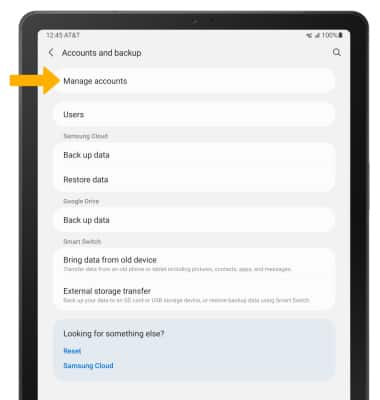
2. Select Manage accounts.
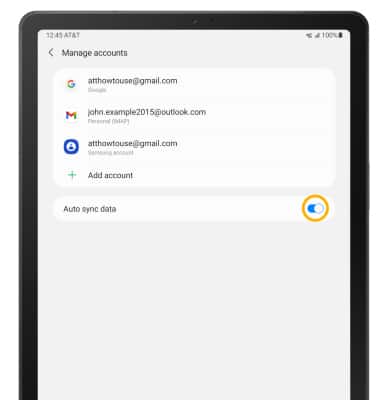
3. Select the Auto sync data switch to place it in the Off position.
Note: Select OK to confirm. Turn Auto-sync back on to allow apps to download new data like email, social media posts, etc.
2. Select Manage accounts.
3. Select the Auto sync data switch to place it in the Off position.
Note: Select OK to confirm. Turn Auto-sync back on to allow apps to download new data like email, social media posts, etc.
Turn off auto-updates for apps
1. From the home screen, select the  Play Store app.
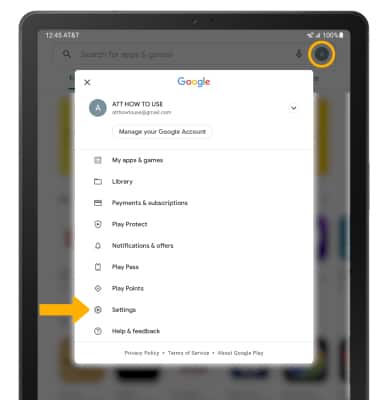
2. Select the Account icon then select Settings.
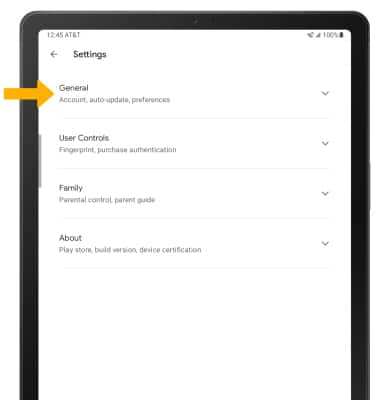
3. Select General.
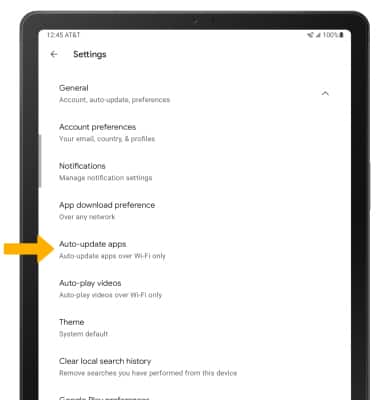
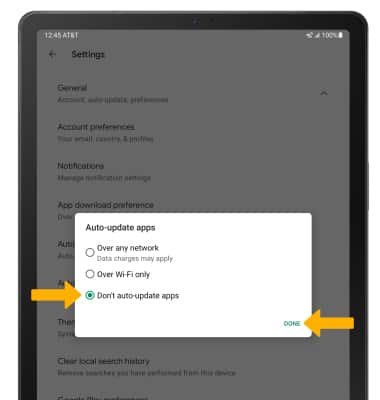
4. Select Auto-update apps.
5. Select Don't auto-update apps then select DONE.
Play Store app.2. Select the Account icon then select Settings.
3. Select General.
4. Select Auto-update apps.
5. Select Don't auto-update apps then select DONE.
Turn off unused services and activate Airplane mode
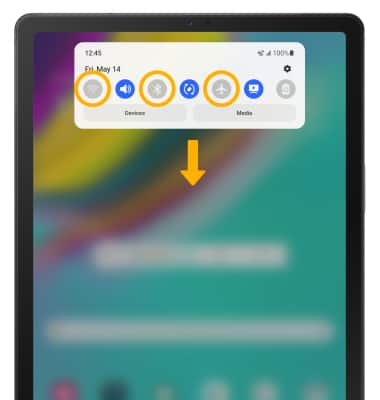
Swipe down from the Notification bar, then if enabled select the Bluetooth icon and the Wi-Fi icon to disable. If you are traveling and do not have access to mobile or Wi-Fi networks, enable Airplane mode. Select the Airplane mode icon.
Change display settings
1. To extend battery life, set the screen to a lower brightness and decrease screen timeout. From the Settings screen, select Display.

2. Adjust display settings as desired.
2. Adjust display settings as desired.
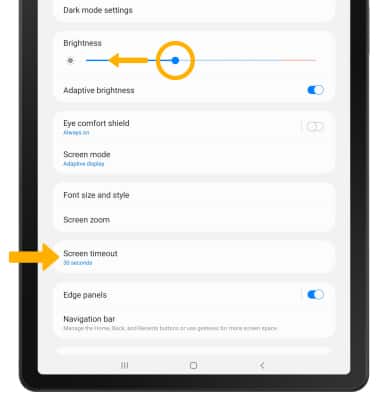
• LOWER SCREEN BRIGHTNESS: Select and drag the Brightness slider left to lower the screen brightness manually.
• DECREASE SCREEN TIMEOUT: Select Screen timeout, then select the desired option.
• DECREASE SCREEN TIMEOUT: Select Screen timeout, then select the desired option.
Disable Infinity wallpapers
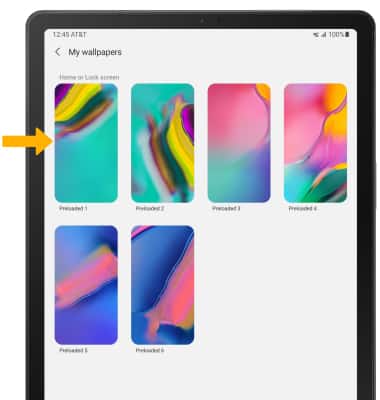
1. From the Settings screen, select Wallpaper.

2. Navigate to and select the desired wallpaper that is not an Infinity wallpaper and follow the prompts.
Note: Visit the Learn & Customize the Home Screen tutorial for more information on wallpapers.
2. Navigate to and select the desired wallpaper that is not an Infinity wallpaper and follow the prompts.
Note: Visit the Learn & Customize the Home Screen tutorial for more information on wallpapers.