 To access and use Bixby, you must have and be logged into a
 In this tutorial, you'll learn how to:
• Access Hello Bixby
• Customize Bixby
• Access Bixby settings
Access Hello Bixby
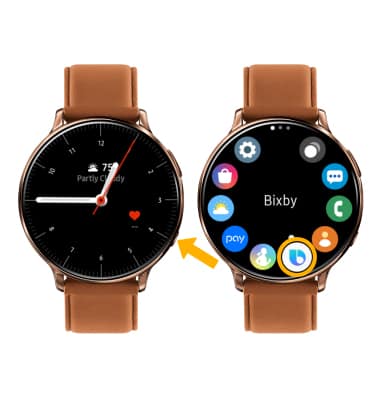
1. From the clock screen, select the Power/Home button then select the Bixby app.
Note: When prompted with allowance permissions, select the Checkmark icon to continue.
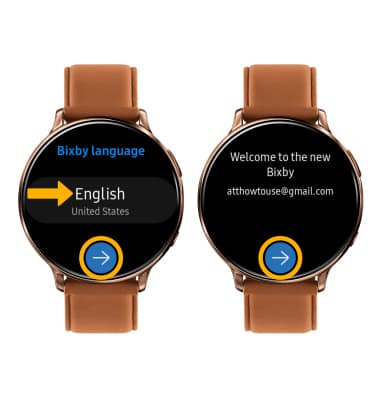
2. Select the desired language, then select the arrow icon. Select the arrow icon again to continue.
Note: When prompted with allowance permissions, select the Checkmark icon to continue.
2. Select the desired language, then select the arrow icon. Select the arrow icon again to continue.
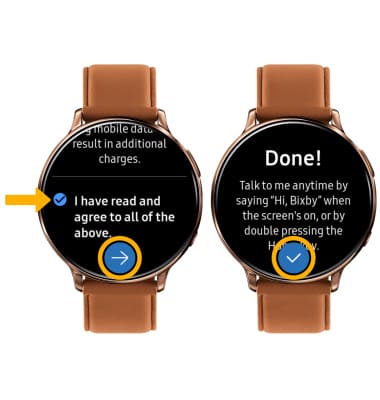
3. Review the prompt, then select the I have read and agree to all of the above circle > arrow icon. Select the checkmark icon to complete.
Note: If you are not logged into your Samsung account, enter your Samsung login information then select Sign in.
Note: If you are not logged into your Samsung account, enter your Samsung login information then select Sign in.
Customize Bixby
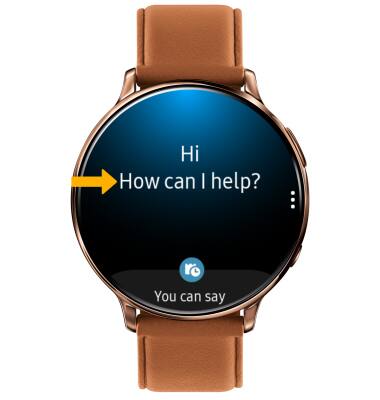
Say "Hi, Bixby" to set up voice commands. Use the Bixby app to find food recommendations, upcoming scheduled appointments, reminders, emails, news, sports, weather, and more.
Access Bixby settings
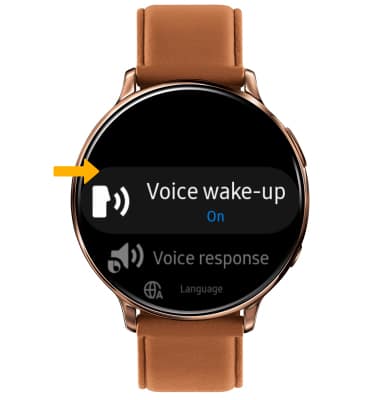
Select the  Menu icon, then edit settings as desired.
Menu icon, then edit settings as desired.