
In this tutorial, you will learn how to:
• Access QuickMemo+
• Create a memo
• Add a reminder
• Add a location
• Create a memo
• Add a reminder
• Add a location
Access QuickMemo+
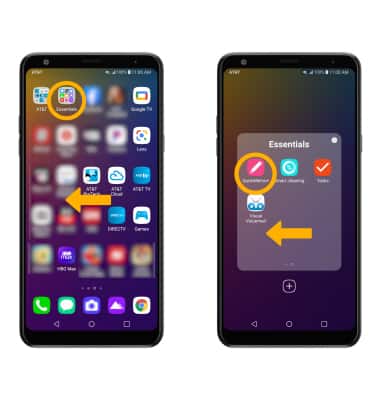
From the home screen, swipe left then select the Essentials folder. Swipe left, then select the QuickMemo+ app.
Note: First-time users will be prompted to read Terms of Use for LG apps. Select Agree to continue. You can then select a Google account to sync with or select Cancel to continue without syncing.
Note: First-time users will be prompted to read Terms of Use for LG apps. Select Agree to continue. You can then select a Google account to sync with or select Cancel to continue without syncing.
Create a memo
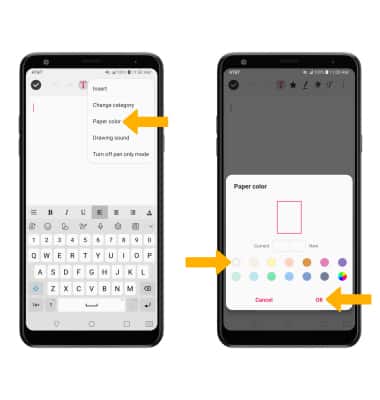
1. Select the  Add icon to create a new memo.
2. To change the paper color, select the Menu icon then select Paper color. Select the desired option, then select OK.
Add icon to create a new memo.2. To change the paper color, select the
Menu icon then select Paper color. Select the desired option, then select OK.3. Select the desired option.
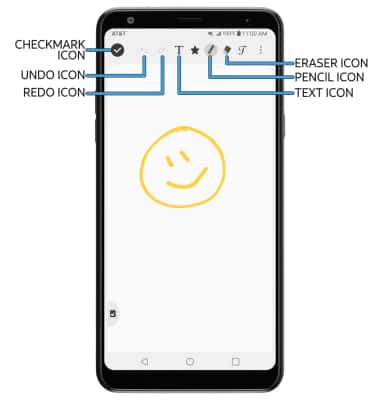
• ADD TEXT: Select the Text icon then enter the desired text.
• DRAW: To draw on the screen, select the Pencil icon. Double-tap the Pencil icon to customize the pencil.
• ERASE: To erase unwanted writing, select the Eraser icon. Double-tap the Eraser icon to customize the eraser.
• UNDO AN ACTION: To undo an action, select the Undo icon.
• REDO AN ACTION: To redo an action, select the Redo icon.
• SAVE: To save the memo, select the Checkmark icon.
• DRAW: To draw on the screen, select the Pencil icon. Double-tap the Pencil icon to customize the pencil.
• ERASE: To erase unwanted writing, select the Eraser icon. Double-tap the Eraser icon to customize the eraser.
• UNDO AN ACTION: To undo an action, select the Undo icon.
• REDO AN ACTION: To redo an action, select the Redo icon.
• SAVE: To save the memo, select the Checkmark icon.
Add a reminder
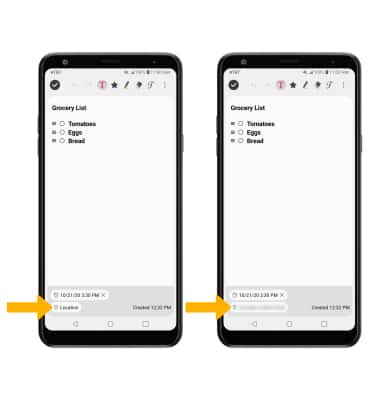
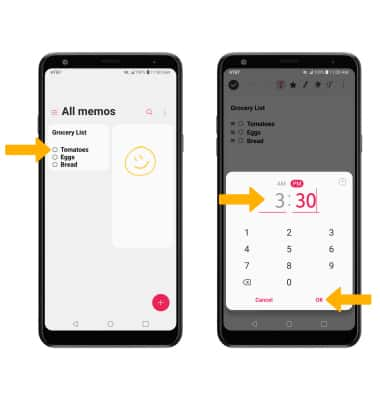
Select the desired memo > Add reminder > Time > enter the desired date > select OK > enter the desired time > select OK.
Add location
From the desired memo, select Location. The location will automatically be populated.