
In this tutorial, you will learn how to:
• Set up Google Duo
• Make a video call
• Respond to an incoming call
• Video call options
Set up Google Duo
1. From the home screen, swipe up from the center of the screen to access the Apps tray. Select the  Duo app.
Note: Upon first access you will be prompted to allow access to your micropone and camera. Select Give access, then select the desired allowances to continue. For more information, please visit Set up Google Duo.
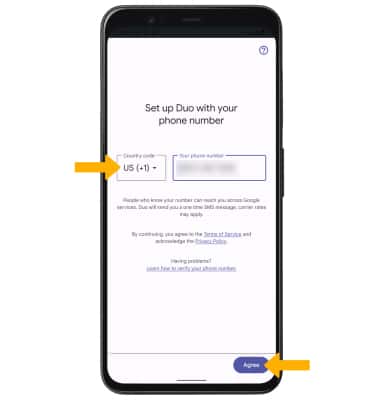
2. Enter the desired phone number, then select Agree.
Note: You will receive a text message with a pin to confirm your phone number. Enter the pin to continue. If you have trouble sending or receiving the SMS verification code, please visit Google's verification troubleshooting article.
Duo app. Note: Upon first access you will be prompted to allow access to your micropone and camera. Select Give access, then select the desired allowances to continue. For more information, please visit Set up Google Duo.
2. Enter the desired phone number, then select Agree.
Note: You will receive a text message with a pin to confirm your phone number. Enter the pin to continue. If you have trouble sending or receiving the SMS verification code, please visit Google's verification troubleshooting article.
Make a video call
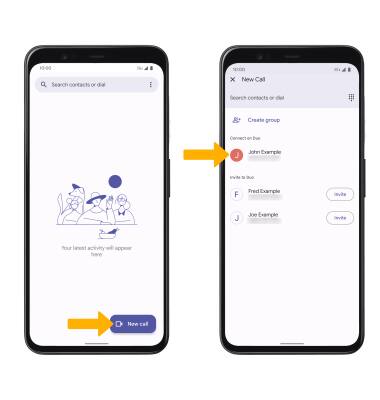
1. Tap New call to view the contacts list, then select the desired contact.
Note: In order to make a call, both users must be signed in to Google Duo. Select Invite to invite a contact to Google Duo.
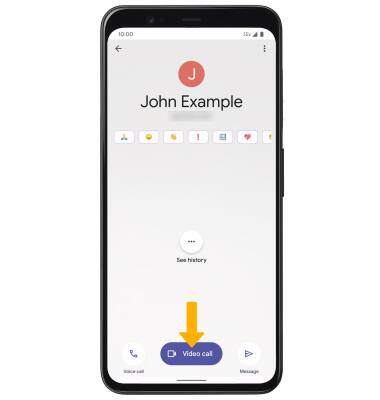
2. Select Video call to begin a video call.
Note: In order to make a call, both users must be signed in to Google Duo. Select Invite to invite a contact to Google Duo.
2. Select Video call to begin a video call.
Make a group video call
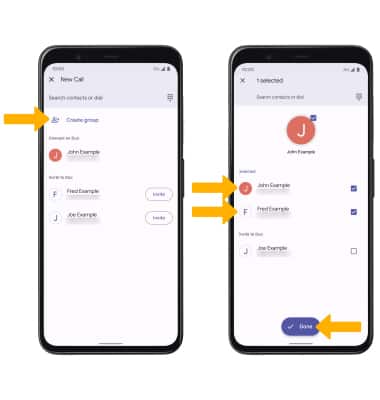
1. From the contacts list, select Create group. Select the desired contacts, then select Done.
Note: You can add up to 32 people to the video call. The person talking is shown on screen at that time. Group video calling may not work for those using a different mobile operator.
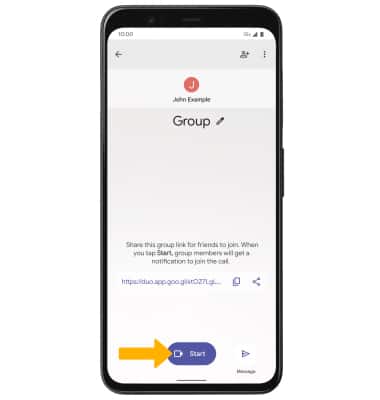
2. Select Start to begin a video call.
Note: You can add up to 32 people to the video call. The person talking is shown on screen at that time. Group video calling may not work for those using a different mobile operator.
2. Select Start to begin a video call.
Respond to an incoming call
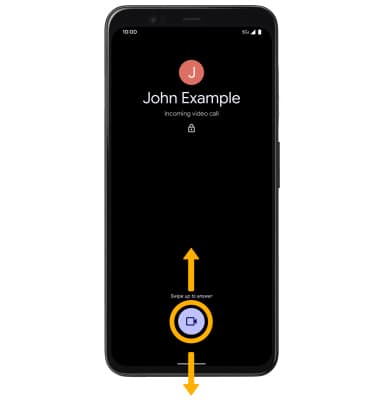
Select and drag the call icon up to accept the call or down to decline the call.
Video call options
Select the desired option:
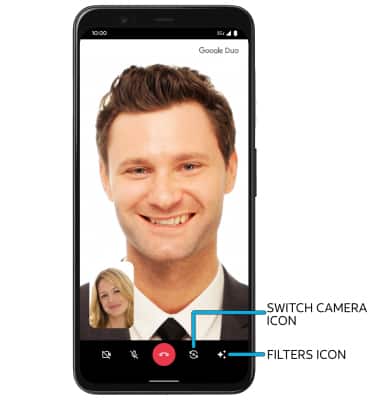
• SWITCH CAMERAS: Select the switch camera icon.
• USE FILTERS: Select the Filters icon.
• USE FILTERS: Select the Filters icon.
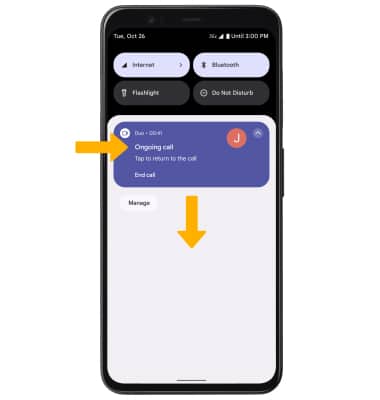
To use your phone while on a video call, swipe up from the bottom of the screen to return to the home screen. The video call will be displayed as a picture-in-picture window in the corner of your screen.
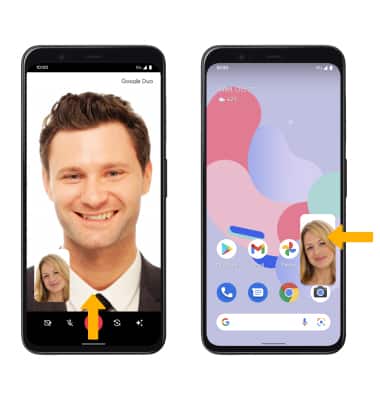
To return to a call, swipe down from the Notification bar then select the active call notification.