

 Camera app. You can also swipe up from the
  Camera icon on the lock screen.
In this tutorial you will learn how to:
• Access camera modes and filters
• Customize photo & video settings
• Crop a photo
Access camera modes and filters
From the Camera app, swipe left to access Face Beauty mode then select the drop-down icon to access settings.
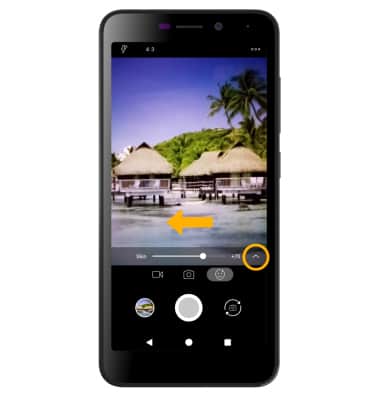
To access filters, select the
 Filters icon then select the desired filter.
 Note: Filters are not available in some camera modes.

Customize photo and video settings
From the Camera app, select the Menu icon then edit settings as desired.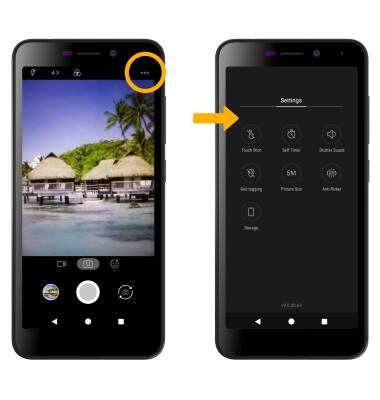
Crop a photo
1. From the Camera app, select the Gallery icon. Swipe to the desired photo, then select the Edit icon.
Note: Alternately, from the home screen select the Photos app then navigate to and select the desired photo.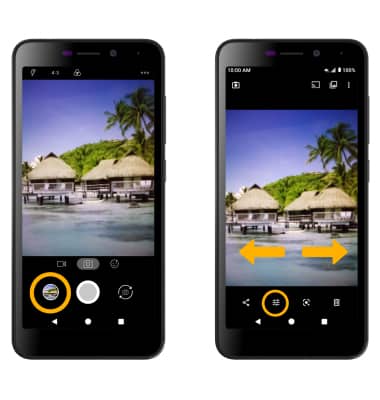
2. Select the Crop icon. Select and drag the crop corners to crop as desired, then select Done.