In this tutorial, you'll learn how to:
• Access Wi-Fi
• Connect to a Wi-Fi network
• Access Wi-Fi options
• Connect to a hidden network
When connected to a Wi-Fi network, the  Wi-Fi connected icon will be displayed in the Notification bar.
Note: Data transmitted over a Wi-Fi network does not count toward your AT&T data plan, and will not be billed. When using the AT&T network, data rates apply.
Access Wi-Fi
1. Press the OK key to access the Apps tray, then press the navigational buttons to highlight the Settings app. Press the OK key to select. 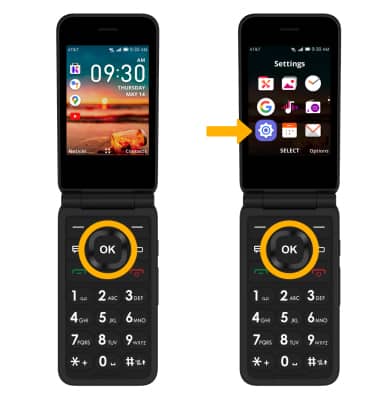
2. From the Network & Connectivity tab, press the down button to highlight Wi-Fi, then press the OK key to select.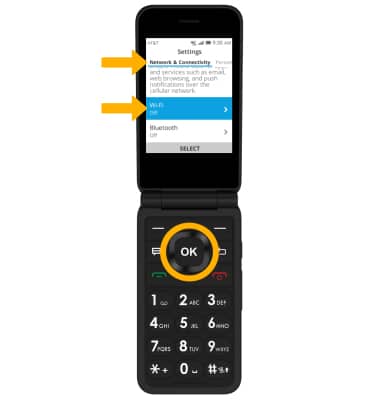
Connect to a Wi-Fi network
1. If Wi-Fi is disabled, with On highlighted, press the OK key to enable Wi-Fi services. When Wi-Fi is enabled, press the down button to highlight Available networks, then press the OK key to select.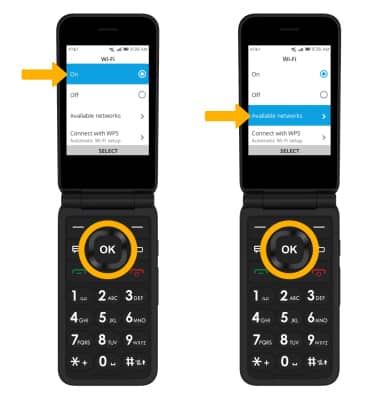
2. Press the up or down button to highlight the the desired Wi-Fi network, then press the OK key to select and establish a connection.
Note: If connecting to a secure network, press the down button to highlight the Password field, then use the keypad to enter the Wi-Fi password. Press the right menu button to select Connect. Secure networks will display with a Lock icon.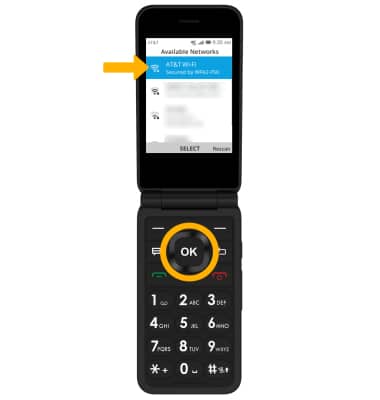
Wi-Fi options
REFRESH NETWORK LIST: From the Available Networks screen, press the right menu button to select Rescan to refresh the Wi-Fi network list.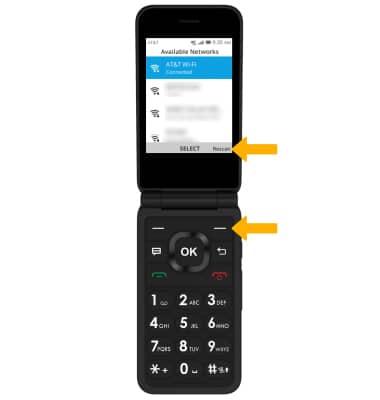
FORGET NETWORK: With the desired network highlighted, press the OK key. Press the left menu button to select Forget.
Note: Select the right menu button to confirm. 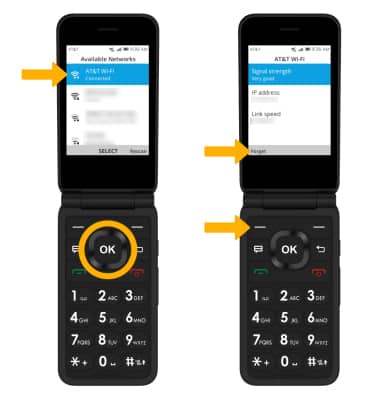
Connect to a hidden network
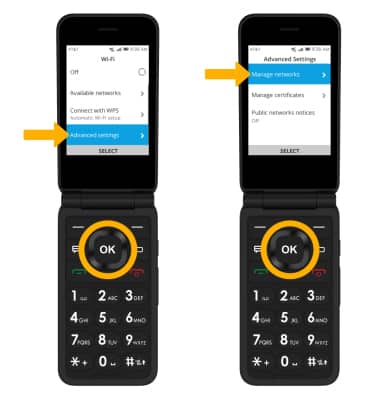
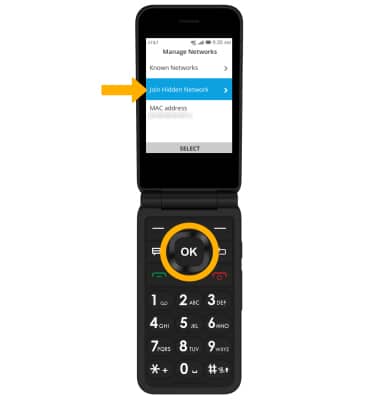
2. Press the down button to highlight Join Hidden Network, then press the OK key to select.
Note: When connecting to a hidden network, you will be prompted to enter the network SSID, security type, and password (if necessary) to continue.
Quickly Turn Wi-Fi On or Off
From the home screen, press the up button to access Quick Settings. Press the navigational buttons to highlight the Wi-Fi icon, then press the OK key to turn on or off as desired. 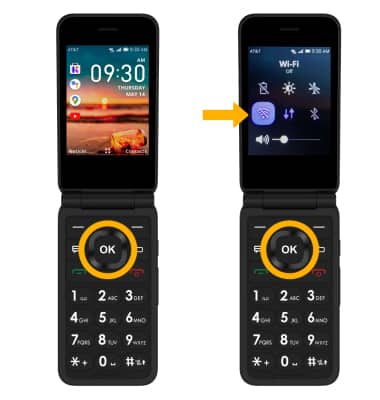
Tips
OPTIMIZE BATTERY LIFE: Turn Wi-Fi off when not in use. View Optimize Battery Life for more information.