
In this tutorial, you will learn how to:
• Access split screen
• Open an app completely
• Exit split screen
• Use Picture-in-picture
• Open an app completely
• Exit split screen
• Use Picture-in-picture
Access split screen
1. Select the Recent apps key.
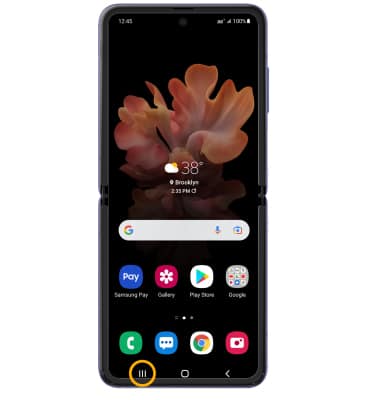
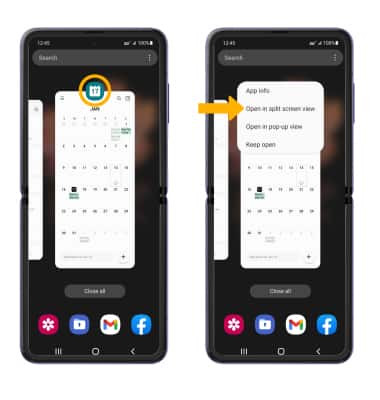
2. Select the desired app icon, then select Open in split screen view.
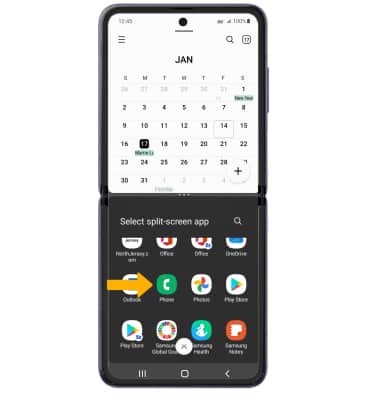
3. Navigate to and select the second app.
Note: For this tutorial, the Calendar and Phone apps were selected.
2. Select the desired app icon, then select Open in split screen view.
3. Navigate to and select the second app.
Note: For this tutorial, the Calendar and Phone apps were selected.
Open an app completely
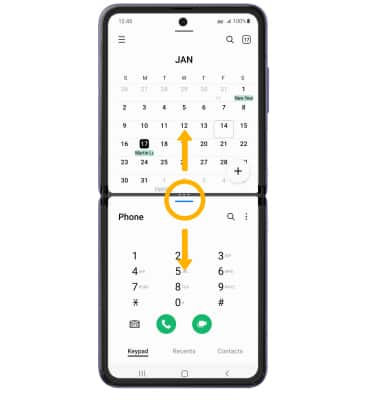
The app with the blue line is the active app. Select and drag the divider in the middle of the screen down to the bottom or up to the top of the screen, depending on which app you want to open completely.
Exit split screen
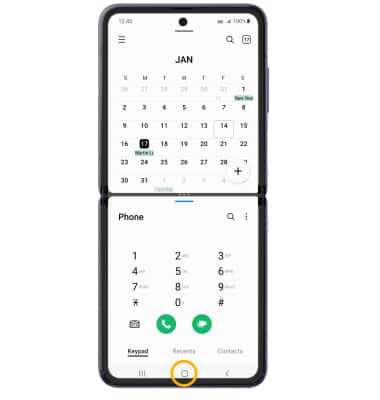
Select the Home key.
Use Picture-in-picture
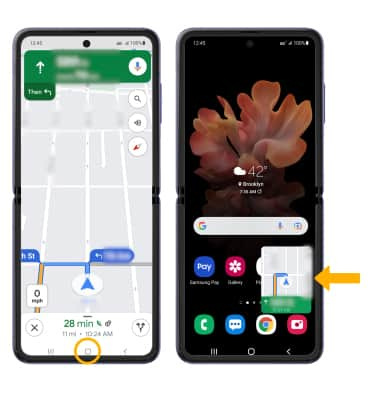
While using Maps or watching a video in fullscreen, select the Home key. The app will display as a Picture-in-picture window in the corner of the screen.
Note: You can select and drag the window as desired. Picture-in-picture is enabled by default on select apps. To view which apps can use Picture-in-picture, swipe down from the Notification bar > select the Settings icon> Apps >
  Menu icon > Special access > Picture-in-picture > the apps that can use Picture-in-picture will be displayed.
Note: You can select and drag the window as desired. Picture-in-picture is enabled by default on select apps. To view which apps can use Picture-in-picture, swipe down from the Notification bar > select the
Settings icon> Apps > Menu icon > Special access > Picture-in-picture > the apps that can use Picture-in-picture will be displayed.